Gone are the days when you had to fill out construction progress reports by hand. Today, all it takes is a few photos, a quick voice note, and voilà! Your daily report is done.
Well, at least that’s how it’s supposed to work.
Now, contractors face a different challenge: finding a mobile progress reporting tool that actually fits the way they work.
There’s certainly no shortage of options. From AI-powered reporting and automated weather updates to photo documentation and real-time project tracking, every platform seems to promise the moon and the stars.
But here’s the catch: just because a tool can do everything doesn’t mean it’s the right tool for your crew.
Some apps come packed with features you’ll barely use. Others make something as simple as submitting a daily report feel like another administrative chore. And if your team regularly works on jobsites with poor internet connectivity, even the most impressive software can quickly become more frustrating than helpful.
The best mobile reporting tool isn’t necessarily the one with the longest feature list. It’s the one your crew can actually use, day in and day out, without slowing down the work.
So, how do you find that sweet spot?
In this article, we’ll walk you through seven mobile progress reporting tools for contractors, what each one does best, and which types of construction teams they’re best suited for. We’ll also look at the features that matter most in the field, from reporting speed and photo documentation to offline access and integration with your existing workflows.
By the end, you’ll have a clearer idea of which tool can help your team spend less time on paperwork and more time getting the job done.
Quick Comparison
| Tool | Best fit | Standout use |
|---|---|---|
| Contractor Foreman | Small to mid-sized contractors | One system for reporting, timecards, scheduling, and cost tracking |
| Raken | Superintendent-led field reporting | Fast daily logs with voice-to-text and weather automation |
| Fieldwire | Plan-driven crews | Tasks, photos, and reports tied to drawing locations |
| GoCanvas | Form-based field teams | Standardized mobile forms across crews and projects |
| ConstructionOnline | Contractors needing office review in one platform | Logs, photos, schedules, and financial records in one place |
| busybusy | Labor-focused crews | Daily reporting tied to timecards, labor hours, and cost codes |
| Site Diary | Small crews with limited admin needs | Low-cost daily logs, photos, and offline reporting |
The best results usually come from tools that crews can complete in minutes on low-signal jobsites and that office staff can review without retyping field data.
What to Look for in a Mobile Progress Reporting Tool
With so many mobile reporting apps promising to make construction management easier, it’s worth knowing what actually matters before committing to one. After all, a tool that looks impressive in a demo won’t do much good if your crew struggles to use it on a busy jobsite.
To narrow down your options, focus on four things: reporting speed, photo documentation, offline access, and integration with your existing project workflows.
These are the features that make the biggest difference between software that saves your team time and software that simply adds another task to their day.
Daily Report Structure and Speed
A good mobile reporting app should let your crew record weather conditions, labor hours, equipment usage, completed work, delays, and site visitors without spending too much time on data entry.
Look for features like automatic weather updates, reusable templates, and voice-to-text reporting. These can save superintendents valuable time, especially when they’re managing multiple tasks throughout the day. The fewer steps it takes to complete a report, the more likely your crew is to keep documentation consistent.
Photo Logs and Jobsite Documentation
Photos make it easier to document completed work, track site conditions, and communicate progress without writing lengthy explanations. They also give project managers and clients a clearer view of what’s happening on-site without having to call for updates.
Choose an app that supports date-stamped photos, annotations, geotagging, and organization by project or location. For residential contractors, these features can simplify client updates. For commercial teams, they can help document inspections, clarify scope questions, and provide supporting evidence when disputes arise.
Offline Use on Low-Signal Jobsites
Poor internet connectivity is common on construction sites, particularly in basements, remote locations, and buildings with heavy steel structures. Your reporting app should still allow crews to record notes, capture photos, and complete daily reports without an internet connection.
Look for offline functionality that saves entries locally and automatically syncs them once connectivity returns. Before committing to a tool, test it in airplane mode to make sure reports, photos, and attachments sync properly when you reconnect.
Links to Schedules, Costs, Labor, and Tasks
Daily reports are more valuable when the information connects directly to your other project records. For example, labor hours recorded in the field should ideally feed into time tracking and job costing without requiring office staff to enter the same information again.
Look for tools that integrate daily logs with project schedules, labor records, cost codes, tasks, and requests for information (RFIs). Compatibility with accounting software like QuickBooks can also help reduce duplicate data entry.
The goal is to keep field and office teams working with the same up-to-date information, without adding unnecessary administrative work.
sbb-itb-5eea312
1. Contractor Foreman
Contractor Foreman is an all-in-one construction management platform designed for small to mid-sized contractors who want to handle daily progress reporting, time tracking, scheduling, and job costing in one place.
Its mobile app lets field crews document daily progress, upload jobsite photos, track labor hours, and record project updates while keeping office staff informed. Since reporting is connected to other project management features, contractors can use field information to monitor schedules, labor, and costs without repeatedly entering the same data.
Pricing starts at $49/month, with unlimited users available on certain plans, making it worth considering for growing teams that need more than a standalone daily reporting app.
Daily Reports and Field Logs
Foremen can record weather, labor, equipment, completed work, and delays in a single form. Entries remain organized by project and location, which helps office staff review job progress without sorting through separate records. Daily reports also connect with scheduling, GPS timecards, and QuickBooks integration, which reduces duplicate entry across field and office processes.
Photo Documentation
Field teams can attach geotagged photos to each report for a clear record of site conditions. That record remains available even when service drops because the app stores entries locally.
Offline Capture and Sync
The app stores entries locally and syncs them when service returns. After sync, those entries move into scheduling and cost records without retyping.
Schedule and Cost-Data Connections
Daily reports connect with scheduling, GPS timecards, estimating, takeoffs, and QuickBooks, which reduces double entry between the field and office.
2. Raken
Raken is designed for fast daily reporting, photo logs, and offline field entry. For crews that need prompt field reporting, daily logs remain simple and efficient.
Daily Reports and Field Logs
The app supports voice-to-text notes, automatic weather capture, and tracking for labor, equipment, production, and safety. These functions allow crews to complete reports with less manual entry in the field.
Photo Documentation and Attachments
Photos and notes can be attached to reports, locations, or activities. That creates a clearer jobsite record for field and office teams.
Offline Capture and Sync
Raken uses an offline-first capture mode, which allows crews to record checklists, photos, and logs in low-signal areas. Once connectivity returns, records sync to the system.
Schedule and Cost Connections
Field updates connect to schedule and cost tracking. Raken also exports PDF reports for office review and recordkeeping.
3. Fieldwire
Fieldwire links field reporting directly to plan sheets, so tasks, logs, and photos remain tied to exact drawing locations. That connection makes progress tracking against the current plan set more direct.
Daily Reports and Field Logs
Fieldwire generates daily reports from task completions, manpower, weather, deliveries, and progress notes linked to the plan. Foremen can pin tasks to specific plan-sheet locations, run quality-control checklists, and close punch items from the mobile app.
Photo Documentation and Attachments
Fieldwire supports geotagged photos and drawing-based markups attached to tasks or punch items tied to specific plan-sheet locations. Office staff can review each photo within the related plan context.
Offline Capture and Sync
Fieldwire stores tasks, checklists, and photos offline and syncs them when service returns.
Schedule and Plan Connections
Fieldwire connects progress updates to Autodesk Construction Cloud. Pricing starts with a free Basic tier and reaches $89 per user per month, billed annually, for Business Plus. The main advantage is that field updates stay tied to the same plan context reviewed by office teams.
4. GoCanvas
For crews that rely on standardized daily forms, GoCanvas keeps reporting fast and consistent. The platform uses mobile digital forms to standardize field reporting across crews and job sites.
Daily Reports and Field Logs
GoCanvas replaces paper logs with structured digital forms that use drop-downs, radio buttons, and voice-to-text to reduce field typing. The Dispatch feature allows office managers to pre-fill form fields before sending them to crews. That shortens completion time and keeps entries more consistent across projects.
Photo Documentation and Attachments
GoCanvas attaches geotagged, time-stamped photos to each form submission. That makes it easier to document job site conditions at a specific time and location.
Offline Capture and Sync
GoCanvas stores forms and photos locally and syncs them when service returns. Field reporting can continue on low-signal job sites without waiting for connectivity.
Schedule and Cost Links
For office teams, the main advantage is export-ready field data. GoCanvas uses API connections to link field data with schedules, labor tracking software, or cost systems rather than relying on built-in modules. Field entries can be exported as PDFs or spreadsheets for review and sharing. Reporting quality depends on form design, particularly the use of required fields for labor hours, work performed, and cost codes.
5. ConstructionOnline
ConstructionOnline extends progress reporting beyond basic daily notes by connecting field logs with photos, schedules, and financial records. The platform combines mobile logging, photo storage, scheduling, and cost tracking in one system.
Daily Reports and Field Logs
Construction daily log software records site notes and field activity directly in the project record for office review.
Photo Documentation and Attachments
ConstructionOnline allows crews to upload photos to daily logs or project albums and link those images to specific entries.
Offline Capture and Sync
Offline logging and sync should be verified before rollout on low-signal jobsites.
Schedule and Cost-Data Connections
ConstructionOnline links field logs, scheduling, and financial data so office teams can review job progress against project records in one place. That connection is most useful when field updates must reach the office without duplicate entry.
6. busybusy
busybusy connects time tracking with daily progress reporting. For crews that measure production through labor hours and crew activity, daily records can begin with labor data rather than a separate field log.
Daily Reports and Field Logs
busybusy automates daily reporting by pulling data from digital time cards. Field crews can add notes, labor descriptions, and progress updates during the shift, and the system compiles that information into a daily log. That reduces manual data entry and helps limit missing records.
Photo Documentation and Attachments
Photos and videos can be attached to projects or cost codes, with GPS and timestamp data recorded for each file. Crews can also link attachments to individual cost codes, which makes it easier to trace site conditions back to a specific line item during review.
Offline Capture and Sync
The app stores time entries, photos, and field notes on the device when network service is unavailable. The data syncs once service returns.
Cost and Accounting Links
busybusy integrates with QuickBooks, Sage, and Foundation, allowing field labor costs to move into financial records without duplicate entry. The platform also tracks equipment usage alongside labor hours, giving office staff a broader view of labor and equipment activity.
For crews that prefer a diary-style field log, the next tool follows that model.
7. Site Diary
Site Diary is designed for foremen who need to complete a daily report with minimal effort. Pricing starts at about $18 per month, and a free tier covers up to three projects. That pricing structure makes it suitable for small crews that prioritize speed and simplicity over a broader feature set.
Daily Reports and Field Logs
The platform includes daily log apps, weather entries, and basic labor tracking. Its limits appear on the administrative side, where signature support and office integrations are restricted.
Photo Documentation and Attachments
Photo capture is included as a standard function. Field crews can attach images directly to daily log entries, which helps tie jobsite conditions to the written record.
Offline Capture and Sync
Site Diary supports offline use. When cell service is unavailable, entries are stored on the device and sync after connectivity returns.
Schedule and Cost Tracking Links
Outside of daily reporting, Site Diary keeps office connections light. It is best suited to crews that need daily logs, photos, and basic synchronization, rather than close links to scheduling or cost control systems.
Mobile Progress Reporting Features at a Glance
7 Mobile Progress Reporting Tools for Contractors Compared
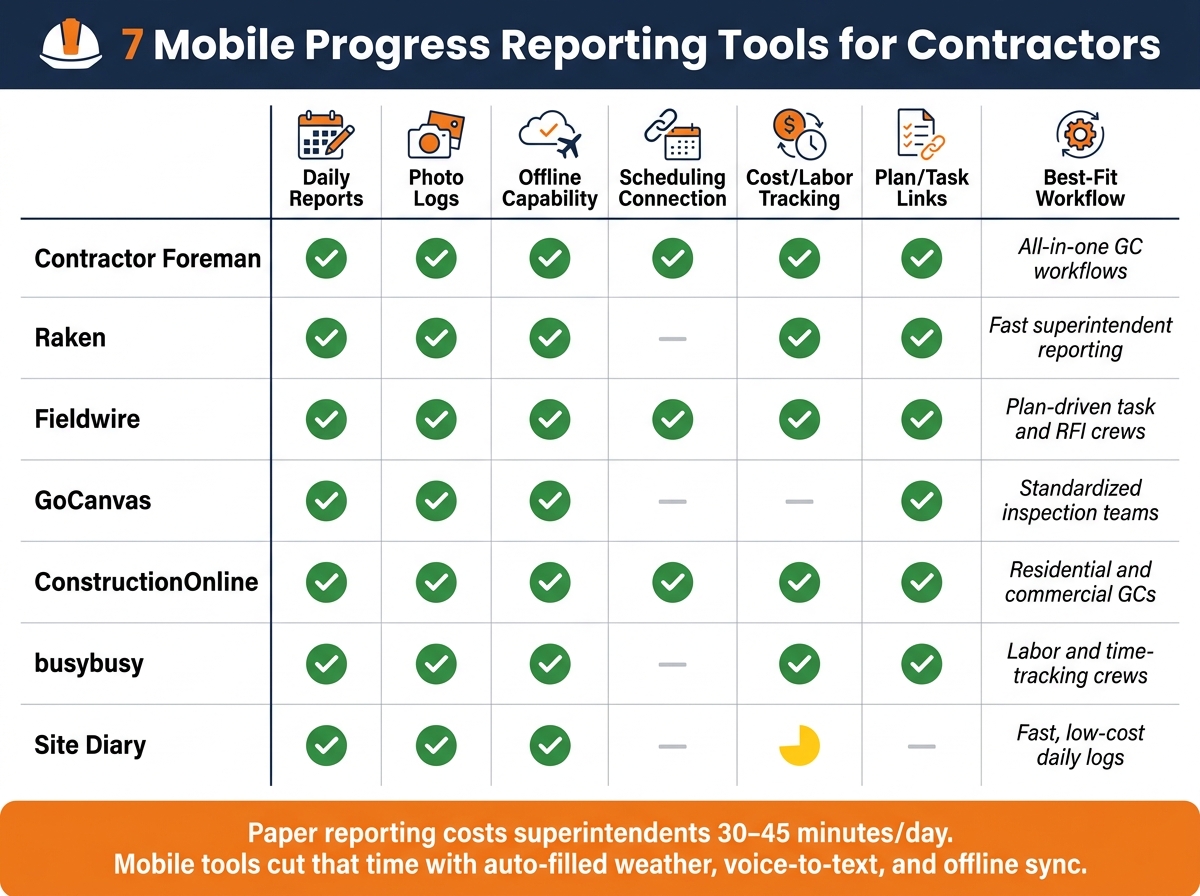
Selecting a mobile reporting tool becomes easier when the core functions are compared side by side. The table below maps each tool against the features that matter most on active jobsites.
| Tool | Daily Reports | Photo Logs | Offline Capability | Scheduling Connection | Cost / Labor Tracking | Plan / Task Links | Best-Fit Workflow |
|---|---|---|---|---|---|---|---|
| Contractor Foreman | Native | Native | Offline | Native | Native | Native | All-in-one GC workflows |
| Raken | Native | Native | Offline | Not stated | Native | Native | Fast superintendent reporting |
| Fieldwire | Native | Native | Offline | Task-linked | Native | Native | Plan-driven task and RFI crews |
| GoCanvas | Forms-based | Native | Offline | Not stated | Not stated | Native | Standardized inspection teams |
| ConstructionOnline | Native | Native | Offline | Native | Native | Native | Residential and commercial GCs |
| busybusy | Native | Native | Offline | Not stated | Native | Native | Labor and time-tracking crews |
| Site Diary | Native | Native | Offline | Not stated | Limited | Not stated | Fast, low-cost daily logs |
The table shows where the main tradeoffs sit. Some tools center on broad project control, while others fit a narrower field process such as superintendent reporting, inspections, or labor tracking.
Selection usually comes down to three factors: how crews record field activity, whether offline entry is required, and how office staff simplify reporting for success after submission. Teams that need scheduling, cost, and field reporting in one system may prefer tools with more native connections. Crews focused on speed in the field may place more weight on simple daily logs, photo records, and plan-linked tasks.
How to Choose the Right App for Your Crew
The table narrows the list, but the final selection should reflect how the crew reports from the field.
Choose Based on Your Reporting Workflow
The app should support the reporting pattern already used on the job. Some crews need fast daily logs to capture site progress. Others work better with plan-linked tasks. Some contractors need one system for field reporting and office tracking.
Daily logs, photos, and office connections should work together without extra steps. The best fit is usually the app that aligns with the crew’s reporting method rather than the one with the longest feature list.
Once the reporting style is defined, the next check is whether the app performs where the crew actually works.
Match Offline Needs to the Jobsite
Signal reliability should be tested before an app is rolled out to the crew. Complete a full daily log and photo upload in airplane mode, then confirm that the data syncs after reconnecting. Basements, parking structures, rural projects, and remote sites often expose weak offline performance very quickly.
For crews working in low-signal areas, offline capture should be treated as a firm requirement rather than a preference.
After offline use is confirmed, the next issue is how quickly office staff can review and reuse the data.
Check Office-Side Review and Export Options
Field data has limited use if office staff cannot process it efficiently. Reports should be searchable. Photos should be easy to review by date. PDF exports should be clean enough to send to owners, general contractors, or internal teams without reformatting.
A suitable tool allows office staff to review field reports, locate photos, and export records without retyping the same information into another system.
Conclusion
After comparing reporting speed, offline use, and office integration, the decision comes down to workflow fit. Raken suits crews that need fast daily reports. Fieldwire suits teams that manage work through plan-linked task tracking. Contractor Foreman suits contractors that want daily logs, scheduling, cost tracking, and QuickBooks in one system.
Adoption has more impact than feature count. A tool that field crews use consistently produces better records than a platform with more features that is used inconsistently. The right app is the one a foreman can complete in minutes, attach photos to, and submit without assistance. That alignment between field workflow and office requirements is what turns mobile reporting into a reliable jobsite record.
FAQs
How do I choose the right app for my crew?
Match the app to crew size, project complexity, and field requirements. The most reliable way to decide is to test several options on an active project and confirm that the least tech-savvy team member can use the system without difficulty.
Priority should go to offline functionality and practical daily features such as voice-to-text, photo attachments, and weather logging. For firms that want a single system for field and office use, Contractor Foreman combines daily logs with scheduling, timecards, and financial integrations.
What should I test before rolling out a reporting app?
Test the app on a live project for three days to a week to confirm that it fits actual field and office workflow.
The foreman should use the app on the same phones or tablets used each day. Labor entry, photo attachment, and report export should be checked under normal jobsite conditions to verify that each task can be completed with minimal delay.
Offline mode should also be tested in full. A complete daily log should be entered while the device is in airplane mode, then reviewed to confirm that data is stored locally and syncs correctly when service returns.
Which features matter most for daily field reporting?
The most important features are mobile access, offline use, and reliable documentation. Field teams need to log data, upload photos, and update reports from the jobsite without returning to the office. When service is unavailable, the system should continue to function and then sync data automatically once a connection is restored.
Other useful features include geotagged, time-stamped photo logs, automated weather tracking, voice-to-text entry, customizable forms, and integration with project management or accounting systems such as QuickBooks.