
“GAH! AI is useless in construction!” Earl exclaimed after ChatGPT spit out wrong numbers when he pasted in a blurry photo of last week’s daily log and typed: “update my records.”
Well, of course it’s going to be wrong.
ChatGPT or Claude can be useful for light admin work, but when it comes to accurate cost codes, quantities, and schedule data, it needs to be AI built for construction to actually hit 90–95% accuracy.
And notice we said 95%, not 100 — because, yeah, even the best software has a chance of error.
The best thing to do is keep records in one system and check AI output before anything is sent or posted. Otherwise, you risk poor data quality. And you know how much that costs? In construction, about $1.8 trillion each year.
Do it right, though, and the upside is real — teams using AI are cutting admin time by up to 65%. But that number only shows up when you actually follow the playbook. Here’s what that looks like.
Tips for a Smooth AI Implementation Roadmap:
- Start small: test one workflow on one active job for 90 days
- Keep data clean: use the same names, templates, folders, and cost codes on every job
- Require review: PMs, supers, accounting, or leadership should approve AI drafts tied to cost, schedule, safety, or client updates
- Track results: measure time saved, error reduction, and better cost visibility
- Protect data: block client financials, margin details, employee data, and dispute notes from the wrong outputs
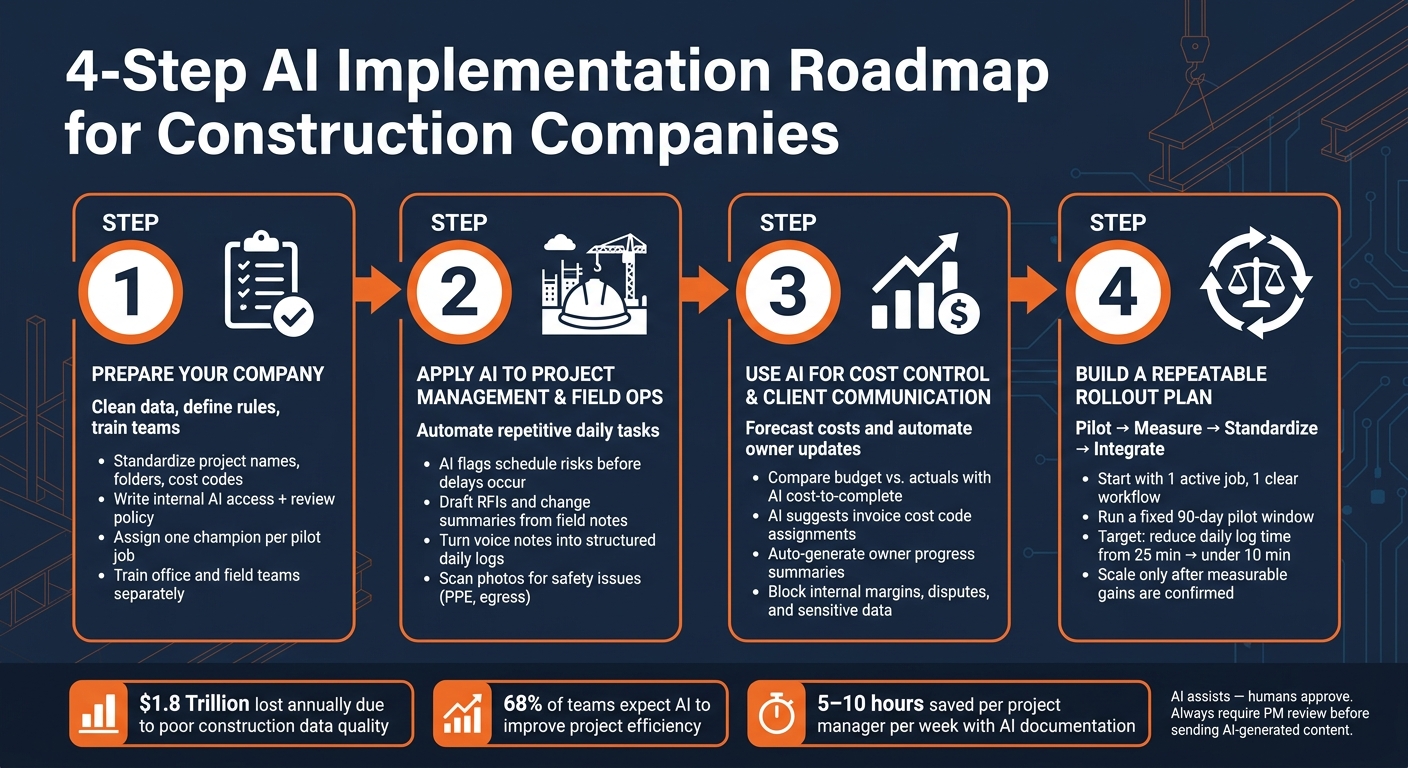
4-Step AI Implementation Roadmap for Construction Companies
Step 1: Prepare Your Company for AI
Start small. Pick one or two repeatable workflows with a clear owner and a simple way to track time saved. Good starting points include daily logs, RFI drafting, cost review, and document search. After that, clean up the data those workflows rely on.
Set goals, clean up data, and standardize templates
AI works best when the inputs are clean.
If project names, cost codes, schedules, budgets, job cost records, and document folders don’t match from job to job, the output can be wrong or half-finished. That’s a big deal for cost forecasting and document search. Schedules, budgets, and job cost records need to stay current and complete.
It also helps to standardize the basics across every job. Use the same project naming format, folder structure, and daily log template each time.
That should include:
- Date
- Weather (°F)
- Crew count
- Equipment on site
- Work completed
- Delays
- Safety notes
That kind of consistency makes it easier for AI to pull the right files, sum up project activity, and compare performance across jobs.
Define access, review rules, and privacy controls
AI can help both office staff and field crews draft content, but it shouldn’t be the final voice. A project manager, estimator, or executive should approve anything sent to an owner, subcontractor, or client, especially if it touches cost, schedule, scope, or compliance.
Write a short internal policy that spells out what data can go into AI tools, who can view the outputs, and what stays off-limits. That may include client financials, contract terms, employee data, and sensitive jobsite details. Role-based permissions should back up those rules. And for RFIs and formal messages, keep the original text next to every AI edit so reviewers can see exactly what changed.
Train teams and assign internal champions
Office teams and field teams need different training. Office users should learn review steps and data quality rules. Field crews need a fast, mobile-friendly walkthrough that shows how AI helps with the work they’re already doing, like turning voice notes into a clean daily log. Short, task-based training on active jobs tends to work best because crews can use it right away, and managers can review the output faster.
Give each pilot job one project-level champion. This person should handle day-to-day questions, check outputs, spot bad data, and gather feedback from both the field and the office. Just as important, the champion can help the company decide if a workflow is ready to scale or if it still needs work before it rolls out to other jobs.
With data, permissions, and training in place, move AI into project controls and field workflows.
sbb-itb-5eea312
Step 2: Apply AI to Project Management and Field Operations
Once your data is clean and your team knows the process, AI can start doing useful day-to-day work in both the office and the field. The aim is simple: take repetitive, data-heavy tasks off the plate of PMs and superintendents so they can spend more time on calls that need human judgment.
Because the data is standardized, AI can work inside live project records instead of sitting off to the side in random files.
Use AI for schedule risk, RFIs, change summaries, and document search
Start with project controls. That’s usually where AI saves time the fastest.
AI can scan planned dates, open RFIs, delayed submittals, and predecessor task status to spot tasks that may slip before they actually do. A late steel delivery or an unresolved drywall inspection that holds up downstream trades is the kind of issue AI can flag early. But it still takes a PM to check whether the delay is real and update the look-ahead schedule based on what’s happening on site.
The same idea works for RFIs and change orders. AI can draft a clean first-pass RFI from a superintendent’s field notes, or turn a change event into a short brief that covers scope, cost, and schedule impact. That cuts drafting time. The PM still needs to verify sheet numbers, scope wording, and approval status before anything is sent.
Document search gets easier too. Instead of digging through folders by hand, users can ask in plain language for stored drawings, specs, and submittals, like show RFIs affecting Level 3 fireproofing. After that, record the final decision in Contractor Foreman so the audit trail stays intact.
| Project Management Task | Standard Approach | AI-Assisted Approach | Human Review |
|---|---|---|---|
| Schedule Risk | Manual Gantt review and intuition | AI flags likely delays based on open items and historical data | PM confirms site conditions, subcontractor commitments, and current manpower |
| RFI Creation | Drafting from scratch based on plan reviews | AI drafts RFI text from field notes and stored project documents | Technical accuracy, correct sheet references, contract-safe language |
| Change Summaries | Manually reading emails and notes to summarize | AI generates a concise summary of scope, cost, and schedule impacts | Confirm approval status and whether labor, material, and time impacts are complete |
| Document Search | Keyword search or manual folder browsing | Semantic search by trade, date, drawing reference, or issue type | Confirm the returned document is the current version |
Use AI for daily logs, progress tracking, and safety monitoring
The same review habits matter in the field. This is where AI can turn scattered notes and photos into a daily record people can actually use.
One of the biggest time drains is building a full daily log from bits and pieces. Field staff can enter notes, photos, labor hours, equipment, and quantities on mobile devices during the day, and AI can sort that raw input into a structured daily log. Contractor Foreman’s Daily Logs module already supports this setup, with fields for crew details, equipment on site, materials received, and work completed.
AI can also sort progress photos over time and flag work that looks incomplete or out of sequence. That’s especially helpful for repeat work like framing, MEP rough-in, or drywall.
For safety, AI can scan jobsite photos and checklists for obvious issues such as missing PPE or blocked egress. What it can’t do is confirm code compliance, judge hidden conditions, or replace on-site safety calls. The superintendent still reviews the flags, records corrective action, and finalizes the log before submission.
| Use Case | Main Benefits | Human Review |
|---|---|---|
| Daily Logs | Saves time on manual entry and captures labor, equipment, and materials consistently | Verifying that all subcontractors on site were recorded |
| Progress Tracking | Visual proof of work; early identification of deviations from schedule | Confirming that work meets project specifications |
| Safety Monitoring | Flags potential PPE, housekeeping, or access issues from photos and checklists | Reviewing alerts against current site conditions and taking corrective action |
Use AI to speed up field-to-office and owner updates
Once the daily log is cleaned up, AI can turn it into a short update for the office or the owner.
End-of-day recaps and owner updates often get written late, from memory, and with uneven detail. AI can pull from approved daily logs, schedule notes, and issue lists already stored in Contractor Foreman to draft a short summary that stays accurate. That might be a daily huddle recap for the office or a status update for the owner.
Superintendents and PMs still need to confirm dates, scope status, and any sensitive details before sending. If the update covers delays, safety incidents, subcontractor performance, or anything that could create contract or claims risk, it needs review first.
AI writes the first draft as a co-pilot. The project team is still responsible for what gets sent.
Step 3: Use AI for Cost Control, Forecasting, and Client Communication
Once field logs, RFIs, and change events are in the system, AI can turn that job data into cost forecasts and owner updates. But it only works if the inputs are clean. That means clear cost codes, current budgets, and approved changes.
Forecast costs, support estimating, and review invoices faster
Cost-to-complete forecasting is where AI starts paying off on the finance side. It can compare budgeted amounts to actual costs, add remaining committed costs from subcontracts and purchase orders, factor in approved change orders, and use current production rates to estimate the work left to finish. If a framing cost code shows 70% of units installed but 80% of labor cost already spent, AI can flag that gap early. Run these forecasts at least weekly on active jobs, and roll them into your weekly WIP review.
Estimating support follows the same basic idea. AI can scan past job records to suggest unit costs, point out trades that tend to drive change orders, and suggest contingency levels based on how similar projects performed. Over time, steady AI use can help sharpen estimate quality. That said, estimators still need to do the job. They should verify quantities from drawings, compare AI-suggested unit costs with current supplier quotes, and check project-specific items like prevailing wage or union labor. It also helps to document which AI suggestions were accepted, changed, or rejected. That gives you an audit trail and helps future outputs get better.
The same job-cost data used for forecasting can also help with invoice coding. AI can read vendor invoices and suggest cost code assignments based on vendor history, contract terms, and PO references already stored in Contractor Foreman. Set a dollar threshold for human approval on AI-coded invoices, and keep the PM reviewing job coding while accounting handles the GL posting.
Automate client portal updates without exposing the wrong data
AI can pull milestone status, budget versus contracted amount, approved change orders, and high-level progress notes from Contractor Foreman and turn that into an owner update. For instance, an AI draft might say the framing phase reached 80% completion, the project is still on track for the October 15 substantial completion date, and the approved change order for upgraded lighting increased the contract value by $12,500 with no schedule impact. That saves the PM from starting with a blank page every reporting cycle.
Still, the guardrails matter just as much as the draft itself. Internal notes, vendor pricing, margin data, and anything tied to subcontractor disputes or open claims need to stay in fields that AI models for client updates cannot reach. Contractor Foreman’s Client Access Configuration lets you decide exactly which modules an owner can view, such as Gantt charts, photos, and invoices, before portal access is turned on. Sensitive comments should be marked internal, progress invoicing should show only what the contract calls for, and every update should go through PM or executive approval before it gets posted.
Control financial and communication risks
These gains don’t mean much without tight access controls. Here’s where problems tend to show up, and how to keep them in check.
| AI Use Case | Potential Risk | Control or Check |
|---|---|---|
| Cost-to-complete forecasts | Over-optimistic projections; productivity assumptions above historical averages | Weekly PM and accounting review; flag forecasts where assumed productivity exceeds historical norms |
| Invoice coding assistance | Misclassified expenses causing inaccurate job costing or tax errors | Human approval above a set threshold; accounting verifies GL posting before syncing to QuickBooks |
| Bid and estimate support | Incorrect unit costs from outdated data; missing scope items | Cross-reference against current supplier quotes and local labor rates; document accepted vs. rejected suggestions |
| Owner progress summaries | Inappropriate disclosure of disputes, margins, or open claims | Data filters exclude internal fields; automated checks flag dispute or claim language; final approval by project leadership |
Step 4: Build a Repeatable AI Rollout Plan and Measure Results
Start with one or two high-value workflows
Once your main workflows run inside one system, the next move is to prove AI with a small pilot you can track. Don’t push it across the whole company at once. Start with one active job and one clear problem, then test it there first.
The best pilot targets are the jobs that eat up time, happen over and over, and already have plenty of data. Pick a workflow with steady volume and a clear starting point. The outcome should be easy to track too. Contractors using AI for documentation alone report saving 5 to 10 hours per week per project manager.
Write the pilot plan down before you begin. Set a start date, an end date, and stick to a fixed test window. 90 days works well. Name one owner. Then choose success metrics that are specific enough to track. “Faster reporting” sounds nice, but you can’t measure it. “Cut daily log completion time from 25 minutes to under 10 minutes per field supervisor” gives you something concrete.
It also pays to check what you already have before buying other AI tools for construction project management. Contractor Foreman already includes features like automated scheduling suggestions and expense categorization, with pricing from $49 to $149 per month for the entire company.
Turn successful pilots into standard workflows in Contractor Foreman
If a 90-day pilot proves its worth, turn what worked into the standard way of doing the job. Update templates, custom fields, and approval steps in Contractor Foreman so the workflow repeats from project to project instead of living as a one-off test.
Use the pilot data to decide what becomes part of your standard process. A simple four-phase rollout keeps things clear:
| Phase | Key Action | What to Measure |
|---|---|---|
| Pilot | Test one AI workflow on one active job | Hours saved per project manager per week (target: 5–10 hrs) |
| Measure | Review results at 90 days | % reduction in delays or unplanned change orders |
| Standardize | Update templates and approval steps in Contractor Foreman | Team compliance with new data entry rules |
| Integrate | Sync approved data into accounting and automation tools | Reduction in manual data entry between field and office |
If the pilot saves time and cuts errors, make it the default process. Contractor Foreman can connect with QuickBooks and Zapier, which lets approved AI-driven data move into accounting and communication tools without someone typing it all in again.
Conclusion: Keep AI useful, reviewed, and measurable
AI in construction works best when it solves a specific, documented problem across project management, field work, cost control, and communication. It should back up contractor judgment, not take its place. Add new workflows only after the current pilot shows measurable gains and your team is following the process the same way each time.
FAQs
How do I choose the best AI pilot first?
Start with one repetitive admin task that pulls time away from project management or field work. That could be estimating, scheduling, daily logs, or document control.
Then run a 90-day pilot before you scale anything. Keep the focus on AI-assisted workflows, not hands-off automation. Good starting points include drafting emails, putting together early schedule drafts, or building estimate templates.
The key is simple: let AI do the first pass, and have a person review the final output.
What construction data should stay out of AI tools?
Keep weak project data out of the system. If the data is unverified, inaccurate, or messy, the output can drift off course fast. The same goes for inconsistent file types, scanned PDFs you can’t search, and vague descriptions. When the source material is hard to read, the output often ends up hard to trust.
Be careful with sensitive or proprietary information. If it needs tighter control, keep it offline or inside secure systems. And no matter how good the draft looks, AI-generated content still needs a human review – especially for high-stakes calls like site assessments or final contract negotiations.
How can I measure AI ROI on a job?
Start with a 90-day pilot focused on one workflow, like daily logs, bid prep, or safety documentation. Then compare the time and cost savings against your old manual process.
Track reduced admin hours, fewer safety incidents, and less time spent on compliance audits. Use CPI and SPI to measure how AI-driven insights affect budget and schedule performance.