
Weather Forecast—do we really need this in construction?
Unless there’s a hurricane coming or enough rain to turn the jobsite into a swimming pool, we don’t really have to know the weather forecast every single day, every single hour, right?
Anyway, if something big is heading our way, we’ll know. We watch the news. And oh yeah, we literally have a weather app on your phone!
The thing is…construction depends on weather a lot more than we realize ( and it’s not just the big storms that matter!).
A few hours of rain can delay a pour.
High winds can stop crane work.
Extreme heat can slow down crews.
Knowing what’s coming helps you adjust schedules, move weather-sensitive work, protect materials, and avoid unnecessary downtime.
That’s why integrating weather forecasts into daily logs is so useful. Your team gets jobsite-specific weather information right alongside the day’s work, so you can plan around conditions.
A solid setup comes down to a few steps:
- Use the right project address or GPS coordinates
- Set local time correctly
- Auto-fill forecast data at set times, such as 6:00–7:00 AM and midday
- Keep observed jobsite conditions separate from forecast data
- Require short notes when weather stops work
- Review logs the next day before export or delay review
Basically: get the foundation right once, and everything after that runs on its own, with no extra effort from you or your crew.
And here’s the bonus: the same setup also gives you a weather record.
Set the jobsite correctly, auto-fill weather fields, let crews confirm actual conditions in the field, and have office staff verify the record before export. That keeps daily logs clean, consistent, and easier to use when questions come up later.
For example: 08/20/2026, 10:30 AM, 1.2 inches of rain by noon, or winds above 25 mph. If that weather stopped a pour, blocked site access, or shut down a crane, you’ve got the conditions documented right alongside the day’s work.
That can be a life saver later for insurance files or contract disputes.
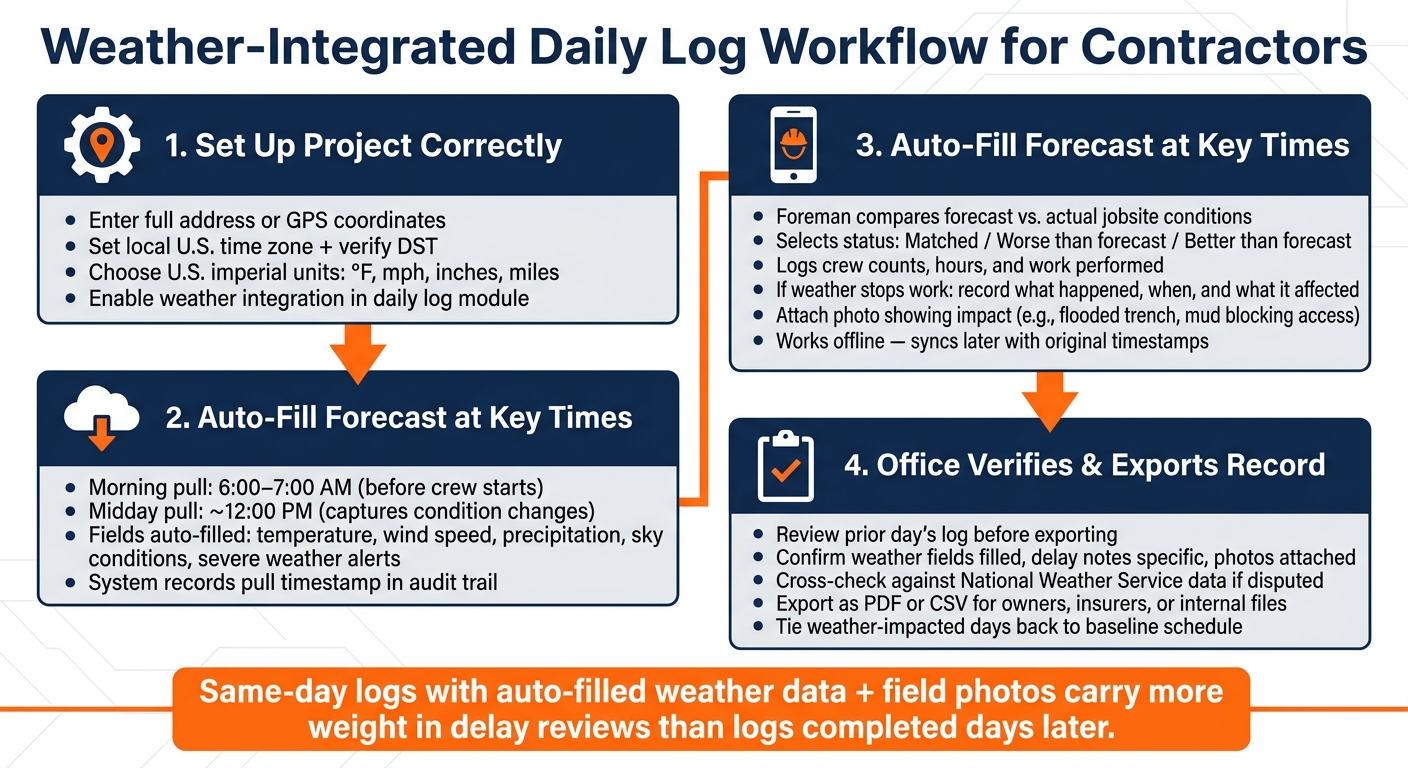
Weather-Integrated Daily Log Workflow for Contractors
Set Up Projects for Automatic Weather Forecast Pulls
Accurate weather automation starts with clean project data. Three setup choices drive the whole thing: location, units, and update timing. If those are off, your automated weather data may not hold up for daily logs or delay records.
Enter Project Location and Time Zone Correctly
Use the most precise project location you have. A city name by itself can miss what’s happening at the site, especially on large rural jobs, coastal areas, or mountain terrain where weather can change from one spot to the next. GPS coordinates tied to the actual jobsite entrance or the main work area usually give the best match.
For a standard urban or suburban project, use the full street address and ZIP code, such as “Houston, TX 77002.” For linear projects like highways or pipelines, remote sites, or jobs where the nearest weather station is far from the crew, use GPS coordinates instead. Once that setup is in place, the weather feed can fill the daily log on a steady basis.
Set the project to local U.S. time and check Daylight Saving Time behavior with a test log. This step matters more than people think. A wrong time zone can shift weather timestamps by hours, which creates a mess when you need to show that rain, wind, or heat hit during work hours. Open a test log and make sure the weather timestamp lines up with crew start time. Use local jobsite time.
Choose Required Weather Fields and U.S. Units
Set company units to U.S. imperial:
- Temperature in °F
- Wind speed in mph
- Precipitation in inches
- Visibility in miles
Then require the weather fields that affect schedule and safety: temperature, precipitation, wind, sky conditions, and severe-weather flags. These should line up with your contract language.
For example, if a contract says a weather delay is compensable when sustained winds go above 25 mph or rainfall tops 0.50 inches during work hours, show those thresholds in the template. Also require a short narrative when crews go past them. That extra note can save a lot of back-and-forth later.
Enable Integration and Set Update Timing
Contractor Foreman includes a built-in weather service that pulls conditions automatically from the project address or coordinates stored in the project profile. Once location and units are set, you can turn on weather in the daily log module without custom scripting.
Use one daily pull for low-risk work. For concrete, crane, or roofing work, pull weather at 6:00–7:00 AM and again around noon. The morning pull records the forecast before crews begin. The midday pull helps preserve any change in conditions after work is underway.
With location, units, and timing locked in, the next step is mapping those fields into the daily log template.
sbb-itb-5eea312
Build Daily Log Templates with Auto-Filled Weather Fields
With the weather feed live, the next step is to build a daily log template crews can finish fast and office staff can check later without extra cleanup.
Add Fields for Current Conditions and Forecast Periods
Keep the weather section short. Put everything in one “Weather & Site Conditions” block near the top of the log. That block should cover two things: what the system pulled on its own and what the crew saw on-site.
For current conditions, include:
- Temperature
- Sky conditions
- Wind speed and direction
- Precipitation
- Humidity
- Ground conditions: Dry, Damp, Muddy, Frozen, Standing Water
For forecast periods, use Morning (6:00–10:00 a.m.), Midday (10:00 a.m.–2:00 p.m.), and Afternoon (2:00–6:00 p.m.) rows. Each row should show forecast temperature, chance of precipitation (%), wind speed, and any active severe weather alerts. Those fields create the baseline for auto-fill and make later review much faster.
Use Auto-Fill, Timestamps, and Validation Rules
When a foreman opens the daily log in top mobile construction apps like Contractor Foreman, current conditions and forecast periods fill in automatically from the project’s saved location. The system also records the forecast pull time – for example, “Forecast pulled at 6:15 a.m. (Central Time)” – and keeps that timestamp in the audit trail.
Keep manual fields short and place them below the auto-filled section.
Use a status dropdown with:
- Matched
- Worse than forecast
- Better than forecast
Only show a required note field for weather delays or stoppages. In that case, prompt a short note like: “Concrete pour delayed; slab pour rescheduled for 08/21/2026.” That conditional trigger keeps the form clean on normal days and still records the details that matter when weather changes the work.
This setup gives crews a fast field entry and gives office staff a clean record to review later. Once the template is in place, crews can use it in mobile logs without retyping weather data.
Use Weather-Integrated Daily Logs in the Field and Review Them in the Office
Crew Workflow in Mobile Apps
Once the weather section is auto-filled, the field process gets pretty simple. On site, the foreman opens the daily log, checks the weather data already in place, and adds the day’s work. The key step is to compare the forecasted conditions with what the crew actually sees on the jobsite. After that, the foreman confirms the weather details and logs crew counts, hours, and work performed.
Don’t wait until the end of the shift to update the log. If conditions change during the day, update it then. If weather stops work, record what happened, when it happened, and what it affected, then attach a photo. The photo should show the impact, not just the weather itself. A wide shot of a flooded excavation trench or mud ruts blocking concrete truck access says a lot more than a picture of rain falling. Add those images directly to the log entry and connect them to the right activity or time window.
Handling Offline Entry and Later Sync
If the crew is offline, keep logging. When signal drops, notes and photos should still be entered in the app offline, then synced later with the original timestamps. Those timestamps and photos help office staff line up field observations with the weather record after the sync happens.
If the auto-filled weather doesn’t match what the crew saw on site, the foreman should add a short note explaining the actual conditions and how they affected the work. That small step can save a lot of back-and-forth later.
Office Verification, Exports, and Delay Review
Back in the office, review the prior day’s log before exporting anything. This is where field notes turn into records you can stand behind for delay tracking. Check that weather fields are filled in, delay notes are specific, and photos back up any stoppage claims.
If a subcontractor asks for a weather delay, or an owner pushes back on one, cross-check the record against National Weather Service data for that jobsite location and date to confirm conditions.
Once the review is done, the logs can be exported as PDFs or CSV files for owners, insurers, or internal files. It also helps to tie weather-impacted days back to the baseline schedule, so delay days are easier to verify in the export.
Conclusion: A Simple Process for More Reliable Daily Logs
Once the field workflows and office review are set, weather integration is mostly about consistency. It works when the team uses the same location, the same units, the same templates, and the same review process every day.
A same-day log with auto-filled weather data usually carries more weight in a delay review than a log completed days later.
When that routine stays in place, weather data becomes part of normal reporting instead of extra admin work. Contractor Foreman keeps every crew on the same template and the same rules across projects, so the process stays steady from one job to the next.
The goal is simple: when a weather delay hits, the record should already exist – timestamped and backed up by field notes – before a delay review even starts. That is what makes a weather delay record usable later.
FAQs
How often should weather data update in daily logs?
Update weather data whenever conditions shift during the workday. Log forecast changes before work starts, then keep the daily field log current as the weather changes.
Use timestamped entries throughout the day instead of making a single update at the end of the shift.
What if the forecast doesn’t match jobsite conditions?
If the forecast doesn’t line up with what’s happening on the jobsite, update the Daily Log right from the field as conditions change. Note details like when the rain started and which crews were affected.
Contractor Foreman auto-attaches weather data to logs using the project’s exact GPS or ZIP code. But when actual site conditions are different, your notes are the record that matters most. That gives office reviewers a timestamped, location-verified log they can use to document weather delays and the impact on the schedule.
Which weather details matter most for delay claims?
The weather details that matter most are the jobsite-specific conditions for the project address at the exact time work was affected. That usually means temperature (°F), wind speed (mph), precipitation amount (inches), precipitation probability, and any time-stamped shifts in conditions during that crew’s workday.
Pair those details with a clear note on what work started late, slowed down, or stopped, and which crews were affected. That gives you a solid record showing how weather changed progress on the job.