
The site superintendent noticed you—again.
He says you’re always on your phone… and he says it like you’re sending memes to your GCs or watching the latest construction fail on TikTok.
Which is a little unfair because you’re actually doing real construction work—the thing they keep reminding you to do because skipping it can come back to bite you: field reporting.
The problem?
After spending eight hours hauling materials, handling tools, climbing ladders, and actually building things, typing out a detailed field report on a tiny phone keyboard is probably the last thing you want to do.
And that’s where voice-to-text field reporting comes in.
Instead of stopping to type everything out, you just say it into your phone and—voilà!—your update becomes text you can review and submit.
Voice-to-text can cut daily log time from about 10+ minutes to 2–3 minutes, while helping crews capture details before they forget them.
But, of course, talking into your phone isn’t enough.
If the transcript says “four sheets” when you actually said “forty sheets,” then you’ve just created a whole new problem.
That’s why you have to do voice-to-text field reporting right.
A solid voice-to-text field reporting process includes:
- Set up: Choose your daily log fields and set access and approval rules.
- Capture: Speak clearly about the work completed, quantities, locations, delays, and issues.
- Review: Check the transcript for names, numbers, dates, units, and trade terms before submitting.
- Connect: Send approved details to scheduling, job costing, payroll, purchase orders, and other project records.
Spoken reports can reach 95%+ transcription accuracy for construction terms, even on active jobsites. That speed only matters when the report is checked before closeout and tied to office workflows. Short, reviewed, and connected logs produce records that staff can use right away.
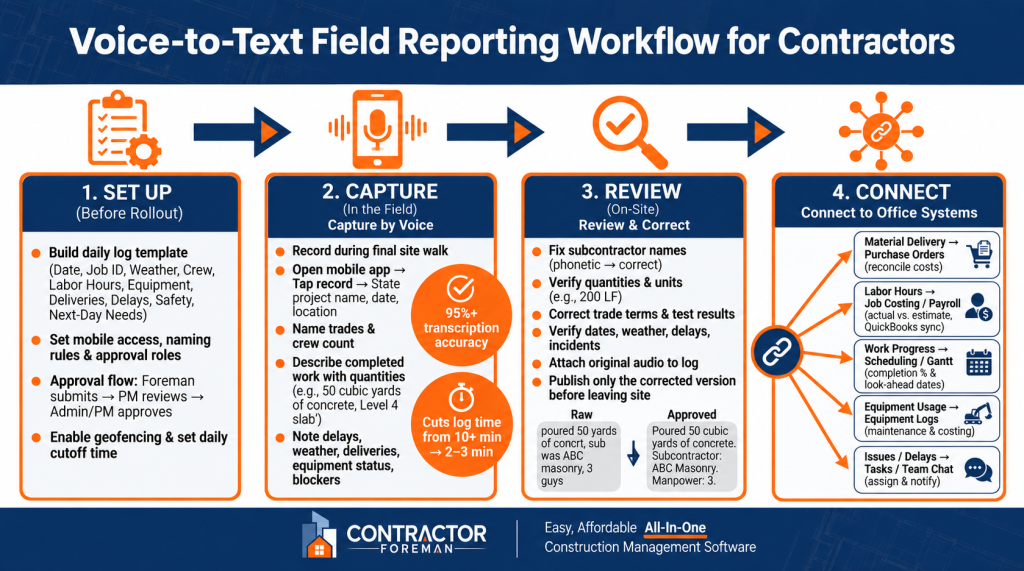
Voice-to-Text Field Reporting Workflow for Contractors
Set Up the Reporting Process Before You Roll Out
Start with a template, naming rules, and a clear approval chain before field staff submit reports. With those basics in place, the template can fit the way crews work in the field.
Build a daily report template that matches field work
A daily report template should cover the details crews need to record every day:
- Date in MM/DD/YYYY format
- Job name and project ID
- Weather
- Work completed
- Crew count by trade
- Labor hours
- Equipment used and equipment down
- Material deliveries
- Delays and causes
- Safety issues and incidents
- Next-day needs
Automated weather capture helps support accurate delay records. Safety issues should also be cross-referenced with the project’s incident records to meet safety compliance rules.
Contractor Foreman lets contractors build custom daily log templates and add custom fields, so the report fits actual site conditions instead of generic placeholders. Daily logs also tie directly into projects, purchase orders, materials, and documents. Materials marked as delivered can also automatically update related purchase orders.
Next comes control over who submits reports and how those reports are labeled.
Set mobile access, naming rules, and approval roles
Field staff should submit reports from a phone or tablet while on-site. Auto-generated project IDs, standard file and photo folders, and role-based permissions help keep records clean. Field users can be limited to assigned projects, while office staff keep oversight across all records.
Approval roles should be set before the first report is submitted. A simple flow looks like this: the foreman submits, the project manager reviews, and an admin or PM approves. Daily Log Status and Approval settings should move the report from draft to finalized before it becomes part of the permanent project history.
A daily cutoff time should also be set for field submissions. That gives project managers time to review the log and handle schedule or cost follow-up before the next day starts. Geofencing should be enabled to verify that the submission came from the jobsite.
Once the workflow is in place, field staff can dictate updates in the same format each day. The team can then capture the update in one pass from the field.
sbb-itb-5eea312
How to Capture a Field Report by Voice
Record the report during the final site walk, while the work is still visible. That turns live site notes into the daily record the office uses for scheduling and cost follow-up. AI transcription stays reliable in noisy site conditions.
Record the update in one pass
Use the same daily log template and project ID format set earlier. A complete report follows a short sequence:
- Open the daily log in the mobile app before starting the walk.
- Tap record and state the project name, location, and today’s date.
- Name the trades on-site and give a total crew count, plus crew hours if the log tracks them.
- Describe completed work with specific quantities and locations, such as “poured 50 cubic yards of concrete on the Level 4 slab.”
- Note delays, weather impacts, safety observations, or incidents as they appear during the walk.
- Log material deliveries and equipment status, including downtime or maintenance issues.
- Identify work blockers and action items for the next shift.
A Bluetooth headset helps keep both hands free during the walk.
Call out details that affect schedule and cost
State the facts the office needs to update the schedule, cost codes, and next-day coordination. Daily logs should answer three questions fast: who was on site, what work happened, and what materials arrived.
Partial completions need a stated quantity. “Completed 200 linear feet of rebar on Level 4, not the full 320” gives the scheduler a clear status update. Equipment downtime should include the machine, the reason, and the hours lost, such as “Caterpillar 320 excavator idle for 3 hours due to a blown hydraulic hose.”
Material shortages should reference the purchase order when possible. For example: “received 500 studs; short 20 pieces of 5/8″ drywall from PO #102.” Trade interference and failed inspections should be stated as direct blockers: “electricians cannot start Level 4 until framers clear the steel.” Weather impacts matter too. If rain pushes a scheduled concrete pour, the report should name both the condition and the work it stopped.
Specific language gives the office something it can act on. “Concrete placement on the south wall delayed 2 hours due to rain” is far more useful than a vague note about bad weather.
Once the transcript is captured, review it, correct the details, and publish the daily report.
Review the Transcript and Publish the Daily Report
After the voice note is captured, the transcript should be reviewed on site and only the corrected version should be published. A transcript is only as good as the review that comes next. The review should happen before leaving the jobsite.
Fix names, quantities, dates, and job terms
Four categories need a close check:
- Subcontractor names – replace phonetic spellings with the correct company name.
- Quantities and units – verify both the number and the unit, such as 200 LF.
- Technical trade terms – correct any misheard trade terms or test results.
- Dates, weather, delays, and incidents – verify timestamps, conditions, causes, and safety details.
The original audio should stay attached to the log in case a dispute comes up later.
Check before publishing
The table below shows how the same field note changes before it reaches project managers, office staff, and owners.
| Report Stage | Example Content | Status |
|---|---|---|
| Field Note (Raw Transcript) | “poured 50 yards of concrit for the slab, sub was ABC masonry, 3 guys” | Fast capture, lower accuracy. |
| Edited Transcript | “Poured 50 cubic yards of concrete for the slab on grade. Subcontractor: ABC Masonry. Manpower: 3.” | Names, units, and terms verified. |
| Final Approved Report | Verified entry with photos attached and status set to “Approved.” | Ready for the project record. |
Once approved, the report is ready for schedule, cost, and coordination updates using construction management project software.
Use Field Reports to Update Schedules, Costs, and Team Coordination
An approved daily report should set off the next action right away: a schedule change, a cost entry, or a task assignment. After the transcript is approved, the same record can update the schedule, cost codes, and task list without extra re-entry.
Turn daily reports into schedule follow-up
Completed work and logged delays give project managers what they need to adjust the schedule that same day. Work finished ahead of plan can move the next crew up. Delays tied to subcontractors, equipment, or weather can shift dates early, before they hit the critical path. Field progress can also update Gantt completion percentages and create tasks from the same report.
Link labor, equipment, and delay records to cost tracking
Field reports also feed cost tracking. Labor hours by cost code update job costing. Equipment hours and downtime affect maintenance records and budget actuals. Delivered materials can be checked against open purchase orders.
The mapping below turns field notes into action.
| Field Report Data Type | Project Module | Result |
|---|---|---|
| Material Delivery | Purchase Orders | Updates quantities and reconciles costs |
| Labor Hours | Job Costing / Payroll | Feeds actual costs vs. estimates; syncs to QuickBooks |
| Work Progress | Scheduling (Gantt) | Updates completion percentages and adjusts look-ahead dates |
| Equipment Usage | Equipment Logs | Tracks hours for maintenance and job costing |
| New Issues / Delays | Tasks / Team Chat | Creates tasks and notifies relevant team members |
Contractor Foreman connects daily logs to projects, purchase orders, materials, documents, QuickBooks, and Zapier.
Conclusion: Keep Reporting Short, Reviewed, and Connected
Voice capture cuts the time needed to turn field activity into a written record. Standard templates keep reports consistent across crews and foremen. Transcript review, done before leaving the site, helps protect accuracy where it matters most: names, quantities, dates, and safety details. Approved reports deliver the most value when they connect to schedules, cost codes, and the team members who need to act on them. Short, reviewed, and connected is the standard.
FAQs
What should a voice daily log include?
A voice daily log should include:
- Date and arrival/departure times
- Who was on site
- Completed work and tasks
- Jobsite conditions, especially weather
- Materials delivered or used, including missing items or issues
- Equipment used, downtime, or maintenance notes
- Safety notes, incidents, delays, and next-shift action items
Photos or files can also be added for context.
How do crews improve transcript accuracy on site?
Crews can improve transcript accuracy by using standardized digital forms and drop-down menus in Contractor Foreman instead of free-text entries. Required fields for trade names, cost codes, and project phases keep reporting consistent.
Automatic timestamps and GPS tracking help verify jobsite details. When connectivity is limited, offline-first mobile tools let crews capture data on site and sync it once service returns.
How do daily logs connect to scheduling and job costing?
In Contractor Foreman, daily logs connect field activity with scheduling and job costing. As teams record materials, equipment use, and labor hours, the system updates purchase orders, labor budgets, and project schedules in real time.
Delivered materials are matched with approved purchase orders, while time card entries flow into labor costs. That keeps budgets, financial dashboards, and schedule progress in sync instead of leaving each part to drift on its own.