
Here’s something surprising we’ve learned while building our software: more doesn’t always mean better.
This especially applies to access and permissions.
Based on user feedback, giving everyone access to more features, projects, and information doesn’t necessarily make software easier to use. Often, it does the opposite! People have more to sort through, more places to make changes, and more access than their job actually requires.
That’s why we introduced role-based access as a way to simplify how teams use our software.
Instead of giving everyone the same level of access, permissions can follow the work—based on job responsibilities, project scope, and approval authority. Each person gets what they need to do their job, without unnecessary access getting in the way.
The result?
Less confusion, fewer distractions and errors, and a lot less overwhelm.
Role-based access keeps contractor software under control when access stays tied to job duties, project scope, and approval limits.
Here’s how to keep role-based access simple:
- limits each person to the projects and records tied to current work
- separates editing from approval
- restricts sensitive access to finance, payroll, exports, and user settings to a small group of office roles
In practice, a foreman may enter time and daily logs, while a project manager approves those entries before they move into payroll or job costing. A project manager may draft a change order, but approval above a company-set threshold may need an owner or admin. That split cuts approval errors and keeps high-risk actions under tighter control.
Support work matters too. User reviews should remove old project access, disable former employees on the same day they leave, and check integration access for tools such as QuickBooks and Zapier. When project teams shift, permissions should shift with them.
For U.S. contractors, that approach leads to cleaner office-field coordination, tighter control over records, and less exposure of payroll, budget, and client data.
Define Roles and Match Them to Job Duties
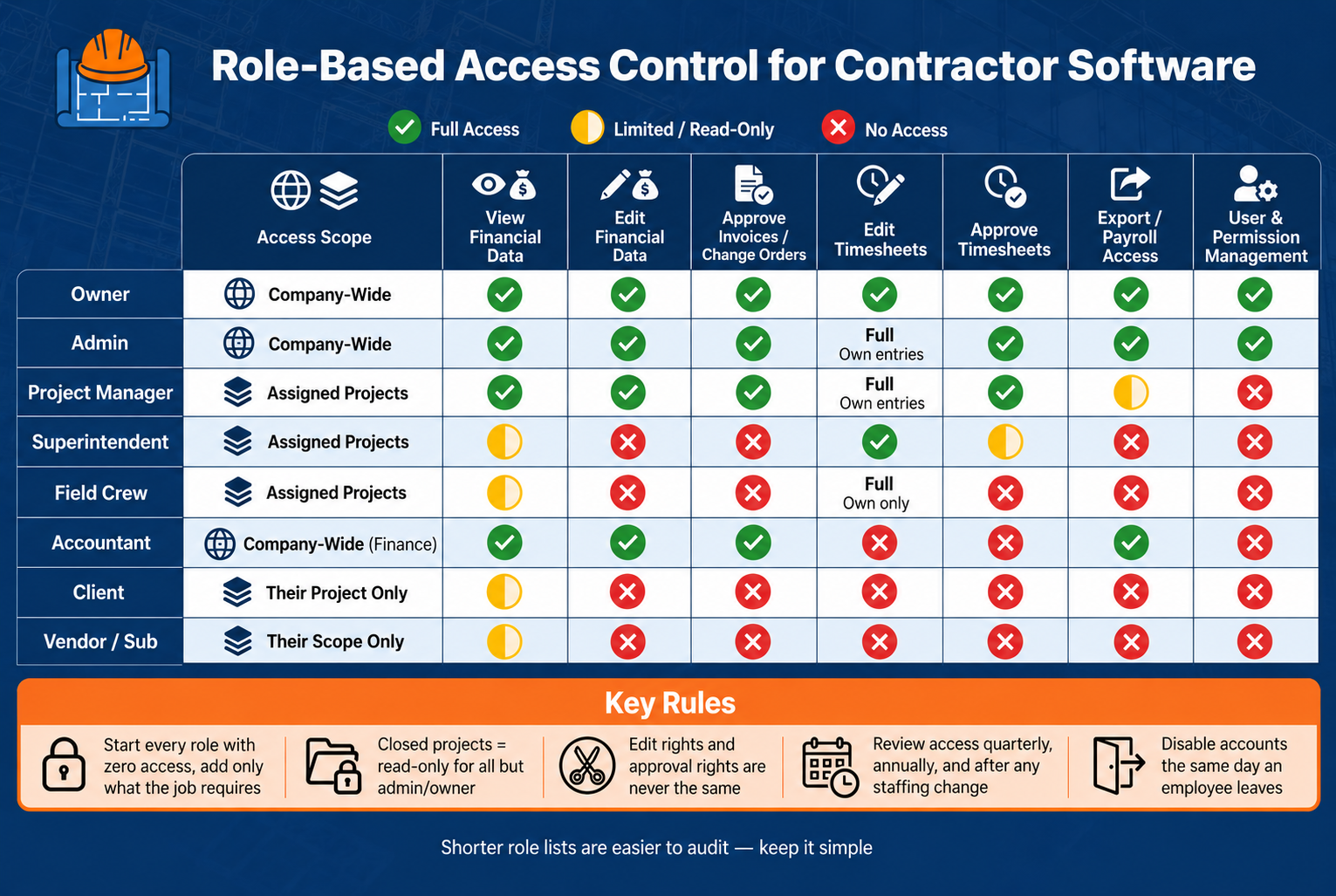
Contractor Software Role-Based Access: Permissions by Role
Once permissions are set, the next move is to match them to a short list of job-based roles. Roles should be built around job duties first, then assigned to people. That keeps access tied to actual work instead of job titles, which often blur across teams. A short role list is also easier to manage and cuts down on custom roles as the team gets bigger.
Core Roles for Office, Project, and Field Teams
For most U.S. contractors, these core roles cover the main access patterns: Owner, Admin, Project Manager, Superintendent, Foreman, Field Crew, Accountant, Client, and Vendor/Subcontractor.
| Role | Access Scope | Typical Access |
|---|---|---|
| Owner | Company-wide | View and approve |
| Admin | Company-wide | Full configuration and user management |
| Project Manager | Assigned projects | Edit and approve project records |
| Superintendent | Assigned projects | Edit field records; view budgets and contracts |
| Foreman | Assigned projects | Edit daily logs and timesheets |
| Field Crew | Assigned projects | Edit own timesheets; view task assignments |
| Accountant | Company-wide financial modules | Edit and approve invoices, bills, and financial reports |
| Client | Their project only | View progress, documents, change orders, and billing |
| Vendor/Subcontractor | Their scope only | Submit pay apps, RFIs, and compliance docs; view related documents |
Company-wide access should stay with roles that handle settings, finance, or oversight. Everyone else should be limited to assigned projects or only their own records.
Build a Permission Matrix Before Assigning Access
The role list should feed into a permission matrix before any access gets assigned. Put resources on one axis and permissions on the other. That setup makes it easier to catch trouble early, like a field role seeing too much or accounting access stretching too far.
The riskiest cells in the matrix are usually tied to money or company-wide control.
That includes:
- changing budgets
- approving invoices or change orders
- exporting detailed financial reports
- changing user permissions
Those areas should usually stay with Owner, Admin, and Accountant roles. Starting each role with no access and adding only what the job requires keeps the matrix clean and much easier to manage.
sbb-itb-5eea312
Set Project Access, Feature Limits, and Approval Rights
With roles in place and a permission matrix mapped out, those decisions need to be applied at two levels: company-wide access and project-specific access. Company-wide permissions cover settings, user management, and financial reporting. Project-specific permissions control what a person can view and change inside each job. Access should begin with project scope, so each user is tied only to the jobs they actually work on.
Restrict Users to Assigned Projects and Records
Each user should be limited to assigned jobs only: active projects, personal records, and related documents. Closed jobs should be archived as read-only for project managers, owners, and admins. The Viewable Projects setting can be used to change access from All to Some.
Limit Sensitive Features by Role
Once project scope is set, the next step is limiting actions inside those projects by role. Project creation, archiving, and deletion should stay with owner and admin roles. Financial modules – budgets, invoices, change orders, and expense approvals – should be limited to owners, accountants, and project managers. Field roles should have read-only access to financial data, if any.
Payroll-related timecards need tight control. Foremen can enter hours and cost codes, but pay rate changes, overtime rules, and timecard exports should require project managers or admins. The same goes for user invitations, role assignments, and company-wide settings, including integrations with tools like QuickBooks or Zapier. Restricting those actions to admin and owner roles helps prevent unauthorized configuration changes.
Assign Approval Authority by Risk and Dollar Impact
Editing a record and approving a record are separate actions. Edit rights and approval rights are not the same thing, and keeping them separate is one of the biggest structural decisions in an access setup. A person who drafts a record should not also finalize it, especially when payroll, contracts, or budgets are involved.
A tiered approval path works well for U.S. contractors:
- Foremen submit timecard entries, and superintendents or project managers approve them before the entries flow into job-cost reports.
- Project managers draft change orders and budget revisions, while owners or admins approve anything above a company-set dollar limit.
- Scope changes that affect contract value or schedule milestones should require owner or client sign-off.
- RFIs and submittals should follow a similar chain: field staff draft them, project managers submit them, and only named approvers can close them.
Every approval should be logged with timestamps, user IDs, and the approved amount. That record makes overrides and approvals outside normal thresholds easier to spot in exception reports.
Set Up and Maintain Access Over Time
Role-based access is not a one-time setup. Staffing changes, project transitions, and promotions all change who needs access to what. Permissions need to keep up. The same role map and permission matrix should stay in use, then get checked on a set schedule.
Step-by-Step Setup Process
A fixed review process keeps access tied to current job duties.
The sequence should stay consistent:
- List every role that needs access, including office, field, and external users.
- Check whether each role still needs the tools and records it can access. Foremen need daily logs and time entry; accounting needs invoices and payment history; project managers need budgets and change orders.
- Reset any role that has expanded beyond its baseline permissions.
- Recheck project assignments and remove users from jobs they no longer support.
- Reconfirm approval thresholds after role, budget, or project changes.
- Test each role on web and mobile to confirm required tasks work and restricted areas stay blocked.
Review Access on a Regular Schedule
Once access is live, reviews should happen quarterly and after any staffing or project change.
Access tends to drift over time. Temporary exceptions often stay active. Former employees can remain active in the system. Users can pile up access from past roles that no longer fits current work.
Reviews should happen quarterly, annually, and after role changes. Quarterly, project managers and office administrators should audit active user lists and project assignments. That means removing anyone no longer assigned to a job, flagging shared logins, and confirming that temporary users like short-term consultants have defined access end dates.
Annually, leadership should review all account roles and permission templates. The check should look for excess financial module access, inactive accounts, and export rights or API tokens that go beyond what a role still needs.
Events should trigger an immediate review:
- a promotion
- a termination
- a project moving from active construction to closeout
- a security incident
When a project closes out, most project-level access should move to read-only, with edit rights limited to a small closeout team. When someone leaves the company, the account should be disabled the same day, along with any connected integrations that no longer need access.
Use Training and Support to Keep Permissions Accurate
Training and support help fix gaps between the role model and day-to-day work. Contractor Foreman offers free training and support that contractors can use to confirm that current roles still match how teams actually work and to adjust permission templates as workflows change.
Integrations need the same access boundaries as core records. QuickBooks and Zapier connections should be set up and managed by a small group of admin-level users, not by individual project staff. During annual reviews, integration tokens and access scopes should be checked to make sure no automation is exposing financial data to roles that should not have it.
Conclusion: Keep Access Narrow, Clear, and Tied to the Job
Role-based access works best when it stays simple. A small set of clearly defined roles is easier to manage, audit, and explain than a long list of custom permission sets. When roles pile up without a clear reason, permissions get hard to track, and leadership loses sight of who can view sensitive financials or approve high-dollar commitments. Access should follow job duties, not titles.
The strongest setups tie permissions to daily responsibilities, limit each user to assigned work, and keep edit rights separate from approval rights. A project coordinator can draft construction change orders. A project manager or executive should handle approval. That separation cuts approval errors and helps stop unauthorized commitments from slipping through.
The same logic applies to data access. Users who can only see the projects and records tied to their current role have fewer chances to make accidental changes or view information outside their scope. Broader access creates more room for costly mistakes and unauthorized exposure. As staffing and projects shift, those boundaries need to hold.
Regular audits and immediate offboarding keep access lined up with current job duties. Contractor Foreman supports that process with role templates, user management, and free training, helping teams check and adjust setup as staff and projects change.
For U.S. contractors, that means tighter project control, fewer approval errors, and cleaner office-field coordination – because access matches the work.
FAQs
How do I choose the right role for each user?
Choose roles based on team structure and the principle of least privilege. Each user should get only the access needed for assigned job duties.
In Contractor Foreman, go to Settings > Roles to create or edit a role.
Set module permissions like:
- View
- Create
- Edit
- Delete
Then assign the role in the Directory. If needed, limit access to specific projects under Access Details.
Who should approve budgets, invoices, and change orders?
In Contractor Foreman, approval rights for budgets, invoices, and change orders are controlled through user roles and permissions. Administrators decide who can view, create, edit, delete, or approve items across financial modules.
Roles like Project Manager or Financial Officer can receive approval authority. At the same time, sensitive financial data stays limited to authorized users.
How often should contractor software access be reviewed?
Review contractor software access on a regular schedule to cut security risk, especially from inactive accounts and users with more access than their role calls for.
Disable accounts for users who haven’t logged in for 30 days or more, along with employees or subcontractors who have finished their work. Permissions should also be audited as project phases change. That keeps access tied to current job duties and helps stop permission creep before it turns into a problem.