
Construction Workflow Automation.
Does the sound of that make you a liiiitttle uneasy?
Does it make you think, “Nah, I’ll pass.” Because sure, AI can write your nephew’s book report and turn your dog into a Renaissance painting, but it’s not touching your construction business!
We get it. Handing any part of your job over to “the computer” sounds like the kind of decision you regret at 2 a.m.
What if it messes up a payroll run, or what if it approves a change order it had no business approving?
Totally valid fears.
But the good news is that these mistakes are 100% preventable. What you should actually worry about is what you’re losing from NOT automating.
Here are the numbers worth knowing:
- PMs are losing 4.1 hours a day to admin work they’re doing by hand
- Contractors without automation are carrying 22% to 35% more admin overhead
- Duplicate entry is draining $13,000 to $62,000 a year
- Without AI-assisted scheduling, jobs are finishing 20% to 25% further from their original deadline
How to set up workflow automation:
Construction workflow automation doesn’t mean you’ll rely on computers — it means you let computers make the boring, repetitive parts easy for you.
Here’s how to do it right so none of your worries ever come true. You get the benefits, no headaches included.
- Start by mapping one workflow at a time
- Standardize templates, cost codes, and permissions
- Automate daily logs, RFIs, submittals, change orders, timecards, payroll prep, job costing, safety records, and client updates
- Connect project tools with QuickBooks and Zapier
- Test everything on one pilot job, track results, and train the field and office teams by role
Pro tip: Don’t automate everything at once.
Pick the workflows that hit time, cash flow, and documentation first, then connect the data so it only has to be entered once.
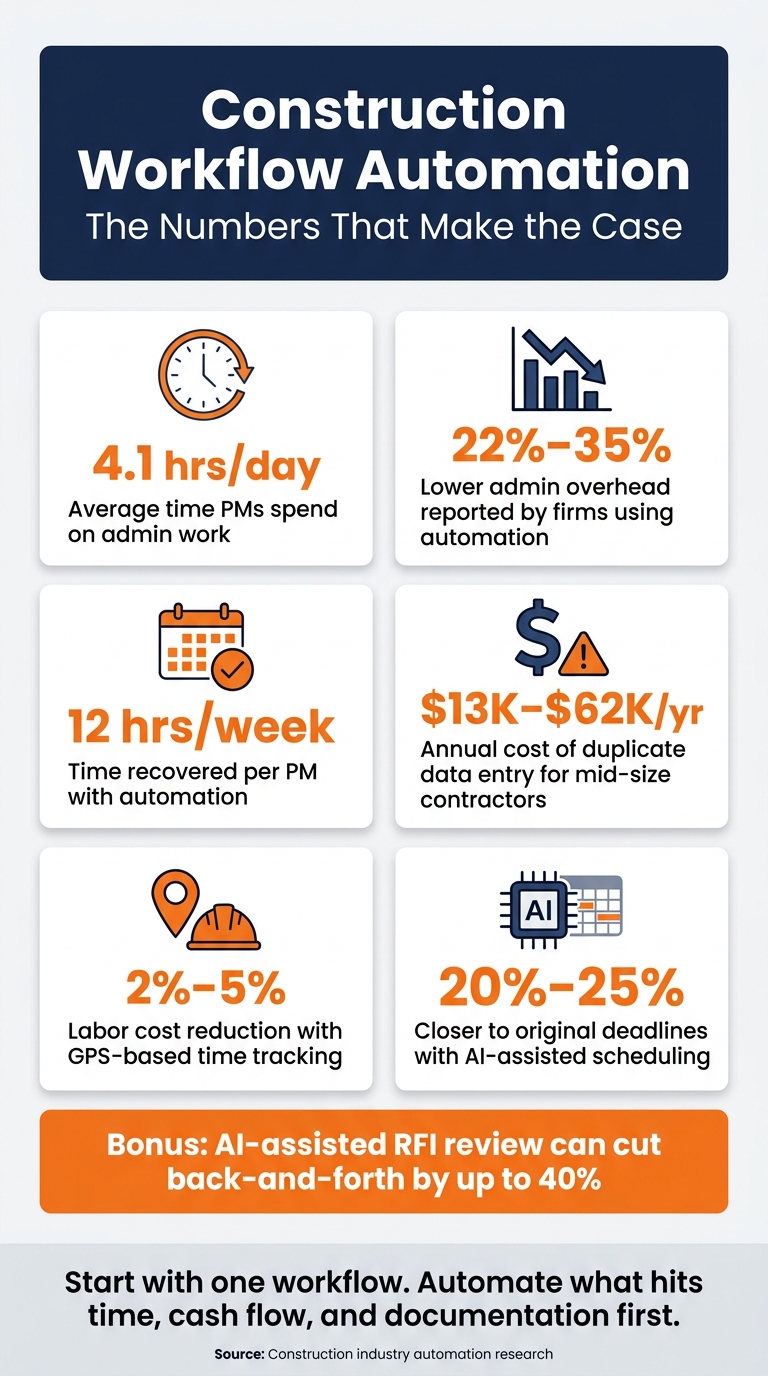
Construction Workflow Automation: Key Stats & ROI at a Glance
Map and standardize workflows before you automate them
Automation works best when the process is already clear. If field-to-office handoffs are slow or messy today, those are the same trouble spots you should map first.
Choose the first workflows to automate
Don’t try to automate everything at once. Start with tasks that are repetitive, rule-based, and happen all the time. Daily logs, RFIs, submittals, change orders, timecards, invoice generation, and client status updates are good places to begin.
A simple way to choose is to look at two things: how often the workflow happens and how much it costs you when it breaks down. Once you’ve picked the first one, map it before you build any rules around it.
Document each step, handoff, and approval
After you choose the first workflow, lay it out step by step before you configure anything. Note the trigger, each action in the process, who owns each part, what data or files are needed, and where approvals happen.
That’s how you spot the handoff points where work tends to get stuck. And when ownership is clear up front, routing mistakes are much less likely later.
It also helps to plan for exceptions. If the system flags something unusual, decide in advance who reviews it and what happens next.
Standardize templates, cost codes, and permissions
Automation depends on consistent inputs. If one project uses a different RFI form than another, or if cost codes don’t line up across systems, automation can move bad data faster than any person could.
Before you set up rules, tighten up the basics:
- Use the same RFI and change order templates across projects
- Set one cost code structure
- Create naming rules for projects and documents
- Define role-based permissions so notices go to the right people
Clean inputs make syncing between systems more dependable. For example, aligning cost codes between project management software and QuickBooks helps prevent duplicate entries and sync errors.
With that groundwork in place, it becomes much easier to automate the tasks that have the biggest effect on profit and control.
sbb-itb-5eea312
Automate the core construction workflows that affect profit and control
Focus on the workflows that hit profit and control the hardest. Start with the mapped, standardized processes from the previous section. Those are the best first candidates because they’re already clear enough to run without constant manual follow-up. In plain English: use that workflow map to pick the first automations.
Field logs, RFIs, submittals, and change orders
Field documentation is one of the fastest places to win back time. And mobile-first tools remove a lot of the day-to-day hassle almost right away.
A field supervisor can log labor hours, materials used, weather in °F, and site photos from a phone, and that data syncs to the office in real time. No paper shuffle. No end-of-day data dump. No one chasing missing notes.
RFIs are another strong fit for automation. When an RFI is submitted, the system can route it to the right engineer or consultant, assign a deadline, and keep sending reminders until it’s resolved. That matters because RFI delays tend to snowball fast. AI-assisted RFI review can cut back-and-forth by up to 40%.
Change orders deserve extra attention because this is where many contractors lose money without noticing it at first. The work gets done, the crew moves on, and the paperwork lags behind. Then collecting that money turns into an argument. Automated workflows help by attaching cost and schedule impacts to each change order and routing it for digital sign-off before work starts. That puts a paper trail in place before the cost becomes a dispute.
Scheduling, timecards, payroll prep, and job costing
After documentation, move to the work tied most closely to schedule and payroll.
Static PDF schedules look fine until one task slips. Then the whole thing starts to fall apart. Automated scheduling tools adjust dependent tasks in real time and send SMS or app alerts to affected crew members. No phone tree. No waiting for someone to notice a date changed. Projects using AI-powered scheduling finish 20% to 25% closer to their original deadlines.
Timecards are another high-payoff target. GPS-verified mobile clock-in helps stop buddy punching and cuts manual entry mistakes. When hours are logged in digital form and tied to a job and cost code, they can move straight into payroll prep and job costing without anyone retyping a single number.
That’s not just cleaner admin work. It can cut labor costs by 2% to 5%. If you’re running several crews across multiple jobs, that’s a serious dollar impact.
Safety records and client communication in one system
Most documentation breakdowns are preventable with basic automation. This is especially true for construction safety management, where manual tracking often leads to compliance gaps.
Daily pre-task safety checklists can go out automatically each morning. Toolbox talk completions can be tracked with reminders until each one is confirmed. If an incident happens, the report can trigger an immediate notification chain to the right stakeholders. That means less delay, less confusion, and a better record of what happened and when.
Client communication works the same way. Instead of taking constant status calls, teams can use automated portals to push milestone updates, approved change orders, and schedule changes as they happen. Clients stay informed without needing someone in the office to send one-off updates all day.
All-in-one systems like Contractor Foreman can keep logs, scheduling, change orders, safety, and client updates in one place.
Once these core workflows are running cleanly, the next move is to connect them to accounting and automation tools so data only has to move once.
Connect your software with accounting and automation tools
Once your main workflows are automated, tie them into accounting so data moves once, not twice.
When project management and accounting live in separate systems, teams end up retyping the same details. That slows things down and opens the door to mistakes. Integrations fix that by moving data a single time and keeping both systems in sync.
For a mid-size contractor with 25 employees, that duplicate entry usually eats up 5 to 15 hours of office staff time per week. That adds up to about $13,000 to $62,000 per year in labor costs.
Build a clean data flow between project management and accounting
The aim is simple: create one source of record.
That means syncing jobs, customers, vendors, cost codes, invoices, bills, expenses, payments, and timecards across both systems.
Before you switch on sync, clean up your records first. If vendor names don’t match or customer entries are duplicated, things can go sideways fast once data starts moving on its own. A small naming issue can turn into a mess in minutes.
A smart move here is to import cost codes straight from your accounting software into your project management tool. That way, the mapping matches from day one.
Once the data structure lines up, you can connect the software that moves it.
Use QuickBooks and Zapier to automate cross-system tasks
After the data flow is cleaned up, connect the tools that handle the automation.
A direct integration between your construction management software and QuickBooks Online keeps financial records aligned in real time. Contractor Foreman integrates with both QuickBooks and Zapier, which covers many common integration needs for U.S. contractors.
Zapier is useful when there’s no native connection. It can route new leads, send alerts when a job gets approved, or sync data with an email platform. Zapier plans usually cost $20 to $200 per month.
Because Zapier relies on third-party APIs, don’t just set it and walk away. Set failure alerts, and review sync logs daily.
Protect data quality, permissions, and audit trails
Give one person clear ownership of integration health. In many shops, that’s the Controller or Office Manager. That person should check sync logs each week and keep a written process for what to do when something breaks.
Use role-based access so only the right people can trigger financial syncs or edit mapped fields. Keep write access tight for cost codes and invoice records. Fewer hands in those fields means fewer accidental changes and a cleaner audit trail.
Built-in integrations may handle duplication on their own. Middleware usually needs closer attention. Check sync logs weekly.
With the integrations stable, the next move is to test them on a pilot job and train the team.
Implement, train, and improve automation over time
Once your data flow is stable, the next step is simple: prove this works on a live job. An integration can look fine on paper and still fall apart if crews don’t use it the right way.
Launch with a pilot project and clear success metrics
Start with one active project and run the automation for two weeks alongside your manual process. That side-by-side test gives you time to check accuracy before you go all in. It also helps people trust the system, which matters more than most teams expect.
The pilot should show more than the fact that the workflow runs. It should show that the process is faster and cleaner.
Track these four metrics from day one:
- Approval turnaround time
- Top construction timesheet software can significantly reduce payroll prep hours
- Missing daily logs
- Change order cycle time
Those numbers tell you if the automation is doing its job, not just sitting in the background.
Roll this out in phases: pilot, implementation, then optimization. At each stage, use a small set of metrics to confirm things are working as planned.
For the first month, check automation logs every week to catch setup gaps or triggers that aren’t firing the way they should.
Then use what you learn to train the team before you expand.
Train field and office teams for consistent use
Once the pilot shows the process works, train each role on the exact tasks it handles. Foremen should know how to submit logs and respond to flags. Office staff should know how to review those items and clear them. That split keeps field data clean and office records complete.
Before you roll this out across the board, test it with one skeptical foreman for a week. That’s a smart gut check. If that person finds it useful, the rest of the field team is far more likely to get on board.
Contractor Foreman includes free training and support, which can help smaller contractors get set up without paying outside consultants.
Conclusion: Start with the workflows that save time and strengthen control
The strongest automation programs tend to do four things well: define the problem, map and standardize the process before using software, automate the workflows with the biggest payoff first, and train teams with a live rollout plan.
The goal is control, speed, and consistency, not extra layers of process. The best automation plan is the one your teams use on every job, every time.
FAQs
Which workflow should I automate first?
Start with simple, common tasks you do again and again. That’s where the payoff usually shows up fastest.
Good first steps include rule-based work like:
- time tracking and payroll data collection
- invoice generation when a project milestone is completed
- follow-up reminders for sent proposals
This low-risk approach gives your team a chance to get used to automation before you move into more complex workflows.
How do I avoid bad data in automation?
Start with a single source of truth by keeping project planning, financial controls, and documentation in one place. That gives your team one clear system to work from instead of chasing updates across spreadsheets, inboxes, and shared drives.
Before you automate anything, map out your current process and spell out each step. If a workflow is messy on paper, software won’t fix it. It just moves the same mess onto a screen.
To cut down on manual entry mistakes, use standardized templates, real-time syncing tools like Contractor Foreman with QuickBooks and Zapier, role-based permissions, and built-in validation. Those guardrails help catch errors early, before anything gets submitted.
How long should a pilot project last?
For construction workflow automation, a pilot needs enough time for setup, data migration, and team training. Yes, some technical integrations can be done in a matter of hours. But if a firm is juggling multiple active jobs, be careful with any onboarding promise under two weeks.
A realistic pilot gives your team room to learn the system and helps cut the productivity dip that often shows up when people switch to a new way of working.