How many times has late communication caused unnecessary drama in your life?
Your mom probably gave you a hard time for sending her birthday greeting at 11:59 p.m.
Or maybe a friend canceled plans at the last minute, and you snapped, “You couldn’t have told me this like, three days ago or even three hours ago?!”
In everyday life, that’s annoying.
In construction, though? Late communication costs money—sometimes a LOT of it!
In the US construction industry, poor communication drives 52% of construction rework, adding about $31.3 billion in avoidable costs each year.
Don’t believe it?
Consider these scenarios:
- Crew misses a schedule change because they weren’t notified → $1,200+ in wasted labor.
- Wrong materials get ordered because purchasing didn’t receive the revised specs → $2,500+ in rush and restocking fees.
- Work gets installed incorrectly because the field team didn’t receive the correction → $5,000+ in rework.
The fix?
NOT MORE MESSAGES. You have enough of those.
Better-organized, real-time communication—with an easy-to-use software keeping it all in one place.
The core setup is simple:
- Use job-based messages for schedule changes, task updates, deliveries, safety notices, and client approvals
- Send alerts by priority so urgent issues stand out and routine items stay in the feed
- Route messages by role so crews, managers, clients, and vendors only see what applies to them
- Move contract-related decisions into records like RFIs, daily logs, change orders, and inspection reports
- Keep mobile access and software links in place so field updates flow into scheduling, billing, and documentation
Message Types Contractors Send Every Day
Most day-to-day jobsite messages fall into a handful of buckets: schedule changes, task assignments, delivery updates, safety alerts, and client notices.
Put each one in the right place, and the right people can act fast instead of digging through a messy thread.
Field and Office Updates Tied to Schedules, Tasks, and Deliveries
The messages crews send to the office most often are about schedule changes, new assignments, and materials or deliveries.
For schedule changes, the note should answer four basic things: what changed, who it affects, when the new time is, and what the crew should do next.
For example, “Framing crew: start pushed to 10:00 AM due to permit hold.” That tells people the issue right away. Task assignment messages follow the same pattern. Include the crew name, the task, the site location, the materials needed, and the expected start and finish times.
Delivery confirmations need a bit more detail.
What to Include:
- PO number
- Item
- Quantity
- Delivery window
- On-site contact
- Handling notes
Once materials show up, the field crew should send a short confirmation with quantities received and photos of any damage or shortages.
If something is backordered and a substitute is needed, the message should spell out the original item, the delay, the suggested substitute, and the cost impact in USD. It also needs to say whether the project manager or the client has to approve it.
These messages should stay tied to purchase orders and daily logs so they remain searchable in the project record.
Safety, Weather, and Emergency Notices
Safety and emergency messages need to stop work, not blend into routine chatter.
If there’s a gas leak, structural hazard, or active electrical danger, the system should send push notifications right away, and SMS too if needed. Onsite crews and key office staff need a plain, direct instruction: who is affected, where to go, and what to do right now.
Weather alerts are a little different. Some need instant action. Others just support planning. A severe thunderstorm warning that could affect same-day concrete pours should go out as a push notification. A rain forecast for two days from now can stay as an in-app update so people can plan without getting pulled off the task in front of them.
Incident notices, including injuries and near-misses, should automatically alert the safety officer, project manager, and HR.
Use set fields so the report is easy to scan:
- Time
- Location
- Type of incident
- Whether emergency services were called
The “fatal four” hazards (falls, struck-by, electrocution, caught-in/between) account for 58.6% of all construction fatalities. That’s exactly why these messages belong at a higher priority than normal job updates.
The same logic applies to client communication too: clear subject, clear action, clear owner.
Client-Facing Updates and Project Announcements
Client messages need a separate channel.
Internal crew talk, internal cost discussions, and other behind-the-scenes details should never be visible to clients.
What clients usually need comes down to four message types: progress updates, change reminders, milestone notices, and approval requests.
A progress update should sum up what was finished, what’s next, and any risks. One or two photos, or a short video, can help a lot here. A change reminder should restate the change order number, the scope, the cost impact, such as +$2,350.00, the schedule impact, such as +2 days, and any deadline for client acknowledgment.
Milestone notices should confirm what was completed and what the client needs to do next, like choosing finishes by a set date. Approval requests should lay out the options in a simple way, with price and schedule effects for each one, so the client can reply without needing a phone call.
Client updates should stay transparent without exposing internal debate or internal cost details. Each client-facing message should also stay linked to the change order, milestone, or approval request it refers to, so clients keep the context and contractors keep a paper trail.
From here, the next step is deciding which messages should trigger alerts and which should stay in the thread.
sbb-itb-5eea312
Alert Triggers and Notification Rules
Alerts only help when they show up at the right moment.
Too many, and people tune them out. Too late, and the problem has already spread.
That’s why it helps to decide early which events should interrupt someone right away and which ones can sit in the activity feed. Use an alert only when someone needs to do something now.
Events That Should Trigger Automatic Alerts
Some events call for an instant response. Others just need visibility. The goal is simple: tie each trigger to one clear next step.
New task assignments should alert the assigned user with the task name, location – such as building, floor, or unit – plus any needed materials or equipment, and the start date and time, like 07/22/2026, 8:00 AM. Give them a one-tap action such as “Accept”, “Request Clarification,” or “Decline with reason.”
Overdue tasks should escalate at set points: at the due time, then again at +4 hours, then +24 hours. Send those alerts to both the assignee and their supervisor. Each one should include the original due date and time, current status, and any effect on dependent tasks, along with actions like “Update progress”, “Request extension,” or “Reassign task.”
Schedule shifts should go to every role affected: field crew, subs, vendors, and the client if the change touches a milestone. Each alert should show the old date and time versus the new one, point out the affected milestones, and include actions such as “Confirm new schedule”, “Flag conflict,” or “Adjust related tasks.”
Safety incidents or near misses should trigger immediate alerts to site leadership and safety officers.
Weather disruptions should do the same, especially for lightning, extreme heat, or curing risks.
A few other events also belong in the alert system:
- Daily logs → supervisors and project managers; actions: “Review and approve”, “Request revision,” or “Add comment.”
- Document uploads and revisions → impacted trades and office staff, so teams don’t work from old plans; actions: “View new version”, “Acknowledge receipt,” or “Compare changes.”
- Delivery confirmations → site lead, with delivery time, quantity, and location; actions: “Confirm received”, “Report discrepancy,” or “Schedule unloading/installation.”
- Client messages → project manager, client-facing coordinator, and sometimes the estimator – not the field crew.
- Inspection updates → responsible trade foreman, superintendent, and project manager, with the result shown as pass, fail, or conditional, plus the next step spelled out, such as “Schedule rework”, “Upload correction photos,” or “Update schedule.”
Once the trigger is clear, the next step is picking the right delivery level.
Priority Levels That Cut Notification Noise
Not every alert needs the same level of urgency. A simple three-tier model keeps things clean and easier to act on.
| Priority | Examples | Delivery Method |
|---|---|---|
| Critical | Safety incidents, severe weather, site evacuations, failed inspections blocking follow-on work | Instant push + SMS, requires acknowledgment |
| High | Schedule changes within 24 hours, overdue RFIs, urgent client requests, change orders awaiting approval | Push notification during working hours + in-app |
| Normal | Routine photo uploads, non-urgent RFI responses, daily log completions, minor document updates | In-app activity feed + optional daily digest |
To cut down on noise, keep non-critical alerts inside working hours, group similar low-priority events into one summary instead of sending separate pings, and let each role subscribe only to the event types tied to their job. Contractor Foreman supports configurable notifications and a central activity feed, so routine updates stay available without constantly pulling people away from the work in front of them.
Then route alerts by role so crews, managers, clients, and vendors only see what applies to them.
Role-Based Communication for Crews, Managers, Clients, and Vendors
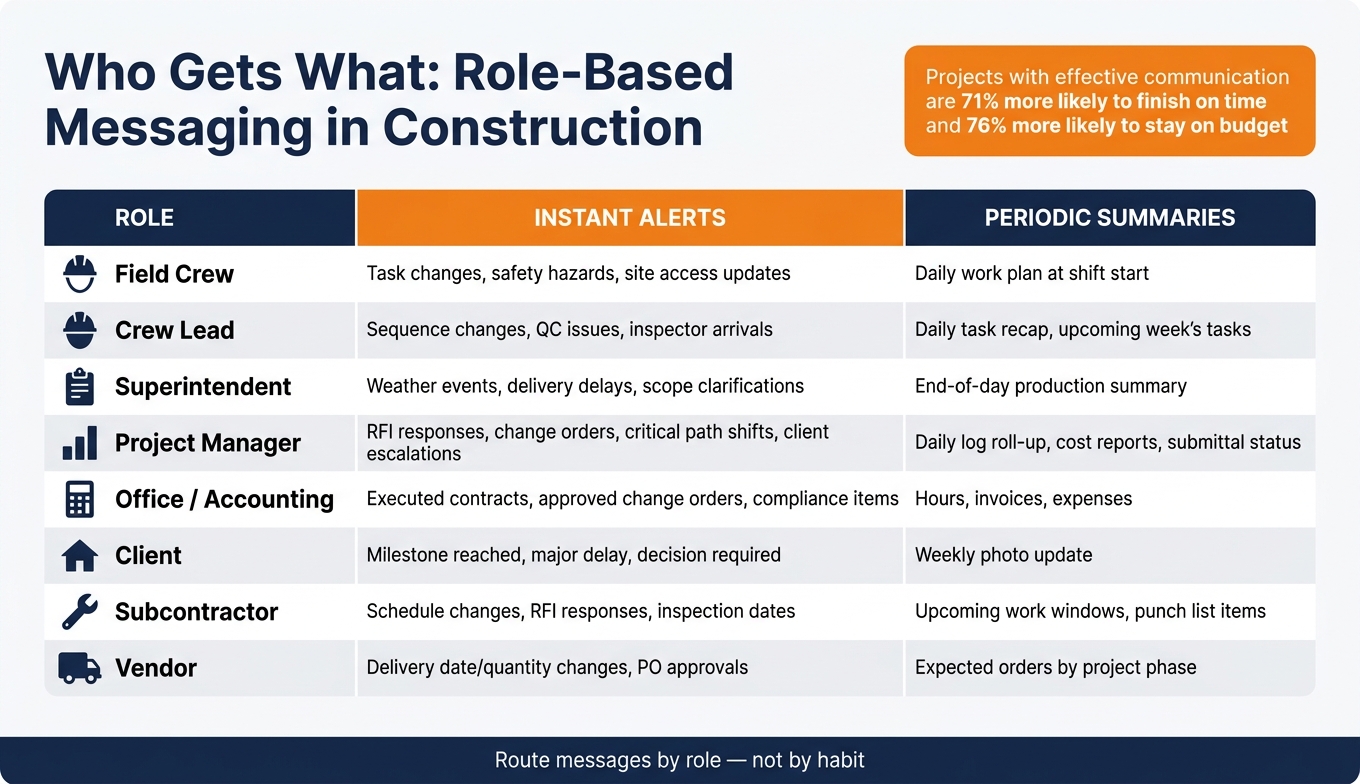
Role-Based Messaging Guide for Construction Teams
Once alert rules are in place, send each message to the people who actually need it. If everyone gets everything, accountability starts to slip on a jobsite. The better move is simple: route messages by role, not by habit.
Who Needs What Information
Different people need different levels of detail, and they don’t all need it at the same speed.
| Role | Instant Alerts | Periodic Summaries |
|---|---|---|
| Field Crew | Task changes, safety hazards, site access updates | Daily work plan at shift start |
| Crew Lead | Sequence changes, QC issues, inspector arrivals | Daily task recap, upcoming week’s tasks |
| Superintendent | Weather events, delivery delays, scope clarifications | End-of-day production summary |
| Project Manager | RFI responses, change orders, critical path shifts, client escalations | Daily log roll-up, cost reports, submittal status |
| Office/Accounting | Executed contracts, approved change orders, compliance items | Hours, invoices, expenses |
| Client | Milestone reached, major delay, decision required | Weekly photo update |
| Subcontractor | Schedule changes, RFI responses, inspection dates | Upcoming work windows, punch list items |
| Vendor | Delivery date/quantity changes, PO approvals | Expected orders by project phase |
Contractor Foreman supports role-based views across field and office users, so a foreman sees assignments, RFIs, and daily logs tied to his jobs, while accounting sees cost codes, approved change orders, and billing data.
Routing messages is only half the work. The other half is making sure decisions that can affect the contract end up in the project record.
How to Separate Quick Chat from the Formal Project Record
Not every conversation carries the same weight.
A good rule of thumb is this: if it could affect the contract, it belongs in a structured module, not just in chat.
Say the team agrees to move electrical work from Wednesday to Friday. That change shouldn’t live only in a message thread. It needs to show up in the task schedule. Or maybe a safety hazard gets handled right away in the field. Good. But it still needs to be logged in an incident report or daily log with photos and a written note.
Contractor Foreman connects messages to RFIs, daily logs, documents, and approvals. Use a Jobsite Chat channel for day-to-day coordination, and keep tasks, RFIs, change orders, and daily logs in their own structured threads. When a chat decision has contract impact, the PM should summarize it in the right module, attach screenshots, and send it through for approval.
Those records also need to be easy to pull up in the field, which is why mobile access matters next.
Mobile Access, Project Records, and Software Links
Once messages are routed by role, the next job is simple: make sure people can send and find those messages in the field, share the right updates with clients, and tie everything back to the project record.
Mobile-First Messaging for the Field
Field crews aren’t sitting at desks. They’re on jobsites, in trucks, and moving from task to task. That’s why mobile access matters so much for real-time field messaging.
92% of construction professionals used a smartphone every day at work, with the most common uses being viewing project documents (78%), creating project documentation (71%), and service dispatch and billing (74%).
On the jobsite, the most useful mobile tools tend to be pretty practical:
- Push alerts
- Photo capture
- Instant status updates tied to the job record
Contractor Foreman fits that day-to-day flow by letting crews log daily activity, attach photos, and update task status from a phone or tablet in the field. Those updates sync back to the project automatically.
That matters because a field update only pulls its weight if it becomes part of the job record – not just another message lost in a text thread.
Client Updates and Searchable Project Records
Clients don’t need every internal back-and-forth. They need the parts that affect progress, timing, and approvals.
A client portal or shared log can give owners just what they need to see: progress photos, milestone confirmations, schedule impacts, and approval requests. Contractor Foreman’s client portal lets clients view schedules, daily logs, photos, and action items without interrupting the internal workflow.
These layers do different jobs for different people:
| Layer | Purpose | Primary Users | Best Message Types |
|---|---|---|---|
| Mobile access | Capture and send updates from the field | Crews, foremen, superintendents | Photos, status updates, safety notices, delivery confirmations |
| Client updates | Keep owners informed, capture approvals | Clients, project managers | Progress photos, milestone summaries, schedule changes, approval requests |
| Project records | Build a searchable, defensible project history | PMs, office staff, accounting, legal | Daily logs, RFIs, change orders, inspection results, incident reports |
Daily logs are what turn quick field messages into a searchable record. Months later, that record can help with a delay claim, a quality dispute, or even the next bid.
Links to Accounting and Workflow Tools
The last piece is making sure those messages don’t stop at communication. They also need to move into billing and workflow systems without anyone typing the same thing twice.
Contractor Foreman supports two-way sync with QuickBooks (Online and Desktop), so approved work captured in the field flows into invoices and cost tracking without re-entering data. Through Zapier, contractors can push that even further by automating notifications, creating tasks in external apps, or sending follow-up emails when a daily log is submitted or an RFI is opened.
Here’s what that flow looks like from the field to the books:
| Step | What Happens | Example |
|---|---|---|
| Field event | Crew records an update, photo, or issue on mobile | Foreman photos unexpected underground utilities while trenching |
| Notification | Relevant team members receive an alert | PM and estimator get a push notification with the photo and a brief note |
| Project record | Formal documentation is created and linked to the job | PM logs an RFI and potential change order with attached photos |
| Follow-up action | Accounting, scheduling, or workflow steps are triggered | Change order syncs to QuickBooks; Zapier notifies the design team automatically |
The aim is clear: capture field work once, then move it cleanly into the record, approval process, and billing.
Conclusion: Build a Messaging System That Moves Work Forward
Real-time messaging works best when you set the rules early. Define message types, alert triggers, and role-based routing up front. Then the system can do two jobs at once: stay fast enough for the field and organized enough for the record.
That kind of discipline matters. Clear routing and response rules treat messaging like part of the jobsite itself, not some add-on people deal with later.
You can see the impact in the results. Projects with effective communication strategies are 71% more likely to finish on time and 76% more likely to stay within budget. Add mobile access, client portals, searchable records, and integrations, and messages stop being dead-end chatter. They push billing, scheduling, and daily workflows ahead without anyone having to re-enter data. Contractor Foreman brings all of that into one platform. Real-time messaging should drive decisions, not pile on noise.
FAQs
How do I set up messaging rules for a new project?
In Contractor Foreman, start by deciding who needs to communicate and what each person owns.
Give every team member a clear role, then set up project-specific chat groups for each job site or crew. That keeps the right people in the right conversations. It also helps to keep internal messages separate from client updates by using the client portal for customer-facing communication.
Use Settings and Notifications to control how people get alerts, whether that’s email, push, or in-app notifications. For urgent issues or task handoffs, use @mentions so nothing gets buried. It also helps to set clear expectations around response times and moderation, so communication stays focused instead of turning into noise.
Which messages should be part of the job record?
All project-related discussions, decisions, and updates should live in the job record. That means project chats, daily logs for site conditions, weather, and crew activity, plus photos shared by supervisors.
It also means keeping electronic approvals for estimates, change orders, and submittals, along with follow-up notes after verbal discussions or delays. Contractor Foreman stores all of this in a searchable, timestamped digital trail.
How can I reduce alert fatigue without missing urgent issues?
Customize notification preferences in Contractor Foreman under Settings > Notifications, then match each update type to the right channel: email, push, or in-app.
To cut clutter, keep conversations in project-specific channels instead of broad group threads. Use @mentions to pull in the right people, and apply urgent flags so critical issues don’t get buried under routine updates.
Related Blog Posts
- How Issue Tracking Improves Construction Communication
- How Real-Time Collaboration Improves Construction Projects
- Top Features of Construction Incident Reporting Tools
- How Centralized Messaging Improves Construction Teams