
You know what’s fun?
Entering the same numbers twice: once in your bid tool, then again in QuickBooks, just waiting for a tiny typo to turn into a big problem. Nothing like that little rush of “something is definitely going to go wrong”, amirite?
Yeah…NO!
When your bids and your books are disconnected, you waste time and invite costly errors. Instead of having that calm moment where you know everything is accounted for, you’re always playing detective, trying to figure out why the numbers don’t match.
So what’s the smart solution?
Integrating QuickBooks with your bid management tool.
Bid management tools like Contractor Foreman help you keep estimates, takeoffs, and job costs organized from the start, so you’re not guessing where your numbers came from. And when QuickBooks is integrated, that information flows straight into your accounting without double entry or manual cleanup — meaning your bids, invoices, and financials actually stay in sync.
Here’s how integration helps:
- Real-Time Financial Insights: Track expenses, allocate costs to specific jobs, and compare construction cost estimates to actual spending instantly.
- Automatic Data Sync: Bids convert directly into QuickBooks entries like estimates or invoices, keeping both systems updated without manual input.
- Improved Cost Management: Monitor budgets, prevent overruns, and ensure accurate financial records for better decision-making.
Switching to cloud-based tools like QuickBooks Online ensures seamless updates and compatibility, especially as QuickBooks Desktop support ended in January 2026.
Regular monitoring and error checks will keep your systems aligned and your finances accurate to ensure that your numbers actually reflect reality — so you can stop bracing yourself every time you open a report.
Benefits of Connecting QuickBooks with Bid Management Tools
Linking QuickBooks with your bid management tools can completely change the way you manage project finances. It eliminates tedious manual data entry and provides a clear, unified view of your business’s financial health. This integration offers three key advantages that can directly influence your profitability, making financial processes smoother at every stage of your projects.
Better Financial Visibility
With integration, you gain real-time insight into project finances. By tagging hours, materials, and other expenses to specific jobs, you can instantly see how profitable each project is. Automated job costing ensures every expense – whether it’s for labor, materials, or subcontractors – gets allocated to the correct project, giving you a detailed breakdown of profitability.
This setup also simplifies comparing estimates to actual costs, helping you spot budget overruns early so they don’t eat into your margins. Plus, you can generate detailed reports, like customer balances and aging summaries, to keep your finances organized.
Automatic Data Synchronization
By syncing data between platforms, you eliminate the need for duplicate entries. When a bid is approved in your management tool, it automatically converts into a QuickBooks Estimate or Invoice – no manual input required. This two-way connection ensures that updates, such as changes to vendors or cost codes in QuickBooks, are reflected instantly in your bid management system.
Scheduled background syncs keep your data up-to-date, removing the hassle of manual updates and ensuring both systems remain in sync.
Better Project Cost Management
Integration bridges the gap between your estimated bid and the actual costs recorded in QuickBooks. You can import real costs and invoices directly into your project tool, allowing for continuous tracking of estimated versus actual spending. This transparency helps you quickly identify whether projects are staying on budget.
Accurate cost mapping ensures that every expense is categorized correctly, whether it’s under Cost of Goods Sold or other accounts. This precision not only keeps your financial records accurate but also makes tax preparation and reporting much easier. Additionally, audit trails document every data transfer, linking directly to QuickBooks for easy verification. This level of detail helps pinpoint which projects bring the most profit and highlights areas where costs can be better controlled.
Up next, discover how to implement these benefits with a seamless QuickBooks integration using Contractor Foreman.
sbb-itb-5eea312
How to Set Up QuickBooks Integration with Contractor Foreman
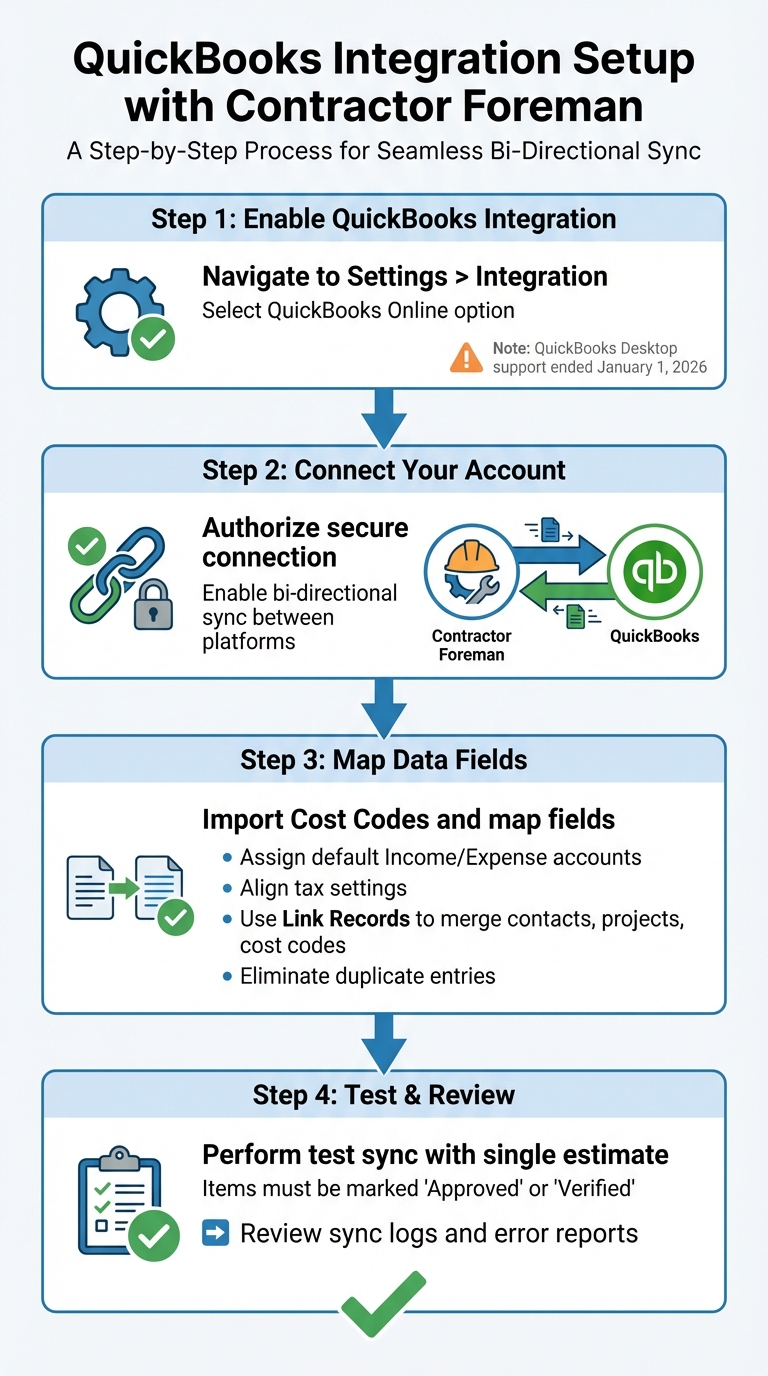
QuickBooks Integration Setup Process with Contractor Foreman
To connect Contractor Foreman with QuickBooks Online, you’ll need to activate the integration, link your account, map data fields, and test the sync process. Keep in mind that support for QuickBooks Desktop integration ended on January 1, 2026.
1. Enable QuickBooks Integration in Contractor Foreman
Start by accessing the Contractor Foreman menu.
Go to Settings > Integration and select the QuickBooks Online option. Follow the prompts to configure the integration settings.
2. Connect Your QuickBooks Online Account
Once you’ve chosen QuickBooks Online, you’ll need to securely authorize the connection.
This step ensures that Contractor Foreman can safely access your QuickBooks data. After authorization, the two systems will sync bi-directionally, meaning updates in one platform will automatically reflect in the other.
3. Map Data Between Contractor Foreman and QuickBooks
Bring your QuickBooks Cost Codes into Contractor Foreman and map them to the appropriate fields.
Assign default Income and Expense accounts so that bids can seamlessly convert into purchase orders or invoices with accurate accounting. Be sure to align tax settings in both systems. Use the Link Records feature to merge existing contacts, projects, and cost codes, which helps eliminate duplicate entries.
4. Perform a Test Sync and Review Results
Before fully syncing your data, test the integration by transferring a single approved estimate or purchase order.
In Contractor Foreman, items must be marked as “Approved” or “Verified” to sync. After the test, check the sync logs and error reports to ensure the data transferred correctly. Once you’re satisfied with the test results, you can move forward with syncing your entire bid management workflow.
With everything set up, you’re ready to manage bids and financial data seamlessly in the next steps.
Managing Bids and Financial Data After Integration
Monitor Bid Profitability
Once you’ve integrated systems, it’s important to keep an eye on how bids perform as they turn into actual projects. Contractor Foreman links your project details with construction accounting software data, enabling you to create up-to-date financial reports. This connection helps you track how estimated costs stack up against real expenses as the project progresses. To make this work smoothly, ensure cost codes are correctly mapped so expenses and revenues are categorized properly. Thanks to automatic synchronization, your project costs, estimates, and invoices stay updated without manual intervention. Regularly reviewing sync error reports is key to spotting and fixing any discrepancies. Keeping this process consistent ensures your financial data stays clear and reliable.
Keep Data Synchronized
Accurate profitability tracking depends on keeping your data in sync. After each data transfer, check sync error reports to quickly address any issues. If a record doesn’t sync, try unlinking and relinking it through the Directory. It’s also crucial to align your tax settings in both systems to avoid delays that could lead to unrecorded project expenses. For added convenience, you can set up automation to trigger real-time updates between Contractor Foreman and QuickBooks. This two-way synchronization ensures both systems remain up-to-date, giving your accounting team and project managers easy access to centralized financial data whenever they need it.
Fixing Common Integration Problems
Resolving Sync Errors
Sync errors often happen when there are mismatches in names or duplicate document numbers that block data transfer. For instance, if you see an error about a duplicate document number, check QuickBooks for the existing transaction, delete it, and then try syncing again. Another common issue arises when project names don’t match perfectly. For example, “General Requirements” won’t sync with “Gen. Requirements” because the integration requires an exact match, character for character.
Make sure to disable browser pop-up blockers during setup to allow the QuickBooks authorization window to appear. Also, note that if you’re using QuickBooks Online Simple Start or Essentials, you might run into subscription-level limitations. These plans don’t support the “Projects” feature, which is necessary for detailed job costing. Upgrading to QuickBooks Online Plus or Advanced can resolve this issue.
Finally, check for data mapping issues to ensure everything syncs properly.
Correcting Data Mapping Problems
Data mapping problems often show up as “Unclassified” expenses in your reports.
This happens when QuickBooks items don’t align perfectly with estimate subcategories or change orders in Contractor Foreman. To fix this, ensure that item names in QuickBooks match the corresponding estimate subcategories, client selections, or change orders exactly. Pay close attention to spaces, punctuation, and capitalization.
Also, confirm that the QuickBooks Job is linked to the correct project and that the QuickBooks Customer matches the assigned client. To pinpoint mapping issues, run a Profit and Loss report in QuickBooks and compare it with the Direct Costs columns in Contractor Foreman. If you find discrepancies, fix the naming issues and then force a manual re-sync. You can do this by making a small change to the job description, which prompts the system to refresh the connection. These steps help ensure smooth data flow between the systems.
Getting Help from Support
If troubleshooting doesn’t fix the problem, Contractor Foreman’s support team is available to assist with more complex integration issues. They offer free training and one-on-one support to all users. The support team can review activity logs to identify specific sync failures and can even manually remove problematic synced records when necessary.
Before reaching out to support, gather important details like error messages, screenshots, and record specifics. This will help the team diagnose and resolve your issue more quickly. Also, keep invoice numbers under 21 characters to avoid export errors to QuickBooks Online. With these resources and support, any remaining syncing challenges can be addressed effectively.
Conclusion
Integrating QuickBooks with Contractor Foreman transforms how contractors manage bids and track finances. With automatic data synchronization, the days of double-entry and manual errors are behind you. Estimates created in Contractor Foreman flow directly into QuickBooks, ensuring accurate financial records from the very start – no manual transfers required.
This integration doesn’t just streamline financial tracking; it boosts overall operational efficiency. By centralizing information, both your field teams and accounting staff work from the same data, improving communication and decision-making. You can generate and send invoices directly from Contractor Foreman, with all details syncing to QuickBooks automatically. This seamless process reduces time spent on admin work, giving you more bandwidth to focus on project execution.
The bi-directional sync ensures that contacts, projects, estimates, purchase orders, and expenses stay updated in both systems. Plus, the integration provides detailed reports that combine project management metrics with accounting insights, offering a clear comparison between actual costs and initial bid estimates. This transparency helps you monitor profitability and make smarter adjustments during the project lifecycle.
Note: Starting January 1, 2026, QuickBooks Desktop is no longer officially supported. To maintain integration and access new features, contractors should transition to QuickBooks Online. This shift underscores the importance of using QuickBooks Online for seamless compatibility.
With regular monitoring and Contractor Foreman’s free training resources, you can ensure smooth data synchronization and accurate financial oversight moving forward.
FAQs
How can integrating QuickBooks with bid management tools enhance project cost management?
Integrating QuickBooks with bid management tools can make managing project costs much easier. With real-time cost tracking and automatic data synchronization, you can reduce manual entry mistakes, improve budget accuracy, and keep a closer eye on your project’s finances.
This connection allows contractors to handle expenses more efficiently, track profitability with ease, and keep financial records updated without extra hassle. The result? Saved time and smoother workflows for every project.
How do I integrate QuickBooks with Contractor Foreman?
To get started with integrating QuickBooks and Contractor Foreman, first make sure you’re using a compatible version of QuickBooks Online (either Plus or Advanced). Once confirmed, head to the integration settings within Contractor Foreman and follow the step-by-step prompts to connect your QuickBooks account. As part of the process, you’ll need to authorize data sharing between the two platforms.
It’s a good idea to prepare your data before syncing. Take the time to organize your cost codes and project details – this will help avoid any duplication or errors during the integration. After the setup is complete, test the connection to ensure the data transfers correctly between both systems.
If you run into any problems along the way, Contractor Foreman’s support team is available to help you troubleshoot.
What are common challenges when integrating QuickBooks with Contractor Foreman, and how can they be fixed?
Integrating QuickBooks with Contractor Foreman can sometimes present a few hurdles, including data sync errors, compatibility issues, and difficulties with user adaptation. Let’s break these down:
- Data Sync Issues: These often stem from incomplete setups or incorrect configurations. When this happens, you might encounter duplicated or missing data, which can disrupt workflows.
- Compatibility Problems: If you’re using unsupported QuickBooks versions, such as Simple Start or Essentials, integration may not work as intended.
- User Adaptation: Team members unfamiliar with the integration process might struggle without proper guidance or training.
How to Address These Challenges
To ensure a smoother integration process, follow these tips:
- Get the Setup Right: Double-check that all setup steps are completed and configurations are accurate before kicking off the integration. This reduces the risk of data sync errors.
- Use Supported Versions: Stick to QuickBooks versions that are compatible with Contractor Foreman. This avoids unnecessary compatibility headaches.
- Invest in Training: Equip your team with the knowledge and resources they need to navigate the integration confidently. A little preparation goes a long way.
- Stay Updated: Regularly review the integration process and ensure both systems are running on their latest versions. This keeps things running smoothly over time.
By addressing these areas, you can create a more seamless connection between QuickBooks and Contractor Foreman, avoiding common pitfalls along the way.