
A sub calls asking why they’re missing $18,742.
You open QuickBooks. The numbers look fine…
You open your project management system. Hmmm, the numbers look different.
Now you’re toggling between screens, retracing invoices, checking retainage, and wondering which version of reality is correct.
Because somewhere between approval, partial payment, and “we’ll sync it later,” something didn’t line up.
And this is construction so it’s never just one invoice. It’s progress billing, retainage, change orders,partial draws. Payments split across jobs…
Every step adds another chance for the systems to drift. PHEW!
Manually bouncing between platforms doesn’t just waste time. It creates room for errors.
“So how do you stop this from happening once and for all?”
By integrating Contractor Foreman with QuickBooks.
It simplifies the subcontractor payment process by automating payment tracking, syncing bills, and ensuring real-time updates.
So the next time a sub calls, you’re not guessing and panicking.
Key Takeaways:
- Integration eliminates manual double-entry, reducing errors and saving time.
- Payments sync across systems, keeping financial data accurate and up-to-date.
- QuickBooks Online, now essential since support for QuickBooks Desktop ended on January 1, 2026, streamlines tax reporting by automatically generating 1099 forms.
- Retainage tracking ensures withheld funds are properly managed and released when milestones are met.
This guide covers setting up the integration, mapping subcontractor data, managing invoices, processing payments, and resolving common sync issues. Whether you’re using QuickBooks Online or Desktop, this integration ensures smoother payment workflows and better financial oversight.
Why Integrate Contractor Foreman with QuickBooks for Payment Management
Linking Contractor Foreman with QuickBooks transforms how you handle subcontractor payments. By automatically syncing bills between the two systems, you eliminate the hassle of double entry. This setup enables real-time updates, streamlines tracking, and boosts collaboration across your team.
Automating Payment Tracking and Minimizing Errors
Relying on manual entry can lead to costly mistakes, such as duplicate payments or missed invoices – especially when managing multiple job sites. Integration provides a centralized view of all pending and completed payments, reducing these risks and saving time.
“QuickBooks Online simplifies the payment process by centralizing contractor information and automating recurring payments. Instead of spending hours on manual data entry, you can quickly input contractor details, track payments, and focus on managing your construction projects.” – Workyard
Another advantage is subcontractor self-service onboarding. Subcontractors can directly input their bank details and W-9 information, ensuring accuracy from the start. Payments via direct deposit are processed quickly and efficiently.
Enhancing Financial Reporting and Tax Compliance
This integration does more than prevent errors – it also makes financial reporting more efficient and tax season less stressful. QuickBooks tracks contractor payments throughout the year, automatically assigning them to the correct 1099 categories. When tax time rolls around, the system generates 1099-MISC and 1099-NEC forms for contractors earning $600 or more.
Payments sync instantly, ensuring your Profit & Loss statements, expense reports, and balance sheets always reflect the latest subcontractor costs. This up-to-date financial data is key for managing budgets, monitoring cash flow, and maintaining proper documentation for audits.
Improving Collaboration and Accessibility
With both systems operating in the cloud, your team can update payment details from any job site using mobile devices. This real-time accessibility supports seamless collaboration among project managers, field supervisors, and even external accountants.
sbb-itb-5eea312
How to Set Up QuickBooks Integration with Contractor Foreman
QuickBooks Integration Setup Guide for Contractor Foreman
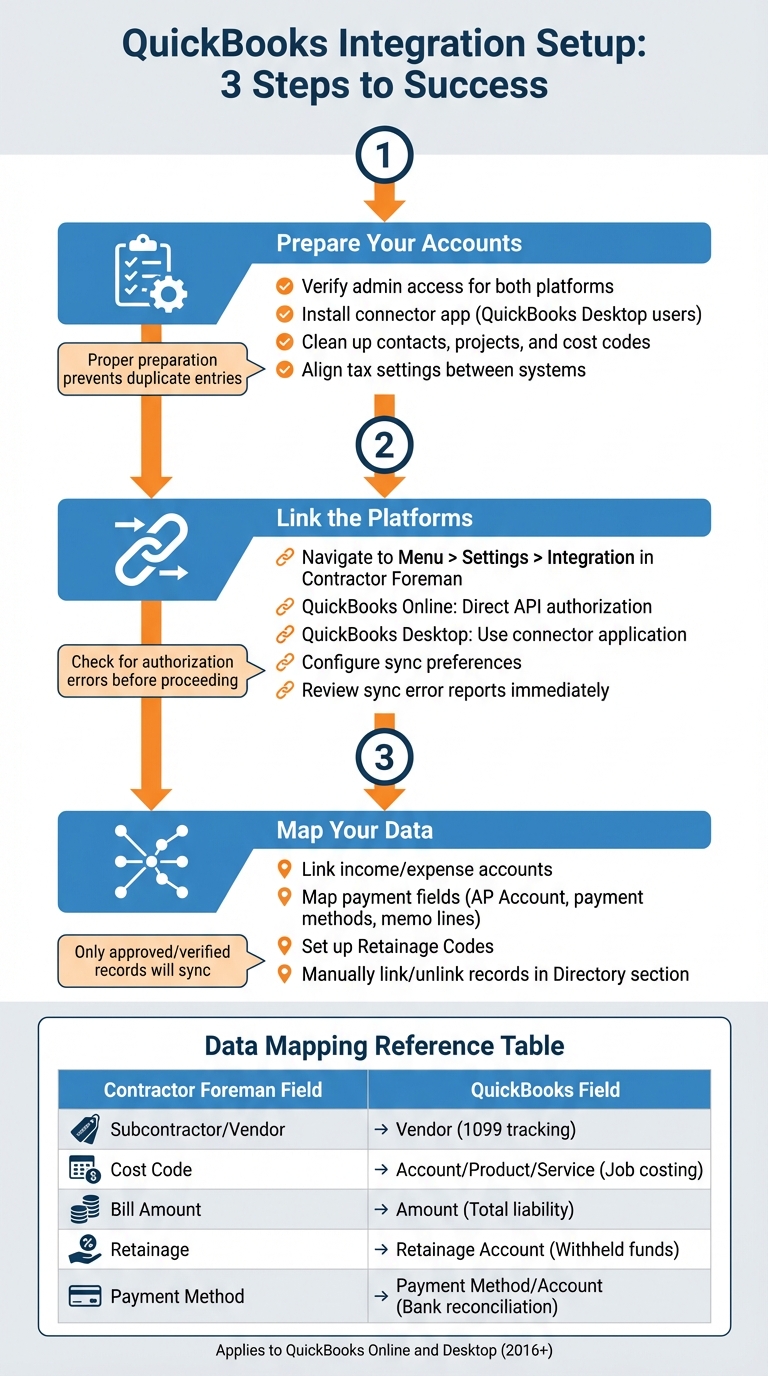
Here’s a step-by-step guide to link Contractor Foreman with QuickBooks, helping you avoid sync issues and duplicate records. The setup process varies slightly depending on whether you’re using QuickBooks Online or QuickBooks Desktop (2016 or later). Below, you’ll find instructions tailored to both versions.
Step 1: Prepare Your Accounts in Contractor Foreman and QuickBooks
Start by ensuring you have administrative access for both platforms. If you’re using QuickBooks Desktop, install the connector application on the computer hosting your company file. This ensures a stable connection.
Before syncing, clean up your data. Review and organize your contacts, projects, and cost codes to match existing records. This step helps prevent duplicate entries. Also, double-check that your tax settings align in both systems. Mismatched sales tax categories are a frequent cause of sync errors. Proper preparation here will save time and headaches later.
Step 2: Link Contractor Foreman with QuickBooks
In Contractor Foreman, navigate to Menu > Settings > Integration, log in using your admin credentials, and select your QuickBooks company file. If you’re using QuickBooks Online, the connection is established via direct API authorization. For Desktop users, the connector application installed in Step 1 handles this process.
Once connected, configure your sync preferences. Be sure to review any sync error reports right away to resolve issues with authorization or data mapping before proceeding.
Step 3: Map Subcontractor Data and Payment Fields
Mapping your data correctly is essential for smooth financial transactions between the platforms. Start by linking your default income and expense accounts in Contractor Foreman to the corresponding accounts in QuickBooks’ Chart of Accounts. For subcontractor payments, you’ll need to map fields such as AP Account, payment methods, and memo lines. This ensures an accurate audit trail.
If you manage retainage, set up Retainage Codes to sync withheld funds properly. You can manually link or unlink records in the Directory section of Contractor Foreman. Keep in mind that only approved or verified estimates, purchase orders, invoices, and payments will sync to QuickBooks.
Use the table below as a reference for mapping fields correctly:
| Contractor Foreman Field | QuickBooks Field | Purpose |
|---|---|---|
| Subcontractor / Vendor | Vendor | Identifies payment recipient and 1099 status |
| Cost Code | Account / Product / Service | Categorizes expenses for job costing |
| Bill Amount | Amount | Records total liability |
| Retainage | Retainage Account | Tracks withheld funds |
| Payment Method | Payment Method / Account | Reconciles transactions against bank accounts |
How to Manage Subcontractor Payments with Contractor Foreman and QuickBooks
Once you’ve set up the integration between Contractor Foreman and QuickBooks, managing subcontractor payments becomes much more streamlined. Here’s how to handle the process step by step, from invoice approval to reconciling your accounts.
Track and Approve Subcontractor Invoices
Before syncing any subcontractor invoices to QuickBooks, they must first be approved or verified in Contractor Foreman. This ensures that only accurate and legitimate expenses make their way into your accounting system. When a subcontractor submits an invoice, enter the details into Contractor Foreman and attach any supporting documents. This keeps all relevant information centralized and easy to access.
Once an invoice is approved, it will automatically sync to QuickBooks through the bi-directional integration. If adjustments are needed, you can unlink and relink records by accessing the Directory section in Contractor Foreman’s integration settings. After approval, you’re ready to move on to generating and processing payments.
Generate and Process Payments
Before issuing payments in QuickBooks, make sure your setup is complete. This includes enabling direct deposit for your company, creating contractor profiles, and collecting the necessary bank account details from subcontractors. Additionally, run the Time Activities report to confirm hours worked and amounts owed.
For QuickBooks Online:
- Navigate to Expenses > Contractors > Pay contractors.
- Select the pay date, bank account, and subcontractor(s). Set direct deposit as the payment method, choose an expense category, and enter the payment amount and description.
- Use the Preview contractor pay feature to review all details before submitting. Payments submitted before 5 PM PT will typically deposit the next business day.
For QuickBooks Desktop:
- Go to Banking > Write Checks.
- Select the account, enter the pay date and amount, then choose Pay Online to send the payment to Intuit.
Monitor Payments and Reconcile Financial Data
After processing payments, stay on top of your records with regular reconciliations. This helps catch errors early and ensures your books remain accurate. QuickBooks offers several reports to help track subcontractor payments effectively:
- 1099 Contractor Balance Summary: Displays the total payments made to each subcontractor, helping you track when they approach the $600 threshold for filing Form 1099-NEC.
- 1099 Contractor Balance Detail: Provides transaction-level details for each subcontractor.
- Contractor Payments (under the Payroll section): Summarizes all payments made to subcontractors.
Reconcile your accounts using QuickBooks’ bank feed, matching cleared payments with their corresponding synced transactions. This prevents duplicate expense entries. If QuickBooks doesn’t automatically suggest the correct match, use the Find other matches tool under Bank transactions. For integrated payment processing, account for any bank fees by matching both the net deposit and the fee journal entry to the same bank transaction.
“Financial data syncs automatically, reducing manual entry and errors, with real-time updates ensuring accurate records.”
– Apps4Rent Editorial Team
Make it a habit to perform these reconciliation checks weekly, especially during busy times when multiple subcontractors are submitting invoices. This regular monitoring ensures your project budgets in Contractor Foreman align with the actual cash flow recorded in QuickBooks, maintaining the accuracy established during your initial integration setup.
Fixing Common QuickBooks Integration Issues
Even with the right setup, sync errors can still pop up. These issues often stem from duplicate data, closed accounting periods, or authorization problems. Spotting these errors early makes it easier to resolve them and keep your payment workflow running smoothly.
Once your QuickBooks integration with Contractor Foreman is set up, you can apply these solutions to tackle common sync issues. If configuration problems persist, revisit your setup guide before diving into these troubleshooting steps.
Fix Sync Errors and Authorization Issues
Authorization errors are a frequent issue. Messages like “OAuth Token rejected” or “Authorization Failure” (Status Code 401 or 500) usually mean your connection has expired or the account you’re using lacks admin permissions. To fix this, disconnect the QuickBooks integration in Contractor Foreman and reconnect it using an admin account.
For duplicate document numbers or transactions dated in closed accounting periods, assign a unique number or adjust the date before syncing.
After resolving errors, clear them in the sync report to trigger a new attempt. To avoid errors caused by simultaneous edits, designate one primary device for QuickBooks sync operations.
Verify Data Mapping Accuracy
Data mapping issues can disrupt the syncing of payments. Go to Sync Settings in Contractor Foreman and ensure estimates, invoices, and payments are mapped to the correct accounts in your QuickBooks Chart of Accounts. If the status reads “Incomplete”, syncing won’t occur.
Make sure individual jobs are marked as “Sync with QuickBooks” in the Job Info section – this setting isn’t enabled by default for all jobs. For subcontractor payments, confirm they are categorized as “Payments” or “Sales Receipts” in QuickBooks, not as “Deposits.” Also, payments should be applied at the Job or Sub-customer level instead of just the parent customer.
An “Invalid Reference ID” error could mean a linked customer, vendor, or account has been deleted or deactivated in QuickBooks. Restoring the record in QuickBooks should clear the issue.
Test the Integration Before Going Live
Before handling real subcontractor payments, run tests with sample invoices and payments to ensure the integration is functioning correctly. This step helps you identify mapping errors, duplicate numbers, or authorization problems without affecting your actual financial data.
Use test invoices and payments to check mapping accuracy and sync functionality. Process a small test payment and confirm it appears in both systems with matching details. Regularly review your QuickBooks Sync Report to spot transactions ready to sync and address any that failed.
If test payments don’t sync as expected, double-check that your QuickBooks bank account is classified as “Bank” or “Other Current Asset” and that expense accounts are set as “Expense”. Testing small amounts allows you to fine-tune the setup before managing larger payment volumes.
Regular testing helps maintain sync accuracy as you handle subcontractor payments.
Conclusion
By linking Contractor Foreman with QuickBooks, managing subcontractor payments becomes much simpler. The integration syncs bills and expenses seamlessly, reducing manual errors and ensuring consistency across both systems. This means you can rely on accurate job costing and have a clear, real-time view of which bills are still open and which have been paid.
With direct deposit capabilities through QuickBooks, you can pay subcontractors electronically, avoiding the hassle of writing and mailing checks. This not only speeds up the payment process but also helps build stronger relationships with your vendors. Plus, the system automatically tracks 1099 payments for tax reporting, keeping you organized and compliant when tax season rolls around. These features work hand in hand with retainage tracking to make payment management even smoother.
When it comes to retainage management, syncing retainage codes ensures that funds held back are tracked properly and released once project milestones are achieved. This level of precision helps you stay aligned with your subcontract agreements.
To keep everything running smoothly, use Contractor Foreman’s built-in tools to regularly verify that invoices and payments are syncing correctly with QuickBooks. This extra step ensures your data remains accurate and reliable.
FAQs
How does integrating Contractor Foreman with QuickBooks streamline subcontractor payments?
Integrating Contractor Foreman with QuickBooks makes managing subcontractor payments much easier by automatically syncing your financial data. This automation helps maintain accurate records and cuts down on manual entry mistakes. Plus, you’ll get real-time financial updates, allowing you to keep a close eye on payments and budgets.
The automated processes free up time you’d otherwise spend on administrative work, letting you focus more on managing your projects. By streamlining payment workflows and minimizing errors, this integration helps keep your operations running smoothly while giving you better control over your finances.
How do I set up QuickBooks integration with Contractor Foreman?
To link QuickBooks with Contractor Foreman, start by organizing your data and ensuring both systems are ready for integration. It’s a good idea to review any instructions or training materials provided to avoid problems like duplicate entries or syncing errors. Contractor Foreman also offers a pre-integration webinar, which is a great opportunity to pick up tips and connect with their integration team for tailored guidance.
You’ll need to be using QuickBooks Online PLUS or Advanced, as these versions are required for compatibility. Make sure your QuickBooks account is set up with the correct cost codes and project details before proceeding. Then, use the detailed step-by-step guide from Contractor Foreman to complete the integration process. If you run into any issues, their support team is available via live chat or email to help you out.
What should I do if Contractor Foreman and QuickBooks aren’t syncing correctly?
If you’re having trouble syncing Contractor Foreman with QuickBooks, the first step is to confirm that your integration settings are set up correctly. Make sure your data is well-prepared and organized to avoid typical problems like duplicate records or mismatched project details.
For a smoother syncing process, refer to the setup guides provided by Contractor Foreman and explore the available training materials. If the problem continues, don’t hesitate to contact the support team for tailored help. With the right setup and ongoing maintenance, most syncing issues can be avoided.
Related Blog Posts
- How to Forecast Cash Flow for Construction Projects
- How QuickBooks Integration Simplifies Construction Finances
- Client Portals with QuickBooks Integration: Benefits