Have you ever sent a client a “past due” notice for an invoice they already paid?
Yeah, that’s not a good look, is it?
And isn’t it worse the other way — extra money just sitting there, and you don’t know if it’s really yours, or a mistake you’ll have to give back later?
Shudder.
Both come from the same root problem: your client portal and QuickBooks are out of sync.
And the ones mentioned above are just minor problems, really. What you really should be wary about is how it can actually affect your budget and decisions.
Here are some possible scenarios:
- You think a job is under budget, so you relax only to find out later the real numbers were sitting in QuickBooks the whole time, and you were never actually ahead
- You bid the next job using job cost numbers that are already outdated
- You approve new spending because “the books look fine” — except the books are missing half the story
- You make payroll or purchasing decisions based on cash flow that isn’t actually accurate yet
In other words, if your client portal and QuickBooks are disconnected, it could be the reason a project can turn into a complete disaster.
How to Integrate Mobile Client Portals with QuickBooks:
- Use the Mobile client portal for messages, photos, approvals, documents, invoices, and payment status
- Use QuickBooks for accounting records, taxes, reconciliation, payroll, and job costing
- Sync key records like customers, estimates, invoices, change orders, payments, labor hours, and job costs
- Map records first so customers, jobs, cost codes, and line items match on both sides
- Add review controls so invoices and change orders can be checked before they post
- Watch sync logs to catch duplicates and mismatches early
Takeaway: when approvals and field activity flow into QuickBooks without extra typing, billing goes out sooner, records stay cleaner, and job cost data is easier to trust.
Problem: Disconnected Client Updates and Financial Records
When your client portal and QuickBooks don’t match, things drift apart —FAST!
Project updates, approvals, and financial records stop lining up.
Field activity says one thing, accounting shows another, and soon project progress, cost data, and profitability are all telling different stories. You see the mess right away in approvals, documents, and billing on active jobs.
Scattered Documents, Approvals, and Messages
On many jobs, estimates, change requests, approvals, and field updates live in too many places. Some are in the portal. Some are in email. Some are buried in text threads or side conversations. The result is simple: no one knows for sure what’s approved, what’s been invoiced, or what’s still sitting out there.
When updates and sign-offs are scattered, billing turns into detective work. Instead of sending an invoice, your team has to stop and piece the story together.
Manual Re-Entry Creates Billing and Job Cost Errors
Every time someone retypes a number, there’s a chance something goes wrong.
It might be the amount, the tax setting, or the job tied to the transaction. Small mistakes like that don’t stay small for long.
About 70% to 80% of construction companies don’t have proper job-costing setup in their accounting systems. That makes manual re-entry even more risky. One framing contractor found $47,000 in unbilled change orders sitting in a project management tool but never moved into QuickBooks. That’s not just an admin issue. That’s a cash-flow hit.
The answer is pretty direct: sync portal activity to the same job record QuickBooks uses.
Delayed Financial Visibility Slows Project Decisions
Without a live connection between your portal and QuickBooks, your financial view is always behind. Budget vs. actuals, outstanding balances, and progress billing status don’t match what’s happening on the job site right now.
In 2026, material price swings make real-time job costing essential. If the data comes in late, the decisions come in late too. The next move is to connect job activity straight to QuickBooks so billing and job costing stay current.
sbb-itb-5eea312
The Solution: Sync Mobile Client Portals With QuickBooks
Connect your client portal to QuickBooks so actions move into accounting ONE time, without rekeying. Instead of hunting down approvals in texts, emails, and spreadsheets, collect them in the portal and sync them to QuickBooks. That only works if each record has a clear owner.
What a Mobile Client Portal Should Handle
The portal should be the client-facing place for approvals, documents, photos, messages, invoices, and payments. It captures what the client does. QuickBooks records the transaction.
What QuickBooks Should Continue to Manage
QuickBooks should stay the system of record for accounting. That means your chart of accounts, reconciliation, taxes, and financial reports live there. It should also store payroll and labor burden tied to cost codes. The portal can show payment status so clients can see where things stand, but QuickBooks owns the final payment record through bank reconciliation.
How the Sync Improves Accuracy and Speed
When the two systems are connected, data moves on its own: customer details, construction estimates, invoices, approved change orders, and payment status. No one has to type the same thing twice. A client approves a change order in the portal, and that approval updates project financials in QuickBooks.
An invoice saved in the portal can be sent to QuickBooks as a draft or as an open invoice, which gives the accounting team a head start without a separate data-entry step.
That kind of connection can save a surprising amount of time. High-quality integrations have cut weekly bookkeeping time for custom builders from 12 hours to 3 hours.
The key is simple: assign each transaction type to one system so approvals, invoices, and payments don’t drift out of sync.
| Data Type | Portal Role | QuickBooks Role |
|---|---|---|
| Invoices | Creates and sends | Stores for tax and reconciliation |
| Payments | Shows status | Matches and reconciles |
| Change Orders | Collects approval and signature | Updates estimate or invoice |
| Estimates | Captures acceptance | Stores approved estimate |
| Time & Labor | Captures field entries | Processes payroll and tracks labor burden |
Once those roles are set, the next step is mapping clients, jobs, and cost codes the right way.
How to Set Up the Integration for Better Project Control
Map Clients, Jobs, Cost Codes, and Line Items Correctly
Bad record matching can cause a mess fast. If names don’t line up, you can end up with duplicate records and a broken sync. A smart first step is to import QuickBooks customers, items, and cost codes into the portal before you sync anything else.
If your team handles more than one project for the same client, don’t keep everything under one flat customer record. Use QuickBooks’ Customer:Job structure instead. That way, each project’s costs and billing stay separate, which makes job tracking much cleaner.
You’ll also want to match portal cost codes and line items to the QuickBooks item list so costs post to the right place. Once that setup is in place, the rest of the construction billing process tends to run with far fewer headaches.
Build Mobile Approval and Billing Workflows Around Real Job Events
After the records are mapped, you can tie approval and billing to what happens on the jobsite. Progress billing should follow percent complete or unit counts, so invoices are posted based on work that’s actually done.
When a client approves a change order in the portal, that approval should flow into QuickBooks by updating the contract value and invoice. Daily logs and timecards should also sync labor and expense data to QuickBooks so job costing stays current.
If your accounting team wants a checkpoint before anything goes out, use a “Sync as Draft” option for invoices that need review before final posting. It’s a simple way to keep control without slowing everything down.
Use Contractor Foreman to Connect Client Portal and Financial Workflows
For teams using Contractor Foreman, this setup helps tie field activity to accounting without a lot of manual handoff. The platform supports two-way sync with QuickBooks Online and Desktop, and it can automatically push:
- invoices
- customers
- line items
- payments
- job costs
- takeoff estimates
- material purchases
- labor hours
All of that is supported in the sync flow.
You can also choose which modules sync with QuickBooks, so the accounting team can keep some records under manual control instead of moving everything over by default. On top of that, error handling blocks duplicate customers and invoices during sync, which helps the setup start clean and stay that way.
Best Practices and Conclusion
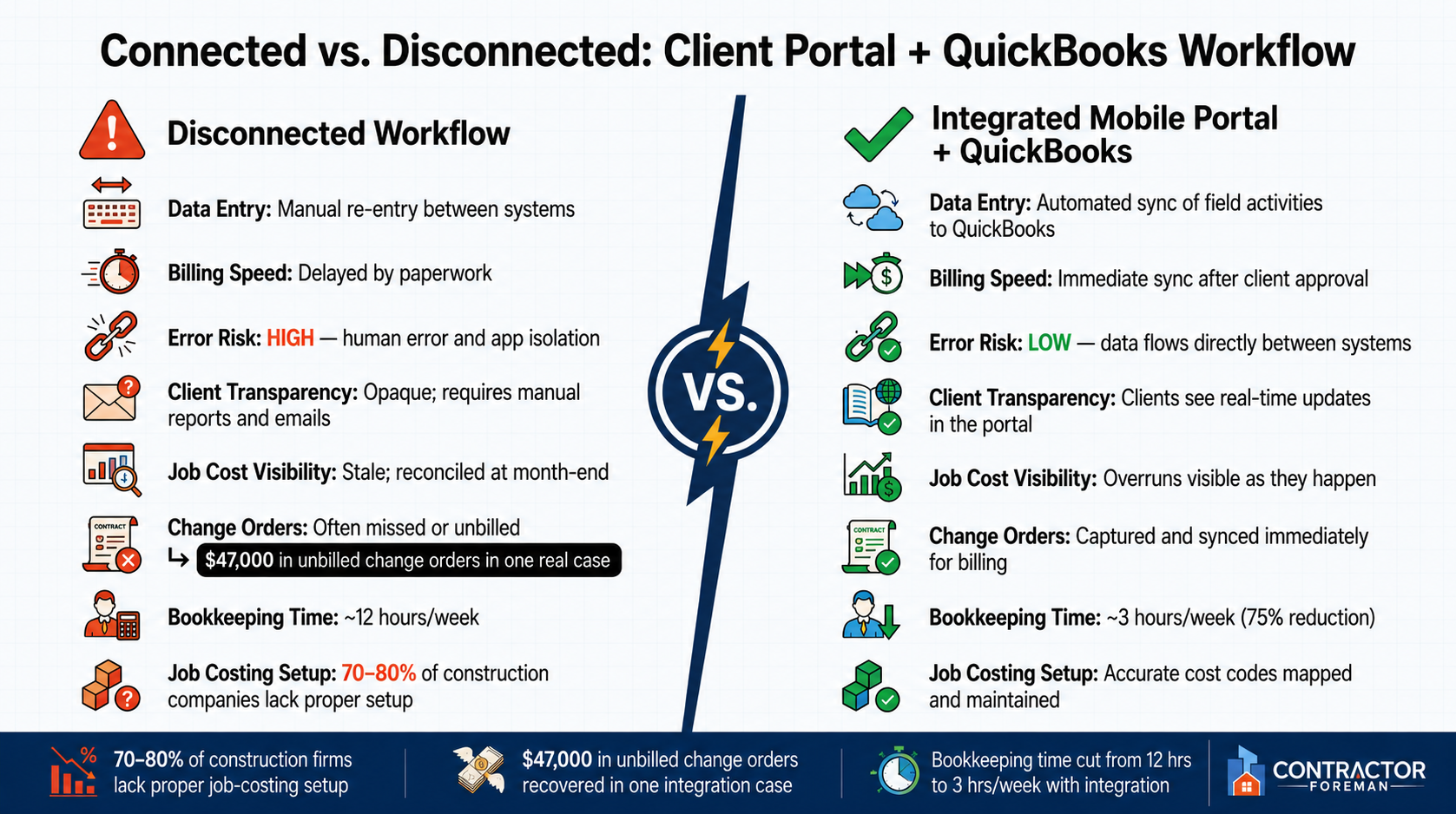
Connected vs. Disconnected: Mobile Client Portal + QuickBooks Integration
Controls That Keep the Sync Reliable
Once the sync is live, the job changes. It’s no longer about setup. It’s about control.
Start with role-based access. Only authorized users should be able to create invoices, approve change orders, or trigger sync actions. Use consistent Customer:Job records, unique IDs, and aligned cost codes so you don’t end up with duplicate entries. That keeps reports clean and cuts back on messy fixes later. Review sync logs often, and reconcile mismatches on a regular basis. If you catch problems early, cleanup is a lot easier.
It also helps to put a final approval checkpoint in place before anything syncs. That way, office staff can control what actually reaches accounting. Project managers should approve invoices and change orders before they sync to QuickBooks.
Connected vs. Disconnected Workflow Comparison
The gap is pretty obvious when you look at the day-to-day workflow side by side.
| Feature | Disconnected Workflow | Integrated Mobile Portal + QuickBooks |
|---|---|---|
| Data Entry | Manual re-entry | Automated sync of field activities to QuickBooks |
| Billing Speed | Delayed by paperwork | Immediate sync after approval |
| Error Risk | High due to human error and app isolation | Low; data flows directly between systems |
| Client Transparency | Opaque; requires manual reports and emails | Clients see updates in the portal |
| Job Cost Visibility | Stale; reconciled at month-end | Shows overruns as they happen |
| Change Orders | Often missed or unbilled | Captured and synced immediately for billing |
Conclusion: Faster Billing, Clearer Job Costs, Better Client Experience
Integrating a mobile client portal with QuickBooks cuts the admin work that slows most contracting businesses down. Invoices go out faster, job costs stay current, and clients get direct visibility into their projects without constant manual follow-up.
When the workflow is controlled, the impact on the business shows up fast. The biggest gains come from real-time job events, disciplined sync rules, and clear system ownership. That leads to faster billing, clearer job costs, and a better client experience.
FAQs
What should sync first with QuickBooks?
Before you start the integration, take a little time to review and clean up your contacts, projects, and cost codes. The goal is simple: match existing records and avoid duplicate entries once the two systems start syncing.
You’ll also want to check that your tax settings line up in both systems. If those don’t match, things can get messy fast.
Once that prep work is done and you’ve gone through the integration guides, you can connect Contractor Foreman with QuickBooks in the integration settings.
How do I avoid duplicate records?
Before you sync with QuickBooks, take a few minutes to clean up your contacts, projects, and cost codes. It saves headaches later.
For auto-matching to work, cost codes and contact names need to match exactly in both systems. Even small differences can throw things off.
If you already have similar records in Contractor Foreman, use Link Records to manually merge existing items. Contractor Foreman also includes built-in error handling to help stop duplicate records during sync.
Can invoices sync as drafts for review?
No. Invoices do not sync to QuickBooks as drafts.
Contractor Foreman sends invoices to QuickBooks only after they reach the required status: Submitted for QuickBooks Online or Approved for QuickBooks Desktop. That way, only finalized invoice data gets sent over.