
A crew clocks eight hours. A foreman flags a change order. Someone uploads photos of completed work.
Great job, right?
Now, if only the office actually knew about it, things would be perfect…
The field and office need to stay connected. Otherwise, these scenarios could occur:
Crew hours arrive late → payroll and job costs are wrong.
A change order doesn’t reach the PM → work moves forward without approval.
Updated plans don’t reach the field → crews build from old information and you get rework.
And these little disconnects add up. 35% of construction professionals spend 14+ hours a week on nonproductive tasks.
The solution? Keep field and office updates in one place—and make them available in real time.
With construction software like Contractor Foreman, timecards, daily logs, schedules, documents, approvals, and budgets are updated in the same system. When the field logs hours, reports an issue, or submits a change, the office sees it. When the office approves a change or updates a schedule, the field sees that too.
How it works:
- Field staff enter job data on mobile the same day work happens
- Office teams review, approve, code, and post that data
- Standard fields and drop-downs keep reporting clean
- Shared schedules and document control help crews work from current information
- Approval records tied to cost codes improve budget tracking
A connected setup works best when one process is used across every job, from payroll to change orders.
Plan a Standard Workflow for Field and Office
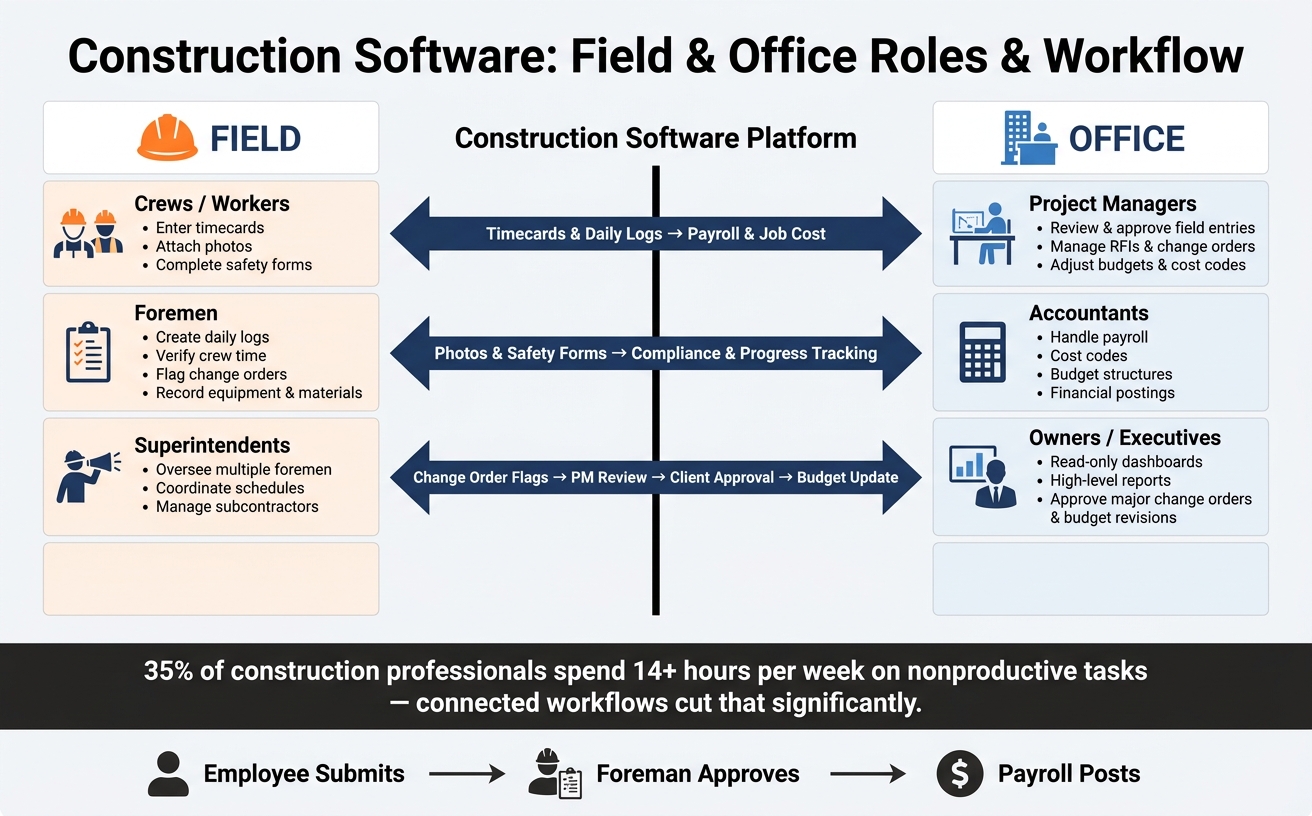
Construction Software: Field & Office Roles and Workflow
Map the workflow before you set up the software.
Start with daily logs, timecards, RFIs, change orders, inspections, safety forms, approvals, and reporting. Then spell out who enters, reviews, approves, and receives each record. That kind of clarity is what makes software work in practice. Without it, you’re just digitizing chaos.
Field staff should handle the first entry. Office staff should handle review, approval, and coding. Foremen record crew details, equipment, materials, and hours. The office then uses that data for payroll, job cost, billing support, and dashboards. Those handoffs fall apart fast if access and permissions aren’t set first.
Define Roles, Permissions, and Required Fields
Assign roles only after the workflow is mapped.
Crews should be able to enter their own timecards, attach photos, and complete safety forms – and that’s it. Foremen and superintendents can create daily logs, verify crew time, flag possible change orders, and record equipment and material use. Project managers review and approve field entries, manage RFIs and change orders, and adjust budgets and cost codes. Accountants handle payroll, cost codes, budget structures, and financial postings. Owners should get read access to dashboards and high-level reports, along with approval rights for major change orders and budget revisions.
Set rules for dates, currency, units, job names, and cost codes before anyone logs in. If one person enters “Job 101” and another uses “Project 101,” reports get messy in a hurry. Once roles are set, the next move is making sure those entries happen in real time.
Match Field Entries to Office Reporting Needs
Build each field record around the office report it supports. A daily log should include date, job number, crew, cost codes, quantities, equipment, and delays. A timecard should include employee ID, regular and overtime hours, cost code, and pay type. When field data flows into payroll and accounting through an integration like QuickBooks, the office doesn’t have to retype it.
The same idea applies to approvals.
Timecards should follow a simple path:
- Employee submits
- Foreman approves accuracy and cost coding
- Payroll validates and posts
Change orders need a clear chain too: a field flag, a PM-drafted scope and estimate, internal approval based on a set dollar threshold, client approval, and then office updates for budget and billing. Mapping those steps in advance – before anyone touches the software – keeps projects moving and helps avoid financial surprises. Once the workflow is defined, mobile tools can capture it in the field.
sbb-itb-5eea312
Capture Jobsite Data in Real Time With Mobile Tools
Once the workflow and roles are set, the next step is simple: record jobsite data the same day the work happens. That gives the office usable information right away instead of waiting on paper forms or a follow-up call.
Use Mobile Daily Logs, Timecards, Photos, and Safety Forms
A solid mobile daily log should record labor counts, equipment used, materials delivered or used, weather in °F, work completed, delays, and site notes. Each entry should be tied to a specific job number and date. That way, the office can see what happened on each job without waiting for someone to explain it later.
GPS-enabled timecards help too. When workers select the right crew and job from drop-down menus at clock-in, each entry connects to the correct site and cost code. That cuts payroll mistakes and buddy punching.
Photos need structure as well. Tag them at upload with the job, date, location, and activity. Then the office can pull them into progress tracking, change orders, and disputes without digging through a random photo roll.
Digital safety forms should work the same way. Toolbox talks, job hazard analyses, and incident reports filled out on a mobile device are time-stamped, synced to the office, and much easier to track than paper sign-in sheets. Required fields like job, date, attendees, topic, incident type, location, involved crew, immediate response, and signatures help keep each record complete and support OSHA compliance.
Set Clear Rules for Accurate Field Entries
Mobile tools work best when people enter data the same way every time. Required fields are the easiest fix. If a foreman can’t submit a daily log without the job number, date, crew, activity, cost code, and quantities, the office won’t have to hunt down missing details later.
Drop-down lists matter just as much. If one person writes “site prep,” another writes “excavating,” and someone else types “digging,” reports get messy fast. A standard list of activities, cost codes, equipment, and materials keeps entries consistent and makes reporting easier to trust. Free-text notes should stay in a comments field for issues, decisions, and site observations, not act as a stand-in for structured data.
Set a firm daily deadline, such as 5:00 PM local time, and review logs, timecards, and safety forms that same day. Catching mistakes early is a lot easier than fixing them after payroll runs or after costs are posted. When field data is recorded daily, the same system can also keep schedules, documents, approvals, and budget notes lined up across both teams.
Share Schedules, Documents, Approvals, and Budget Notes
Once your team has daily field data in the system, that same setup should also run schedules, files, approvals, and budget notes. Otherwise, you end up with one tool for field updates, another for drawings, and a pile of side messages filling the gaps. That’s where mistakes creep in.
Keep Schedules and Documents Current for Every Job
A shared Gantt-style schedule gives the field team and office staff one view of tasks, dates, dependencies, and assigned crews. If an inspection slips, dependent tasks should shift on their own, and the affected foreman should get a notice before crews arrive at a job that isn’t ready. Dates should appear in MM/DD/YYYY format, with durations shown in hours and days, so superintendents can line up subcontractors the right way.
Documents need that same level of control. Keep drawings, specs, submittals, RFIs, and change orders in one central library with clear version labels such as “A1.3 – Floor Plan – Rev 4.” Only approved documents should go to the field through the system.
Mobile offline access matters too. Crews working in places with weak cell service should still be able to pull the latest approved drawings from a cached copy on their device, then sync once service comes back. From there, approved files should feed straight into RFIs, change orders, and budget updates.
Route Approvals and Budget Notes Through One Record
Every change order, purchase order, RFI, and timecard correction should move through a defined path: who starts it, who reviews it, and who approves it. For change orders, the flow is pretty simple:
- A field supervisor logs the request on mobile with photos and scope notes
- The project manager adds pricing
- The item routes for approval based on company rules
Each step should be timestamped, and alerts should help keep things from stalling.
Every approval also needs to tie back to a cost code so budget notes show the cost impact in plain dollars. If a change order is coded to 09-200 drywall material, office staff can see the live cost against budget and add a note right on the record, such as “Client requested upgraded tile in lobby” or “Unforeseen rock excavation.” That way, each approval stays linked to its cost code and budget note.
Those notes give the team a clear cost trail for billing, reviews, and future estimates.
Use Contractor Foreman to Connect Field Updates and Office Oversight
This is where one system can carry updates from the field to the office without re-entry. Contractor Foreman connects field crews and office staff through mobile daily logs, GPS timecards, schedules, documents, approvals, and budgets in one platform.
Because it supports unlimited projects, contractors with several active jobs can manage everything from one dashboard. QuickBooks integrations send approved, cost-coded transactions straight into accounting without double entry. Zapier can extend the workflow even more by linking Contractor Foreman with other business apps the team already uses.
Track Job Status and Maintain the Process
Build Dashboards for Job-Level and Company-Wide Status
When field entries, schedules, and approvals live in one system, dashboards turn all of that raw data into a clear view of job status. The best setup is usually role-based dashboards built around what each person actually needs to do day to day.
Foremen need a field-first view. That means today’s labor hours by cost code, crew assignments, production quantities, safety notes, and open RFIs. Project managers need a broader project view: schedule variance, cost to date vs. budget, open change orders, and RFIs by age across their jobs. Owners and executives need the big-picture portfolio summary: which jobs are on schedule, which are over budget, and where approval backlogs are starting to pile up.
A simple rule that works well is to use red/yellow/green status indicators. It gives people a fast read on which jobs need attention without making them dig through a full report. Say a job has used 80% of planned labor but finished only 50% of production. That warning should show up on the dashboard right away, not wait until the next weekly meeting.
At its best, a dashboard answers one question: what needs attention now?
But that only happens when the office spots bad data fast.
Review Data Quality, Train Teams, and Refine the Workflow
Dashboards are only as good as the data behind them, so the office should run a daily exception review. Crews submit logs, timecards, and photos each day, and office staff checks those submissions the next morning. An exception-based review keeps the work focused. Instead of checking every line the same way, flag unusual items, like a crew logging overtime on a task that should be wrapping up, or a daily log with no progress notes on an active day.
Training should use real job examples, not generic software walk-throughs. Show foremen the exact forms they’ll fill out every day. Show office staff how to review submissions, catch missing entries, and follow up fast. A pilot project is usually the best place to start. Run the process on one job, make sure it works from start to finish, then roll it out to more jobs.
It also helps to review permissions, forms, and dashboards monthly or quarterly, then update them as reporting needs shift.
FAQs
How do you set up one workflow for field and office?
Keep planning, scheduling, cost tracking, and job documents in one system so the field and office are working from the same set of facts. That cuts down on crossed wires, duplicate files, and the all-too-common “I thought we were using the other version” problem. To keep things tidy, set up clear folder structures, simple naming rules, version control, and role-based permissions.
Field crews also need mobile tools they can use on the job site without a hassle. They should be able to enter timecards, daily logs, and photos right from their phones or tablets. When syncing, approvals, notifications, and tools like QuickBooks are tied in, data gets entered once and stays visible to everyone.
What jobsite data should crews enter every day?
Field crews should log daily reports with labor hours, crew attendance, task assignments, site conditions, weather, safety notes, equipment usage, material deliveries, progress photos, and incident reports.
When crews use Contractor Foreman’s mobile app to record that information on-site, the record stays current and clean. The office can see what’s happening without waiting on paperwork or typing the same details in twice.
How does construction software improve cost tracking?
Construction software makes cost tracking easier because it puts data in one place, cuts down on manual double entry, and gives teams real-time visibility into project finances.
It also links field work to the accounting side. For example, mobile time tracking and material logs can flow straight into the system, so labor hours and expenses are tied to cost codes right away. That means teams can compare budgeted costs with actual costs without waiting on end-of-week updates.
Just as important, it helps crews record change orders and purchase orders as they happen instead of chasing them down later.
Related Blog Posts
- How Software Solves Construction Scheduling Problems
- Top Tools for Construction Timeline Management
- Ultimate Guide to Construction Collaboration Software
- Why Easy-to-Use Construction Software Outperforms “Smart” Platforms