
- 1. Build a Centralized and Searchable Document System
- 2. Control Versions, Reviews, and Approvals
- 3. Secure Access, Back Up Records, and Retain Files Properly
- 4. Turn Best Practices Into a Repeatable Company Process
- Use Contractor Foreman as a Central Hub for Document Workflows
- Conclusion: Core Practices That Keep Construction Documents Under Control
- FAQs
There’s a particular kind of person who keeps a single, tidy folder labeled “Current Drawings” and updates it the moment a revision comes through.
This is also the kind of person who alphabetizes their spice rack and has never once said “I’ll deal with it later” in their entire life.
You’re probably NOT that person. And that’s okay…
You’re probably the kind of person — like most people, if we’re honest — who has, somewhere in a shared drive, four folders named some variation of “Final,” “Final_v2,” “Final_ACTUAL_final,” and one, inexplicably, called “DO NOT USE — old” that everyone opens anyway.
Usually under deadline.
Usually while framing a wall that was moved two feet to the left three weeks ago.
This isn’t a character flaw. Ask anyone in construction and they’ll tell you the same story with different nouns.
An RFI disappears into somebody’s inbox like a sock into a dryer. A change order gets mentioned once, in passing, at a meeting nobody wrote down. And then, weeks later, someone is standing in front of a wall that shouldn’t exist — and everyone is very quietly trying to figure out whose fault this is.
Some might think, “Eh, it’s just documents, no need to be overly fastidious about it.” Except this is exactly one of the reasons why you’re losing money.
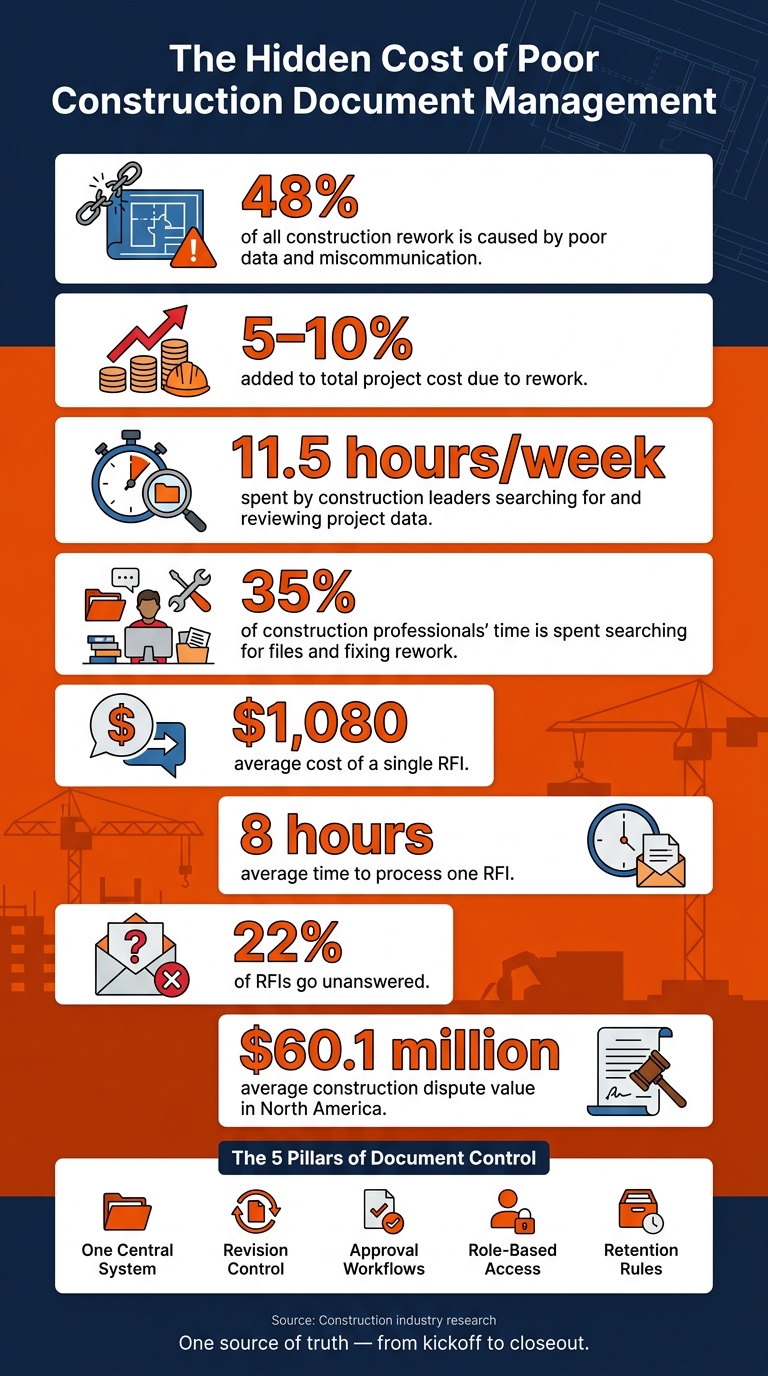
Bad document control costs time and money. Construction pros spend about 35% of their time searching for files and fixing rework. Poor data and miscommunication drive about 48% of rework, and rework often adds 5% to 10% to total project cost — which is a polite way of saying somebody’s afternoon just became somebody’s entire week.
The good news? You don’t have to be Mr. Type-A to be great at handling construction documents.
So what does good document control look like?
Here are the practices that get you there:
- Use one central system for drawings, RFIs, submittals, change orders, logs, photos, permits, invoices, and closeout files
- Set one folder structure and one file-naming rule for every job
- Keep a current set and archive old revisions so crews don’t build from outdated files
- Route approvals through set workflows with owners, due dates, and alerts
- Track every action with timestamps and user history
- Limit file access by role so teams only see what they need
- Back up files with cloud storage and offline mobile access
- Set retention rules early for contracts, as-builts, safety files, tax records, permits, and lien waivers
- Turn the process into a company rule with templates, training, and role ownership
If you want a simple target, it’s this: one source of truth from kickoff to closeout.
| Focus area | What I’d do |
|---|---|
| Storage | Put all files in one cloud-based system |
| Revisions | Keep one Current Set and mark old files Superseded |
| Approvals | Use set workflows for RFIs, submittals, and change orders |
| Access | Apply role-based permissions |
| Records | Back up files and keep them for the right time period |
In this article, we’ll guide you on how to put those rules into day-to-day project work without making the process harder than it needs to be.
The Hidden Cost of Poor Construction Document Management
1. Build a Centralized and Searchable Document System
Put every project file in one controlled system.
When files are spread across email threads, personal laptops, and shared drives, even a simple search can turn into a time sink. People waste energy hunting for the right version instead of doing the work. A shared setup fixes that fast. Start with a folder template and clear naming rules so every project opens the same way.
Create a Standard Folder Structure and Naming Convention
Use one folder template for every project. Add numbered prefixes so folders stay in job order and people can scan them fast.
| Folder | Category | Typical Contents |
|---|---|---|
| 01 | Pre-Construction | Bids, estimates, contracts, insurance certificates |
| 02 | Design & Plans | Architectural, structural, MEP drawings, submittals |
| 03 | Permits & Inspections | Building permits, OSHA records, sign-offs |
| 04 | Field Documents | Daily logs, RFIs, change orders, meeting minutes |
| 05 | Financial | Invoices, purchase orders, lien waivers |
| 06 | Close-Out | Punch lists, as-builts, warranties |
File names matter just as much as folder names. A set pattern like [ProjectCode]-[DocType]-[Description]-[Date]-[Version] – for example, SMITH-CO-01-KitchenDemo-20260215-v2.pdf – makes files easy to search and identify without opening them.
Set this rule before the first upload. If you wait and try to clean things up halfway through the job, it gets messy fast. Reorganizing mid-project is far more painful than setting it up right from the start.
Once the structure is in place, make version control crystal clear so no one has to guess which set is current.
Maintain a Master Document Index and Latest-Issued Set
A master document index tracks every drawing, spec, and key file along with its current revision. In plain terms, it gives the team one quick place to check what’s live and what’s been replaced.
Pair that index with a dedicated Current Set folder. When a new revision comes out, mark older files SUPERSEDED or move them into an archive subfolder. Splitting documents into four plain states – draft, active, approved, and archived – cuts down on confusion. That’s the whole point: keep crews from pulling old plans by mistake.
After revisions are under control, tie those files to day-to-day project work so everyone is working from the same record.
Connect Documents to Project Activity Using Integrated Software
Each document should connect to the task it supports, whether that’s an RFI, change order, daily log, photo, or schedule. That link cuts down on siloed data and saves teams from bouncing between separate systems just to piece together what happened.
Use Contractor Foreman as the main hub for documents, job records, schedules, RFIs, and financial tracking. Because it’s available on web and mobile devices, office staff and field crews can work from the same information set.
With documents stored in one place and tied to project activity, the next step is setting clear control over who can edit, approve, and archive them.
sbb-itb-5eea312
2. Control Versions, Reviews, and Approvals
Once files sit in one system, the next job is simple: control how changes get made, checked, and signed off.
Version mix-ups are one of the costliest problems in construction. About 48% of all construction rework in the U.S. is tied to poor data and miscommunication. A lot of that waste starts when someone uses an old revision from a shared document system.
Set Clear Revision Rules and Superseded-File Controls
Set revision rules early and stick to them. Use decimals for minor updates and R-notation for major revisions. Each file should also have a plain status label – Draft, Approved, Issued for Construction, or Superseded – in the file name or metadata.
A simple folder setup helps a lot. Keep one Current Set folder for approved files, and move older revisions into Superseded so the latest file is easy to spot. Lock PDFs before sending them out so approved drawings can’t be changed after they leave your hands.
That may sound basic, but it’s where teams often slip. If one person renames files one way and someone else does it another way, confusion creeps in fast. Revision control only works when every RFI, submittal, and change order moves through the same review path.
Standardize Approval Workflows for RFIs, Submittals, and Change Orders
Every RFI, submittal, and change order needs a set review path before the project begins, not something the team makes up in the middle of the job. Give each step a named owner, add a due date, and set automatic notifications when action is needed.
Without that setup, documents get stuck in inboxes. And that gets expensive fast. The average RFI already costs about $1,080 and takes eight hours to process. On top of that, about 22% of RFIs are never answered at all.
Route each document type to the right reviewer – architect, engineer, GC, or subcontractor, based on the file type – so only the right people can approve or reject it. If a review step gets missed or delayed, automatic reminders help keep things moving.
Track Every Action With Audit Trails
Log every upload, edit, approval, and rejection, including who did it and the exact time it happened. When a dispute shows up, that record can make all the difference. The average construction dispute in North America has reached about $60.1 million, and errors in contract documents are among the main causes.
This is where software beats email and spreadsheets by a mile. It keeps version history, approvals, and timestamps in one place instead of scattering them across inboxes and file attachments.
3. Secure Access, Back Up Records, and Retain Files Properly
After version control, the next guardrails are access and retention. Organization alone isn’t enough. If the wrong person can edit a file, or if records disappear, your whole system starts to crack. And when that happens, the single source of truth stops being a source of truth at all.
Apply Role-Based Permissions by Team, Trade, and Document Type
Not everyone on a job site needs the same level of access. Project managers usually need full access, while subcontractors should only see the drawings and specs tied to their scope. Sensitive files – contracts, budgets, payroll-related records, and pre-bid pricing – should stay limited to authorized internal staff.
For outside parties, keep access narrow. Clients can receive progress photos, invoices, and warranty documents through a portal with limited access. Inspectors need permits, approved plans, and sign-offs when needed, and most external users should be view-only. Delete permissions should stay with a small admin group so the audit trail remains intact.
Access settings can get old fast. People change roles, new subs join the job, and project phases move along. That makes old permission lists a security problem. Review them at every major phase change. Once access is locked down, the next step is making sure the files are still there when people need them.
Use Cloud Backups, Redundancy, and Mobile-Friendly Access
Local drives and personal devices can turn into a weak spot fast. Theft, damage, or flooding can wipe out files that live only on that hardware. Cloud storage helps by copying data across multiple data centers automatically. That cuts out manual backups and supports disaster recovery.
Field crews also need mobile access that works in the places they actually work. If a team is in a basement or on a site with no signal, they still need the current drawings. Use construction management tools with offline mode and automatic syncing once service comes back. And don’t just trust the sales pitch – test offline access before sending crews into dead zones.
Backups protect access. Retention rules protect the record itself.
Set Retention and Archiving Rules Before Project Closeout
Set retention rules before closeout. Different file types carry different legal and financial risks, including IRS, OSHA, and state-law requirements.
| Document Category | Retention | Archive Approach |
|---|---|---|
| Contracts | 7–10 years | Secure cloud + encrypted archive |
| As-Builts | Life of building | Permanent digital storage |
| Safety Records | 5 years minimum (OSHA 300 logs) | Centralized compliance folder |
| Tax Records | 7 years (IRS) | Restricted financial archive |
| Insurance and Lien Waivers | Until Statute of Repose expires | Verified audit trail/cloud backup |
| Permits and Inspections | Closeout + 3–5 years | Digital closeout package |
Collect lien waivers and warranties with each pay application, and tie final payment to document submission in subcontracts.
4. Turn Best Practices Into a Repeatable Company Process
Once your access, backup, and retention rules are set, the next step is simple: make the process repeatable.
That matters because retention and access rules only work when every project follows the same document path. If one team stores files in the cloud, another keeps them in email, and a third relies on someone’s laptop, your system falls apart fast.
Audit Your Current Process and Fix the Biggest Gaps First
Start by looking at how your team works today.
Check where files live, who can access current documents, how long approvals take, how often teams use superseded drawings, and whether each action leaves a clear audit trail. You’re trying to spot the point where the single source of truth breaks down.
Here’s why this matters so much: construction pros spend about 35% of their time searching for files and fixing rework. On top of that, poor project data and miscommunication cause 48% of all construction rework in the U.S.. That’s a process problem before it’s a software problem.
| Audit Area | Red Flag | High-Impact Fix |
|---|---|---|
| Storage | Files scattered across email inboxes, physical trailers, personal laptops, or USB drives | Move files into one cloud system |
| Version Control | Field crews unsure if they have the latest drawing revision | Use automatic version control and mark old files superseded |
| Field Access | Foremen calling the office to verify submittal status | Give crews mobile access with offline support |
| Approvals | RFIs sitting in inboxes without tracking | Track RFIs and submittals in digital logs with status alerts |
| Data Entry | Same data entered into estimating, accounting, and logs | Use integrated software like Contractor Foreman to sync data |
Once you know where the biggest leaks are, fix those first. Then lock in a standard process before the next project begins.
Create Templates, Training, and Clear Ownership for Every Project
Ownership should be set before the first file gets uploaded.
Project managers should approve compliance, document controllers should handle naming and versioning, and superintendents should keep crews working from the current set. When each person knows their lane, there is less confusion and a lot less backtracking.
Training doesn’t need to be a huge production, either. A one-page guide for each role and a few short screen recordings can go a long way. Show people how to find the current file, how to confirm it’s the right version, and what to do when something changes.
Use Contractor Foreman as a Central Hub for Document Workflows
A shared system ties those roles, files, and approvals together.
Contractor Foreman keeps drawings, RFIs, change orders, daily logs, schedules, and financials in one system. Its QuickBooks and Zapier integrations sync records across workflows. Mobile access, offline mode, unlimited projects, and free training and support also make it easier for teams to stick with the process.
Conclusion: Core Practices That Keep Construction Documents Under Control
Good document management comes down to steady habits on every job.
These controls only work when they function as one system. Keep files in a single source of truth. Use the same naming rules and folder structure across the project. Track revisions so field crews always have the current set. And put clear approval steps in place for RFIs, submittals, and change orders, so nothing moves ahead without a written record.
That matters more than it might seem. Rework, disputes, and delays often start with messy files and loose controls. One old drawing in the field can snowball into wasted labor, schedule slips, and finger-pointing.
Once the workflow is locked down, the next step is access and record protection. Use role-based permissions to limit sensitive financial data while still giving field teams the drawings and specs they need. Follow the 3-2-1 backup rule – three copies, two storage types, one off-site in the cloud – and set retention rules by document type before closeout.
The goal is a defensible project record from kickoff to closeout. Contractor Foreman can centralize document workflows, approvals, schedules, and financials for office and field teams.
FAQs
How do I start organizing documents on an active project?
Start with a standard folder structure that fits how your team works, like pre-construction, construction, and closeout. Add numbered prefixes to keep everything in order, and use file names such as ProjectName_DocumentType_MM-DD-YYYY so files are easy to sort and find.
Use document management software to keep those rules in place, track versions, and set role-based access. Then train your team and rely on project templates so every new job begins with the same clean setup.
Who should own document control on a construction project?
Document control is a shared responsibility. It doesn’t sit with just one person or one team.
On commercial projects, owners, architects, engineers, general contractors, and subcontractors all create and manage documents. That means everyone has a part to play in keeping files organized, current, and easy to find.
Project managers usually oversee the process. They do this using clear company and project rules for file naming, folder structure, and access. Contractor Foreman can help by keeping files in one place, tracking version changes, and setting role-based permissions.
What records should I keep after project closeout?
After project closeout, keep the final versions of key records in one place so handover is smooth and future lookups don’t turn into a scavenger hunt.
That usually includes:
- As-built drawings
- Punch lists
- Warranty information
- Operation and maintenance manuals
- Certificate of occupancy
- Final inspection reports
- Signed lien releases
Contractor Foreman helps keep these records in one central spot, so they stay organized, secure, easy to access, and in line with contract terms.