
- 2. Easier Cost Code Management
- 3. More Safety Meeting Topics + A Way to Create Your Own with AI
- 4. Smarter Safety Photo Analysis with AI
- 5. Easier Language Settings for Your Team
- 6. Faster Terms and Conditions with AI + Voice Input
- 7. A More Flexible Estimate Preview
- 8. A Clearer View of Your Project Finances
Contractor Foreman continues to evolve with each quarterly release, with many improvements shaped directly by customer feedback and suggestions. From small UI changes to new features that make everyday tasks easier, we’re always looking for ways to make the platform work better for you.
Here’s a look at the latest improvements we’ve made.
Prefer a video walkthrough?
Watch the latest Contractor Foreman updates here:
1. A Smarter, More Organized Roles Section
The Roles section is where you set up the different roles within your company and decide who gets access to what. Pretty important stuff—but it shouldn’t be time-consuming to manage.
Contractor Foreman has made a few improvements to make the whole thing easier to navigate, taking some of the time and effort out of managing roles.
Here are the three main changes we’ve made for the roles section:
App Access can now be assigned per role
Based on user feedback, we found that giving your team more access doesn’t always make the software easier to use. In fact, sometimes, it can actually make things harder to navigate.
Our solution: We added role-based controls for mobile and web access. You can now decide whether each role can access Contractor Foreman through the mobile app, web browser, or both.
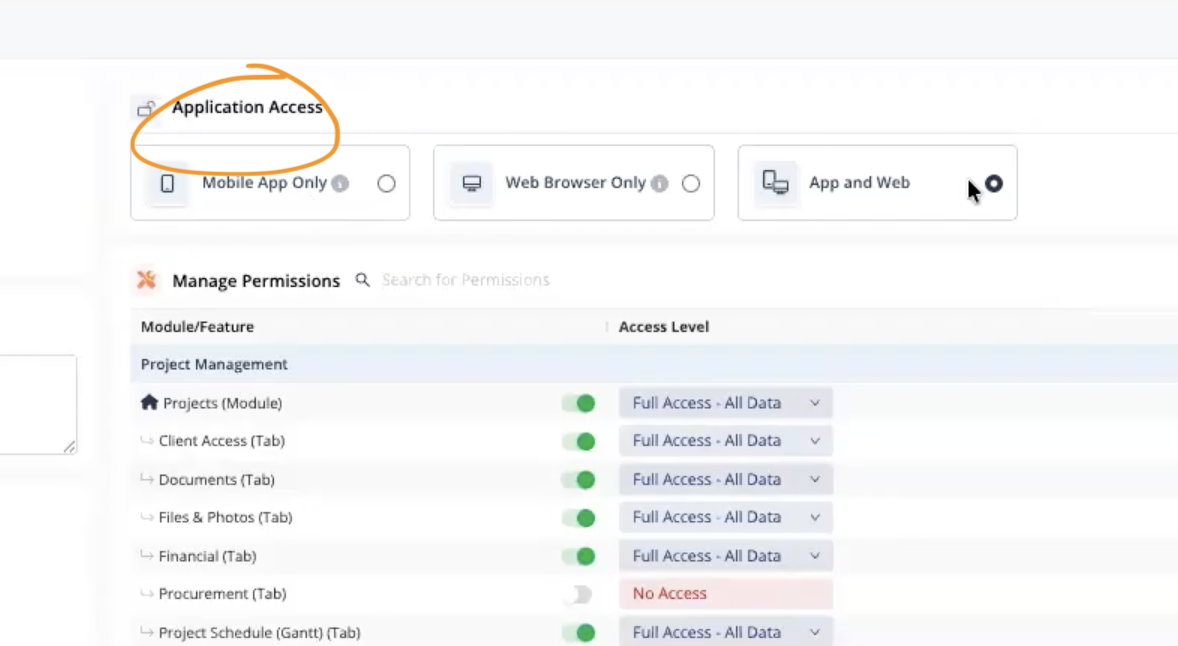
How this actually helps:
By tailoring access to each role, your team doesn’t have to navigate through parts of the software they don’t need. That means less time spent figuring out the app and more time focused on the actual job.
Modules Can Now Be Viewed by Category
If you used the previous system, you probably remember scrolling through a list of around 200 line items. With everything in one place, finding exactly what you were looking for could take some time.
Our solution:
We reorganized features into categories—like Project Management, Documents, and People—instead of keeping everything in one long list.
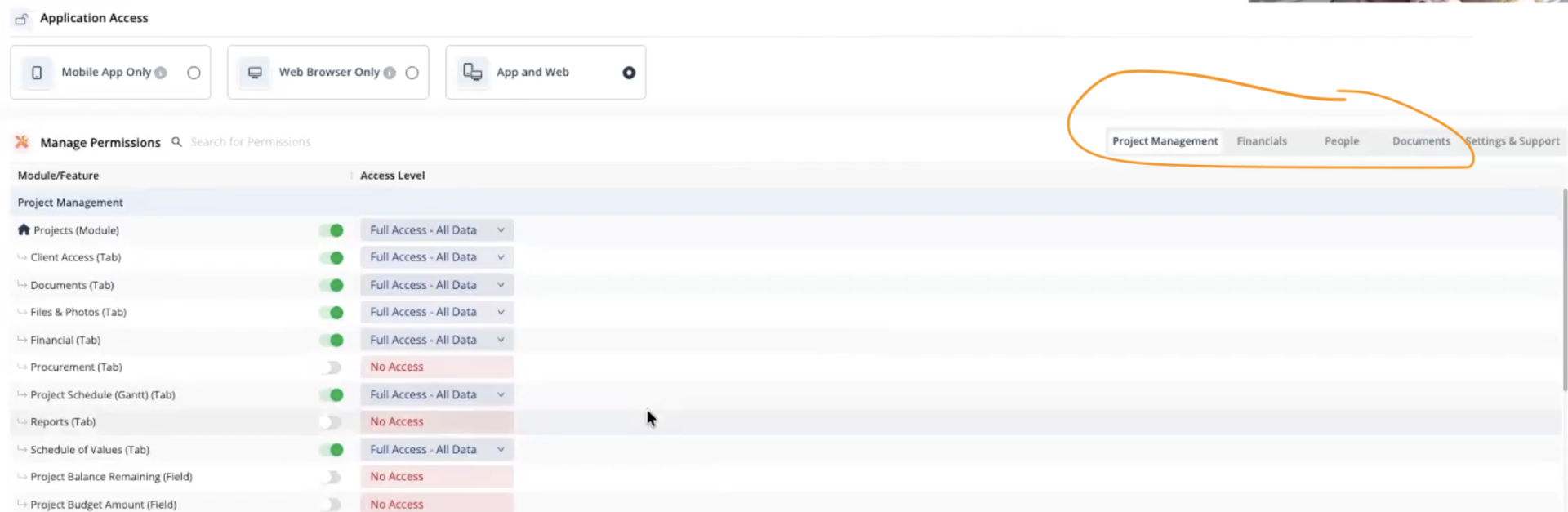
How this helps:
It’s now much easier to scan through the list, find the right category, and get to exactly what you’re looking for.
See the users assigned to each role
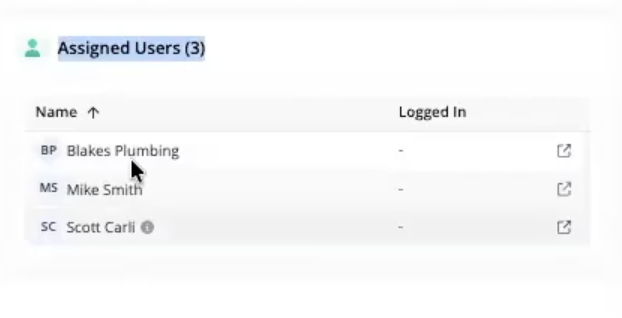
You can now see all the users assigned to a specific role. For example, if you open the Supervisor role, you can see everyone who currently has supervisor access.
How this helps:
This is especially useful when you have a lot of staff in Contractor Foreman. Instead of trying to remember who has access to what, you can open a role, see everyone assigned to it, and make changes from there if necessary.
2. Easier Cost Code Management
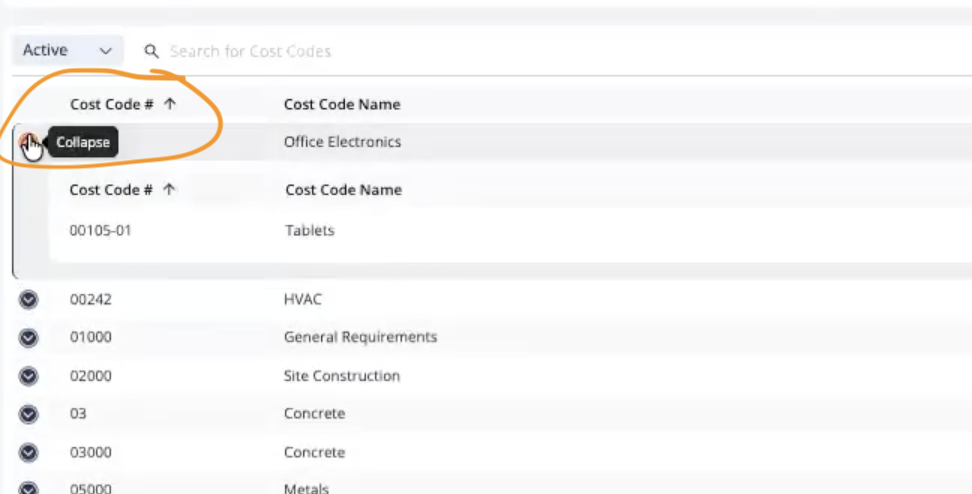
Contractor Foreman has also updated the Cost Codes UI to make managing cost codes a little less confusing—especially if you’re new to Contractor Foreman or coming from another system.
You can navigate your parent and child codes, add child cost codes, edit or revise codes, and archive the ones you no longer need. Basically, keeping your cost codes in order just got a little easier.
And if cost codes still have you scratching your head, go to Actions > Import/Export to CSV. From there, you can also watch Contractor Foreman’s cost code video or book a call with the training team to help set up your cost codes.
3. More Safety Meeting Topics + A Way to Create Your Own with AI
Under Safety Meetings, you can create a new safety meeting and choose from a library of existing topics.
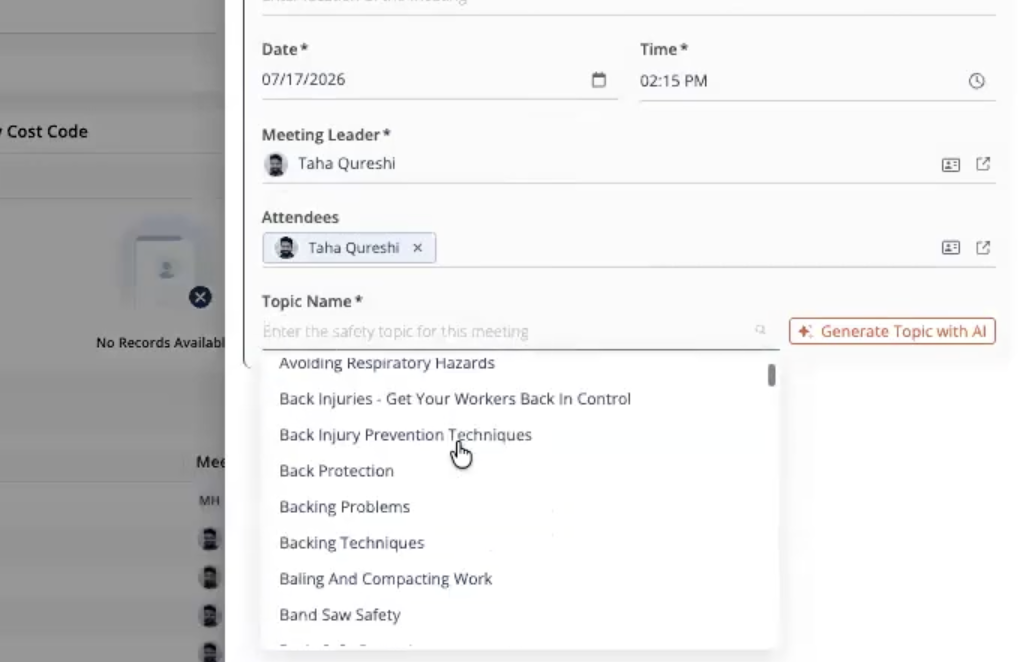
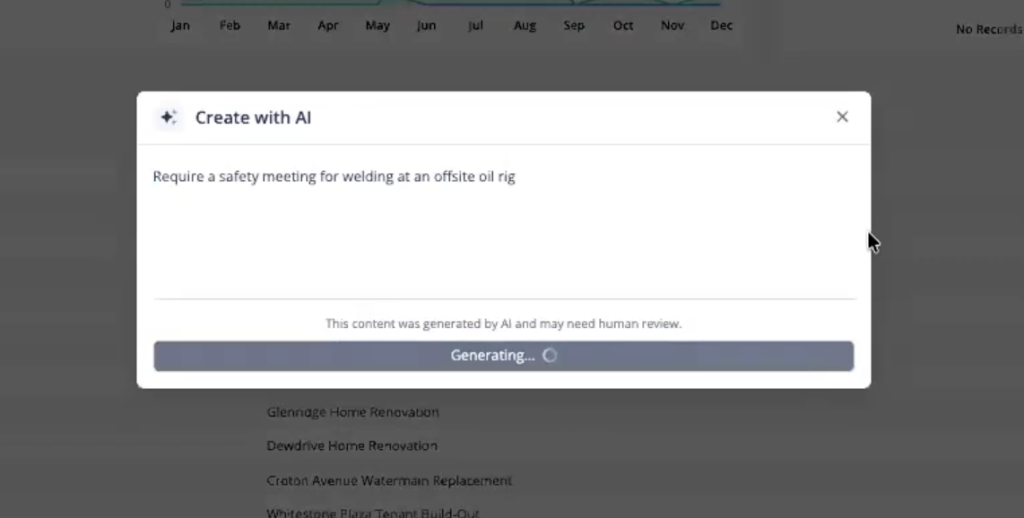
If none fit your situation, click Generate Topic with AI and describe the scenario (e.g., “welding at an offsite oil rig”). The AI will draft relevant safety meeting content that you can review, edit, and use. This is helpful for job- or site-specific hazards that aren’t covered by the standard topic library.
Note: For structured, repeatable checklists (e.g., a daily pre-made hazard checklist with checkboxes), the Checklist module is a better fit than Safety Meetings, since Safety Meetings doesn’t support custom form-building — only text-based topics.
4. Smarter Safety Photo Analysis with AI
In Daily Logs, hovering over an uploaded job site photo now shows a Perform AI Safety Analysis option.
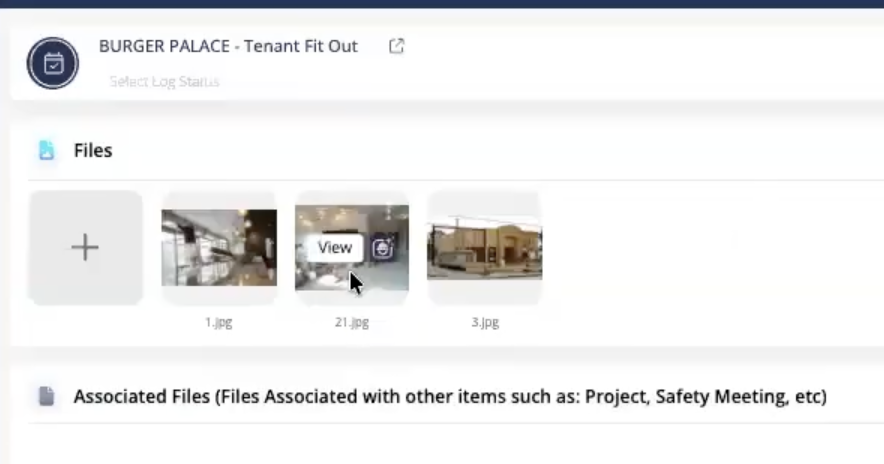
The AI reviews the photo for hazards like improper PPE use, incorrect ladder storage, and similar issues, and returns a written analysis. This is designed to speed up the manual process of reviewing daily log photos for safety compliance, letting you track site safety scores and trends over time.
Here’s what a review looks like:
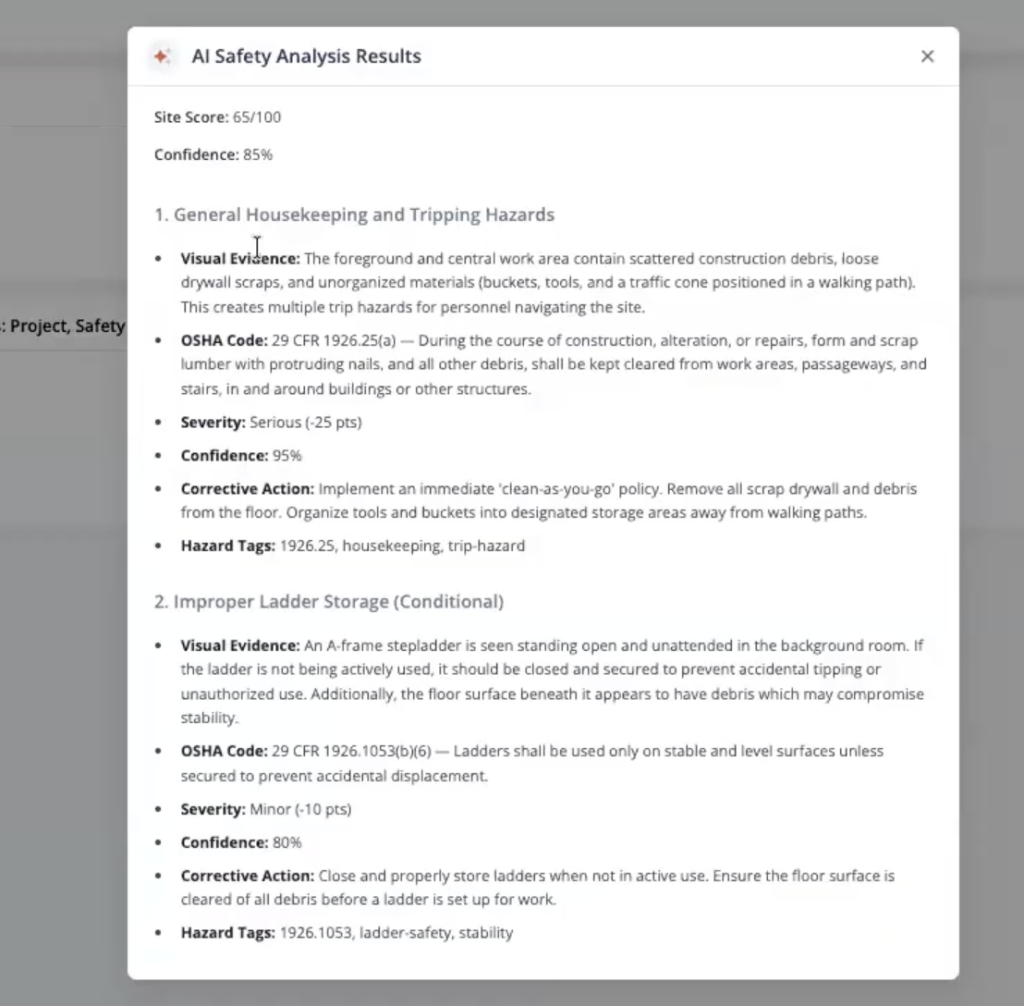
As always, we recommend reviewing each one manually, as AI can occasionally miss important details.
5. Easier Language Settings for Your Team
Language differences can sometimes make it harder for team members to navigate software and find what they need, especially when working with crews who speak different languages.
To make Contractor Foreman easier for more teams to use, CF has improved how language preferences are managed. When granting a user access in the Directory, you can now set their preferred language directly.
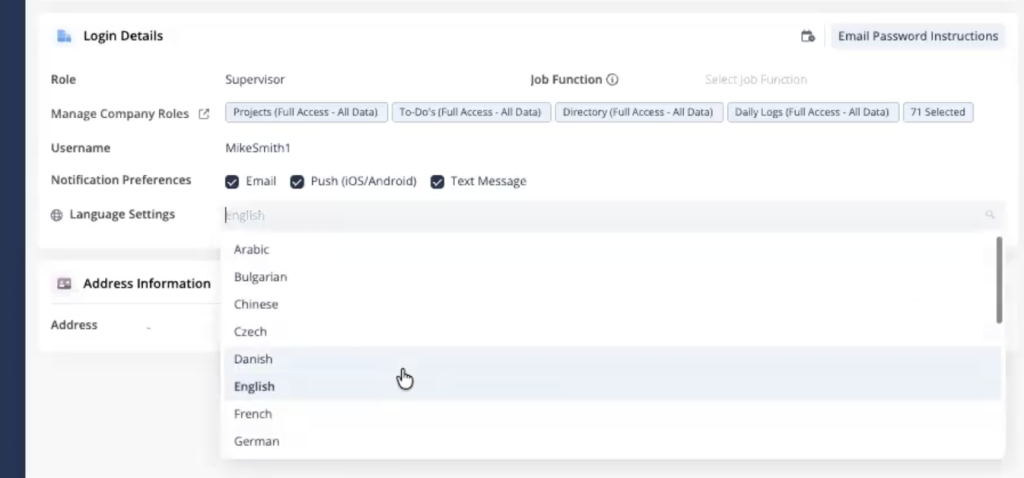
That user’s interface (menus, feature names, module labels) will load in their selected language as soon as they log in. This makes it easier to give each team member an experience that works for them from the start.
NOTE: this only translates the Contractor Foreman interface itself — it does not translate user-entered content (e.g., text written in a daily log stays in the language it was written in).
6. Faster Terms and Conditions with AI + Voice Input
Writing out detailed terms and conditions can take time, especially when you already know what you want to say but need to get it into writing. Contractor Foreman now gives you a faster way to get those details down without having to type everything out manually.
With Voice-to-Text, you can dictate your terms and conditions using a voice memo, and AI will clean up and format the text for you automatically.
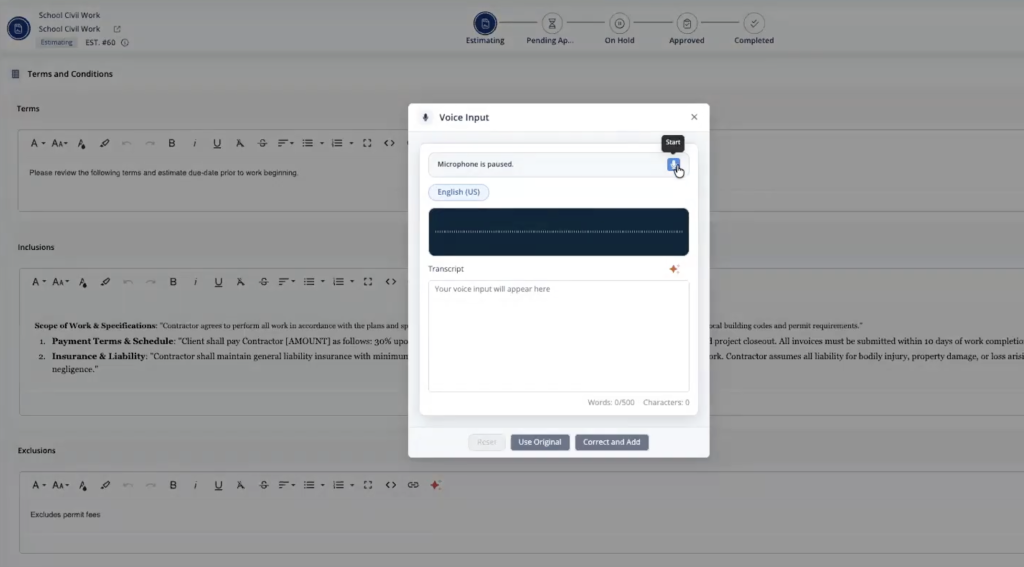
As with other AI features, we strongly suggest reviewing AI-generated content before finalizing it, as AI can occasionally miss or misinterpret important details.
7. A More Flexible Estimate Preview
Reviewing your estimate in the preview window used to be a little frustrating. The smaller window could make it harder to see everything clearly, especially when you wanted to take a closer look at the details.
Our solution?
We made the Estimate Preview window more flexible.
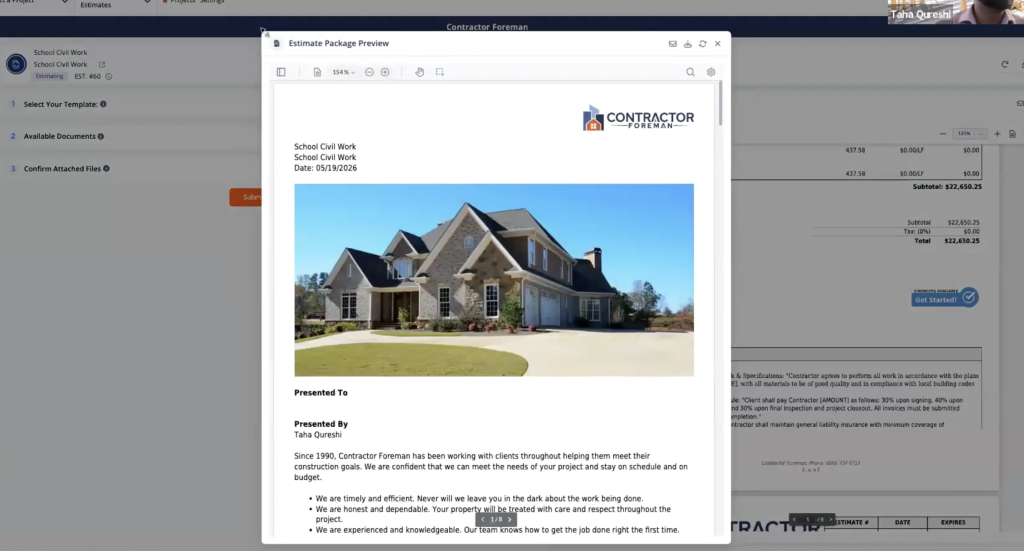
You can now drag it around your screen, resize it, expand or minimize it, and zoom in for a closer look.
With this update, you have more control over how you view your estimate, making it easier to read the details and review everything without being limited to the smaller side window.
8. A Clearer View of Your Project Finances
Project finances can get complicated quickly, especially when you’re managing several different types of transactions in one place. Having a clear view of the financial activity on a project makes it easier to understand where things stand without digging through a long list.
The Financial tab within a project has been improved to make it easier to see your Money In vs. Money Out at a glance.
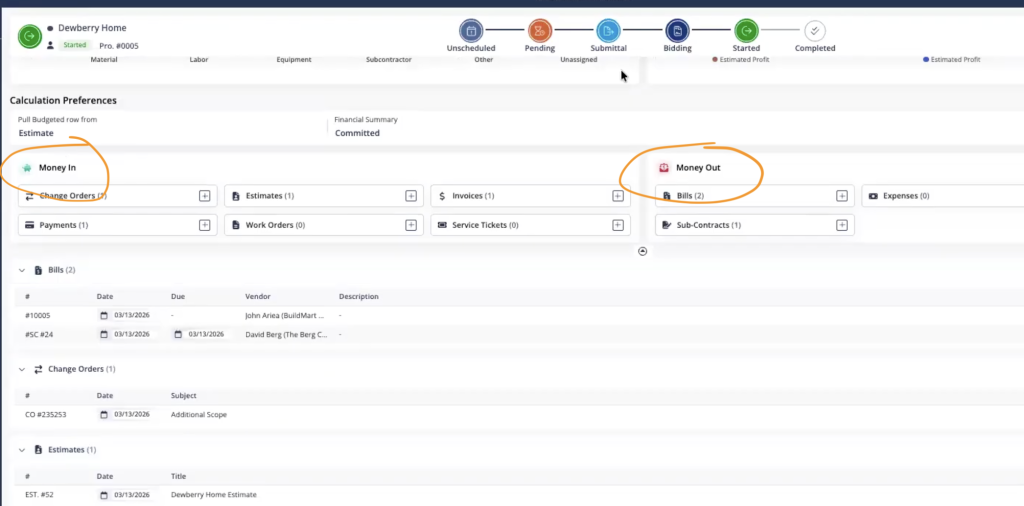
Change orders, estimates, and invoices are now grouped under Money In.
Bills, expenses, POs, and subcontracts are grouped under Money Out.
This gives you a quicker snapshot of where your project finances stand.
Have an idea for how we can make Contractor Foreman even better?
That’s all the changes for this quarter! We’re always working to tweak and improve Contractor Foreman to make your day-to-day work simpler and smoother.
Your feedback plays a big part in those improvements and helps shape what we work on next.
If you have an idea on how else we can improve, submit a suggestion directly in the app or email us.
Need personalized support?
Reach out to support@contractorforeman.com or connect with our team through live chat.
You can also schedule a one-on-one training session for account-specific questions, whether you need help with cost codes, templates, workflows, or anything else in Contractor Foreman.